EasyManua.ls Logo

Samsung BD-D5500 - Navigation and Playback Controls

Samsung BD-D5500
91 pages
Print Icon
To Next Page IconTo Next Page
To Previous Page IconTo Previous Page
Loading...
Basic
Functions
Using
the
Title
Menu
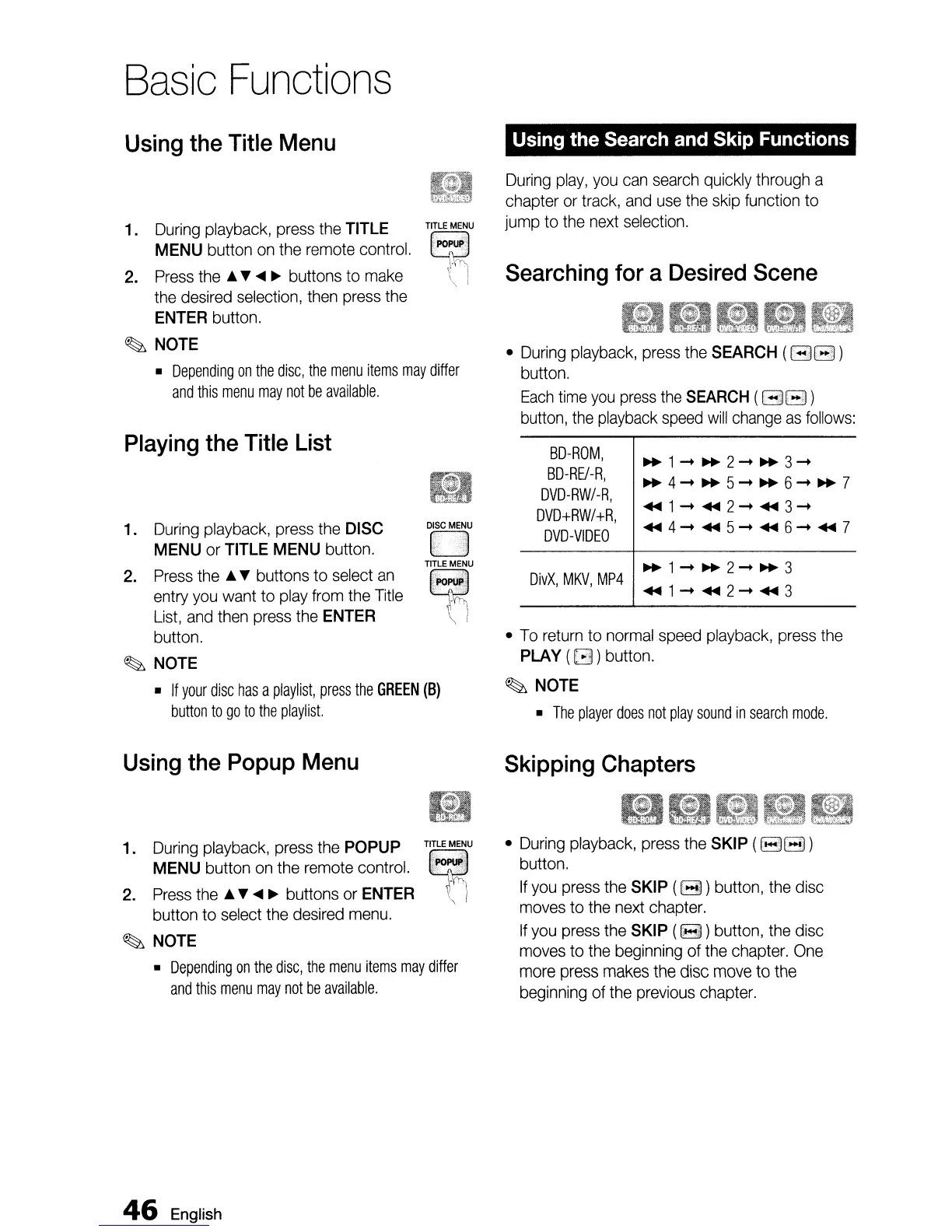
Using the Search and Skip Functions
Searching
for
a
Desired
Scene
~1-~2-~3
~4-~5-~6-~7
.....
1-
2-
3-
.....
4-
5-
6-
.....
7
~1-~2-~3
.....
1-
.....
2-
.....
3
DivX,
MKV,
MP4
•
During
playback,
press
the
SEARCH
(88)
button.
Each
time
you
press
the
SEARCH
(
88
)
button,
the
playback
speed
will
change
as
follows:
BD-ROM,
BD-RE/-R,
DVD-RW/-R,
DVD+RW/+R,
DVD-VIDEO
•
To
return
to
normal
speed
playback,
press
the
PLAY
(G)
button.
~
NOTE
•
The
player
does
not
play
sound
in
search
mode.
During
play,
you
can
search
quickly through a
chapter
or
track,
and
use
the
skip
function to
jump
to
the
next
selection.
Playing
the
Title
List
1.
During
playback,
press
the
TITLE
MENU
button
on
the
remote
control.
2.
Press
the
• T
....
~
buttons to
make
the
desired
selection,
then
press
the
ENTER
button.
~
NOTE
•
Depending
on
the
disc,
the
menu
items
may
differ
and
this
menu
may
not
be
available.
1.
During
playback,
press
the
DISC
MENU
or
TITLE
MENU
button.
2.
Press
the • T buttons to
select
an
entry
you
want
to
play
from
the
Title
List,
and
then
press
the
ENTER
button.
~
NOTE
•
If
your
disc
has
a
playlist,
press
the
GREEN
(B)
button
to
go
to
the
playlist.
Using
the
Popup
Menu
Skipping
Chapters
TITLE
MENU
~
;i
1.
During
playback,
press
the
POPUP
MENU
button
on
the
remote
control.
2.
Press
the
• T
....
~
buttons
or
ENTER
button to select
the
desired
menu.
~
NOTE
•
Depending
on
the
disc,
the
menu
items
may
differ
and
this
menu
may
not
be
available.
•
During
playback,
press
the
SKIP
(88)
button.
If
you
press
the
SKIP
(8)
button,
the
disc
moves
to
the
next
chapter.
If
you
press
the
SKIP
(8 )button,
the
disc
moves
to
the
beginning
of
the
chapter.
One
more
press
makes
the
disc
move
to
the
beginning
of
the
previous
chapter.
46
English

Table of Contents