~
NOTE
•
Depending
on
the
disc,
the
Tools
menu
may
differ.
2.
Press
the
A T buttons
to
select
Repeat
Mode.
3.
Press
the
....
~
buttons to select Chapter
or
Title,
then press the
ENTER
button.
4.
To
return to
normal
play,
press the
TOOLS
button
again.
5.
Press
the
A T buttons
to
select
Repeat
Mode.
6.
Press
the
....
~
buttons to select
Off,
then
press the
ENTER
button.
Repeating
the
Title
or
Chapter
Moving
to
a
Desired
Scene
Directly
To
repeat the disc title or chapter.
Depending
on
the disc, the Repeat function
may
not
be
available.
1.
During
playback, press the
TOOLS
button.
1.
During
playback, press the
TOOLS
button.
2.
Press
the A T buttons to select
Title
Search,
Chapter
Search,
or
Time
Search.
3.
Press
the
....
~
or number button to select
desired
Title,
Chapter or
Time,
then
press the
ENTER
button.
Slow Motion Play/Step Motion Play
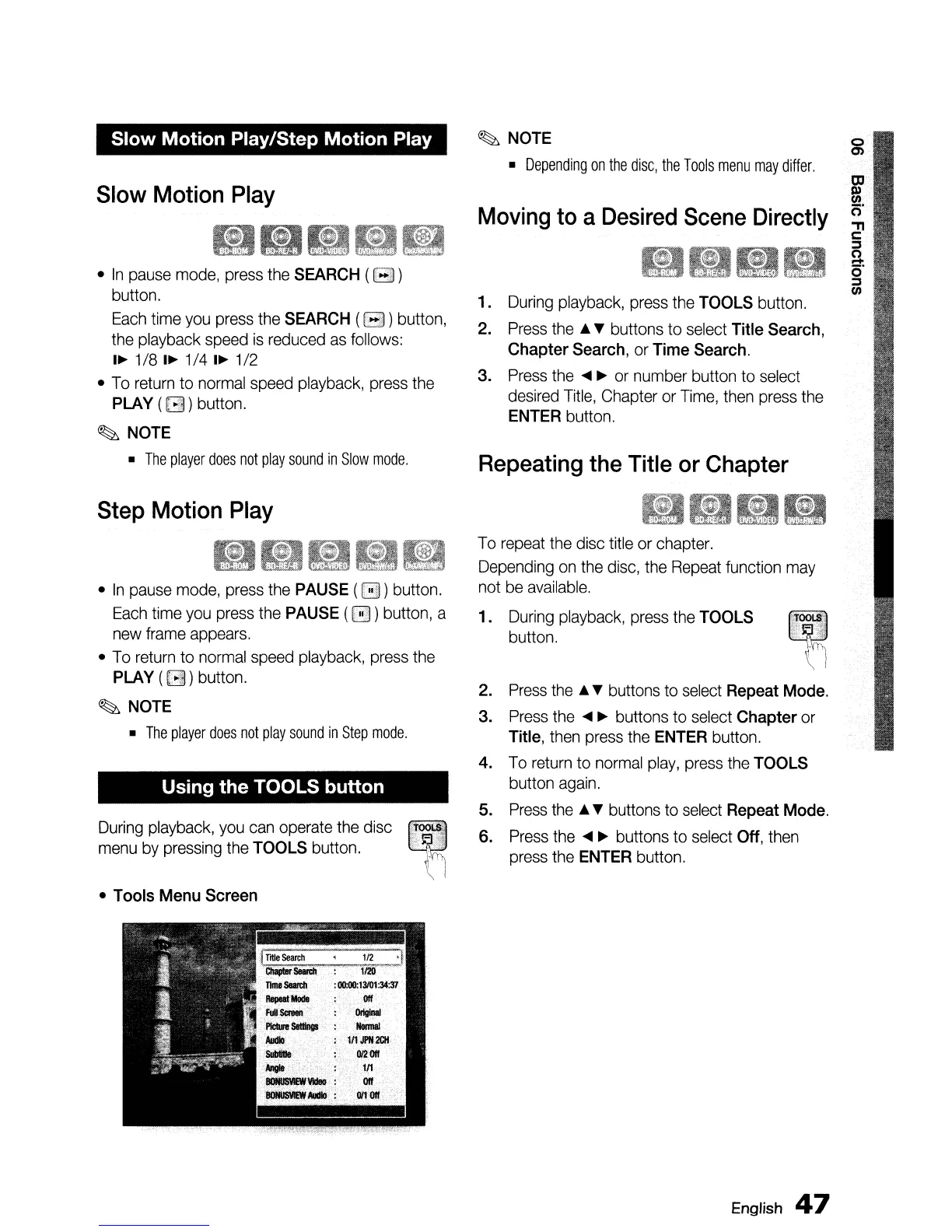
Using the TOOLS button
During
playback,
you
can
operate the disc
menu
by
pressing the
TOOLS
button.
•
In
pause mode, press the
PAUSE
(0)
button.
Each
time
you
press the
PAUSE
(0)
button, a
new
frame appears.
•
To
return to
normal
speed playback, press the
PLAY
(
GI
)button.
~
NOTE
•
The
player
does
not
play
sound
in
Step
mode.
Step
Motion
Play
•
In
pause mode, press the
SEARCH
(GD)
button.
Each
time
you
press the
SEARCH
(
GD
)button,
the playback speed
is
reduced
as
follows:
I~
1/8
I~
1/4
I~
1/2
•
To
return to
normal
speed playback, press the
PLAY
(
GI
)button.
~
NOTE
•
The
player
does
not
play
sound
in
Slow
mode.
Slow
Motion
Play
•
Tools
Menu
Screen
English
47




 To Next Page