EasyManua.ls Logo

Samsung BD-D5500 - Page 38

Samsung BD-D5500
91 pages
Print Icon
To Next Page IconTo Next Page
To Previous Page IconTo Previous Page
Loading...
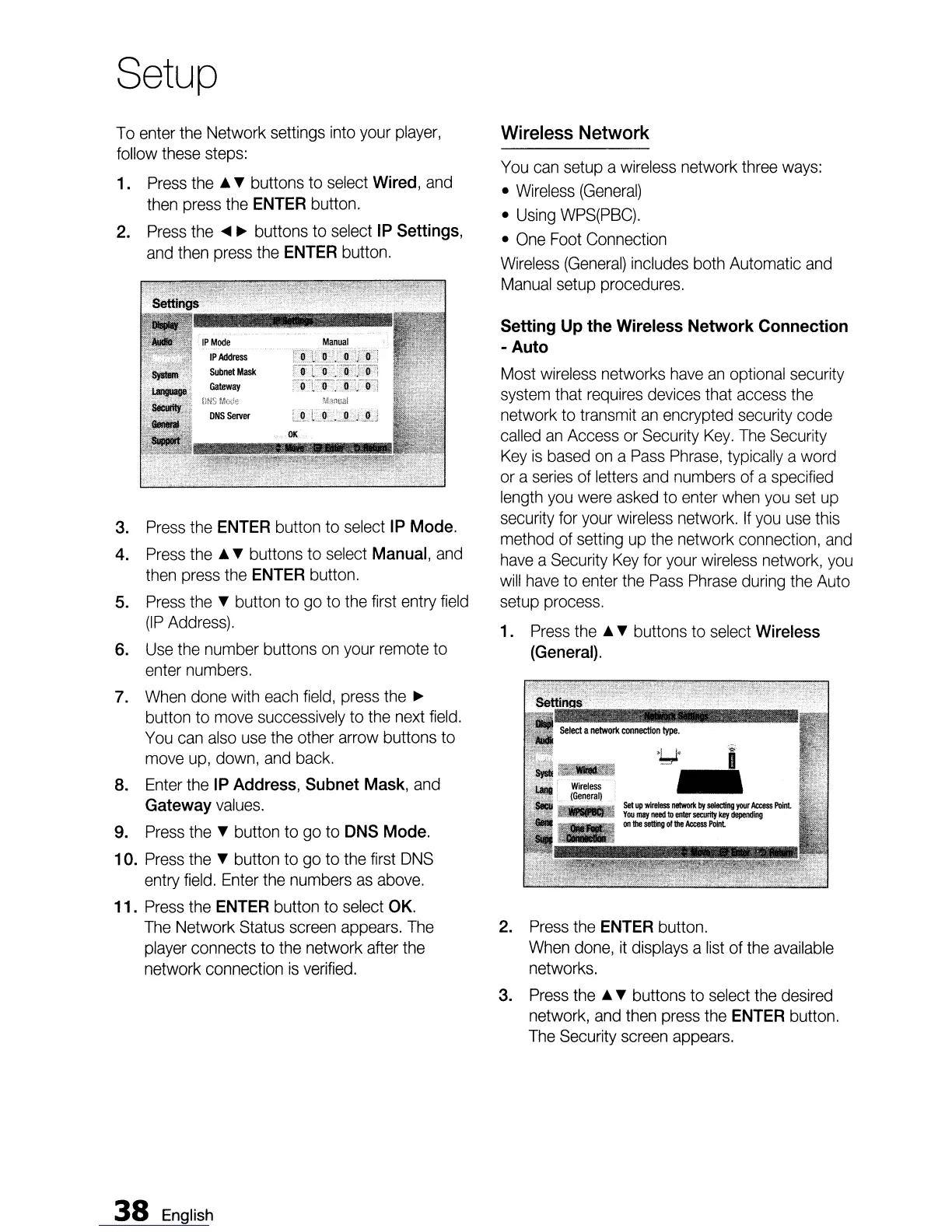
Setup
To
enter
the
Network settings
into
your
player,
follow
these
steps:
1.
Press
the
•
~
buttons to
select
Wired,
and
then
press
the
ENTER
button.
2.
Press
the
..... buttons to
select
IP
Settings,
and
then
press
the
ENTER
button.
3.
Press
the
ENTER
button to
select
IP
Mode.
4.
Press
the
•
~
buttons to
select
Manual,
and
then
press
the
ENTER
button.
5.
Press
the
~
button
to
go
to
the
first
entry
field
(IP
Address).
6.
Use
the
number buttons
on
your
remote
to
enter
numbers.
7.
When
done
with
each
field,
press
the.
button to
move
successively
to
the
next
field.
You
can
also
use
the
other
arrow
buttons to
move
up,
down,
and
back.
8.
Enter
the
IP
Address,
Subnet
Mask,
and
Gateway
values.
9.
Press
the
~
button to
go
to
DNS
Mode.
10.
Press
the
~
button
to
go
to
the
first
DNS
entry
field.
Enter
the
numbers
as
above.
11.
Press
the
ENTER
button
to
select
OK.
The
Network
Status
screen
appears.
The
player
connects
to
the
network after
the
network connection
is
verified.
38
English
Wireless
Network
You
can
setup a
wireless
network
three
ways:
•
Wireless
(General)
•
Using
WPS(PBC).
•
One
Foot
Connection
Wireless
(General)
includes
both
Automatic
and
Manual
setup procedures.
Setting
Up
the
Wireless
Network Connection
-
Auto
Most
wireless
networks
have
an
optional
security
system
that
requires
devices
that
access
the
network to transmit
an
encrypted
security
code
called
an
Access
or
Security
Key.
The
Security
Key
is
based
on
a
Pass
Phrase,
typically a word
or
a
series
of
letters
and
numbers
of a
specified
length
you
were
asked
to
enter
when
you
set
up
security
for
your
wireless
network.
If
you
use
this
method
of
setting
up
the
network connection,
and
have
a
Security
Key
for
your
wireless
network,
you
will
have
to
enter
the
Pass
Phrase
during
the
Auto
setup
process.
1.
Press
the
•
~
buttons
to
select
Wireless
(General).
2.
Press
the
ENTER
button.
When
done,
it
displays
a
list
of
the
available
networks.
3.
Press
the
•
~
buttons to
select
the
desired
network,
and
then
press
the
ENTER
button.
The
Security
screen
appears.

Table of Contents