EasyManua.ls Logo

Samsung BD-D5500 - Smart Hub Management

Samsung BD-D5500
91 pages
Print Icon
To Next Page IconTo Next Page
To Previous Page IconTo Previous Page
Loading...
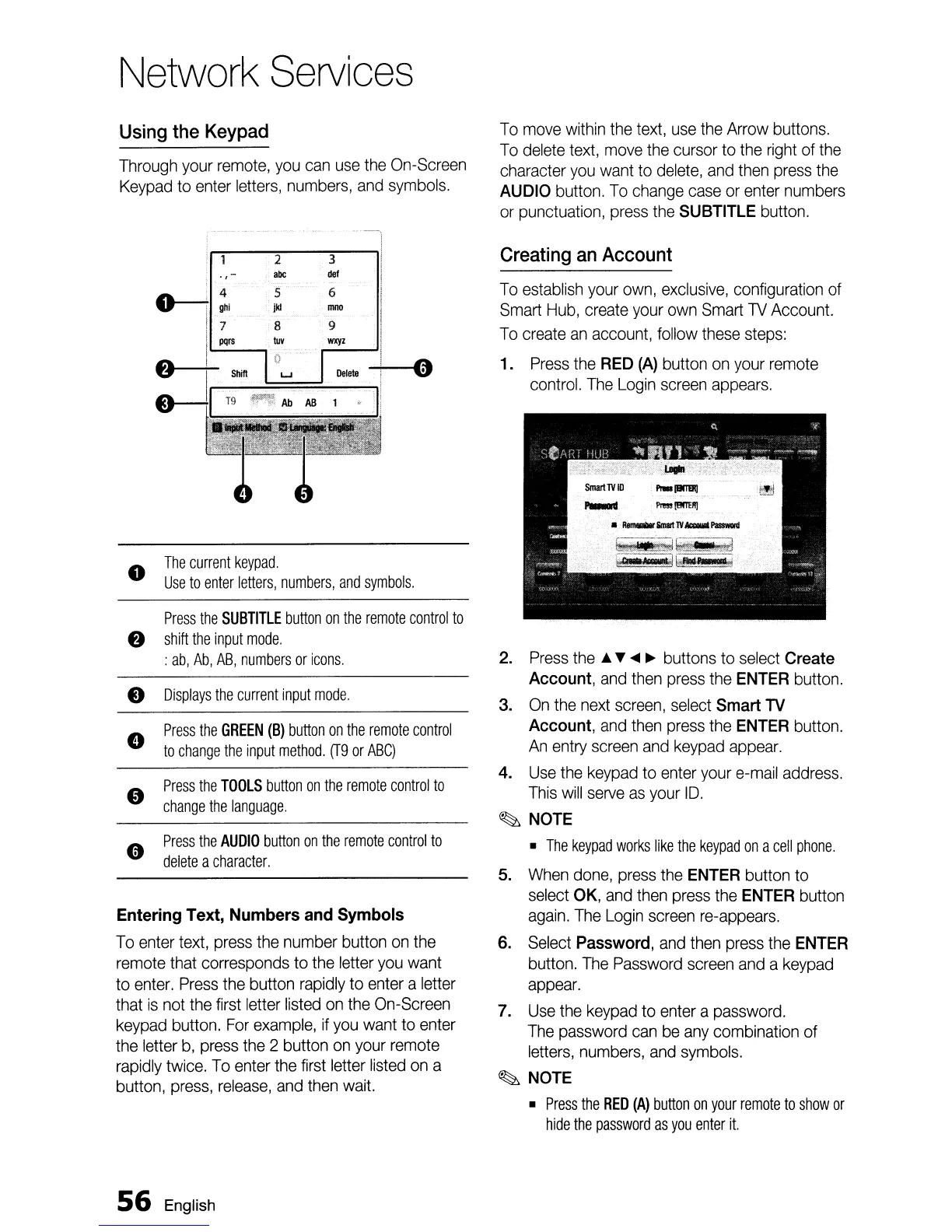
Network
Services
Using
the
Keypad
Through
your
remote,
you
can
use
the
On-Screen
Keypad
to
enter
letters,
numbers,
and
symbols.
To
move
within
the
text,
use
the
Arrow
buttons.
To
delete
text,
move
the
cursor
to
the
right
of
the
character
you
want
to
delete,
and
then
press
the
AUDIO
button.
To
change
case
or
enter
numbers
or
punctuation,
press
the
SUBTITLE
button.
Creating
an
Account
To
establish
your
own,
exclusive,
configuration of
Smart
Hub,
create
your
own
Smart
lV
Account.
To
create
an
account, follow
these
steps:
1
Press
the
RED
(A)
button
on
your
remote
control.
The
Login
screen
appears.
2.
Press
the
.i. ......
~
buttons to
select
Create
Account,
and
then
press
the
ENTER
button.
3.
On
the
next
screen,
select
Smart
TV
Account,
and
then
press
the
ENTER
button.
An
entry
screen
and
keypad
appear.
4.
Use
the
keypad
to
enter
your
e-mail
address.
This
will
serve
as
your
ID.
~
NOTE
The
keypad
works
like
the
keypad
on
a
cell
phone.
5.
When
done,
press
the
ENTER
button to
select
OK,
and
then
press
the
ENTER
button
again.
The
Login
screen
re-appears.
6.
Select
Password,
and
then
press
the
ENTER
button.
The
Password
screen
and
a
keypad
appear.
7.
Use
the
keypad
to
enter
a password.
The
password
can
be
any
combination of
letters,
numbers,
and
symbols.
~
NOTE
Press
the
RED
(A)
button
on
your
remote
to
show
or
hide
the
password
as
you
enter
it.
3
del
6
moo
9
wxyz
0
Delete
AB
1
"
Press
the
TOOLS
button
on
the
remote
control
to
change
the
language.
o
Press
the
AUDIO
button
on
the
remote
control
to
delete
a
character.
2
abC
4 5
D----t
ghi
jkI
I
:rs
~v
f)
II
Shill
w
&---11
T9
~l'~ll
Ab
The
current
keypad.
o
Use
to
enter
letters,
numbers,
and
symbols.
8
Press
the
GREEN
(B)
button
on
the
remote
control
to
change
the
input
method.
(T9
or
ABC)
e
Displays
the
current
input
mode.
Press
the
SUBTITLE
button
on
the
remote
control
to
8
shift
the
input
mode.
:
ab,
Ab,
AB,
numbers
or
icons.
Entering Text, Numbers
and
Symbols
To
enter
text,
press
the
number button
on
the
remote
that corresponds to
the
letter
you
want
to
enter.
Press
the
button
rapidly
to
enter
a letter
that
is
not
the
first letter
listed
on
the
On-Screen
keypad
button.
For
example,
if
you
want to
enter
the letter
b,
press
the
2 button
on
your
remote
rapidly
twice.
To
enter
the
first
letter
listed
on
a
button,
press,
release,
and
then
wait.
56
English

Table of Contents

Other manuals for Samsung BD-D5500

Related product manuals