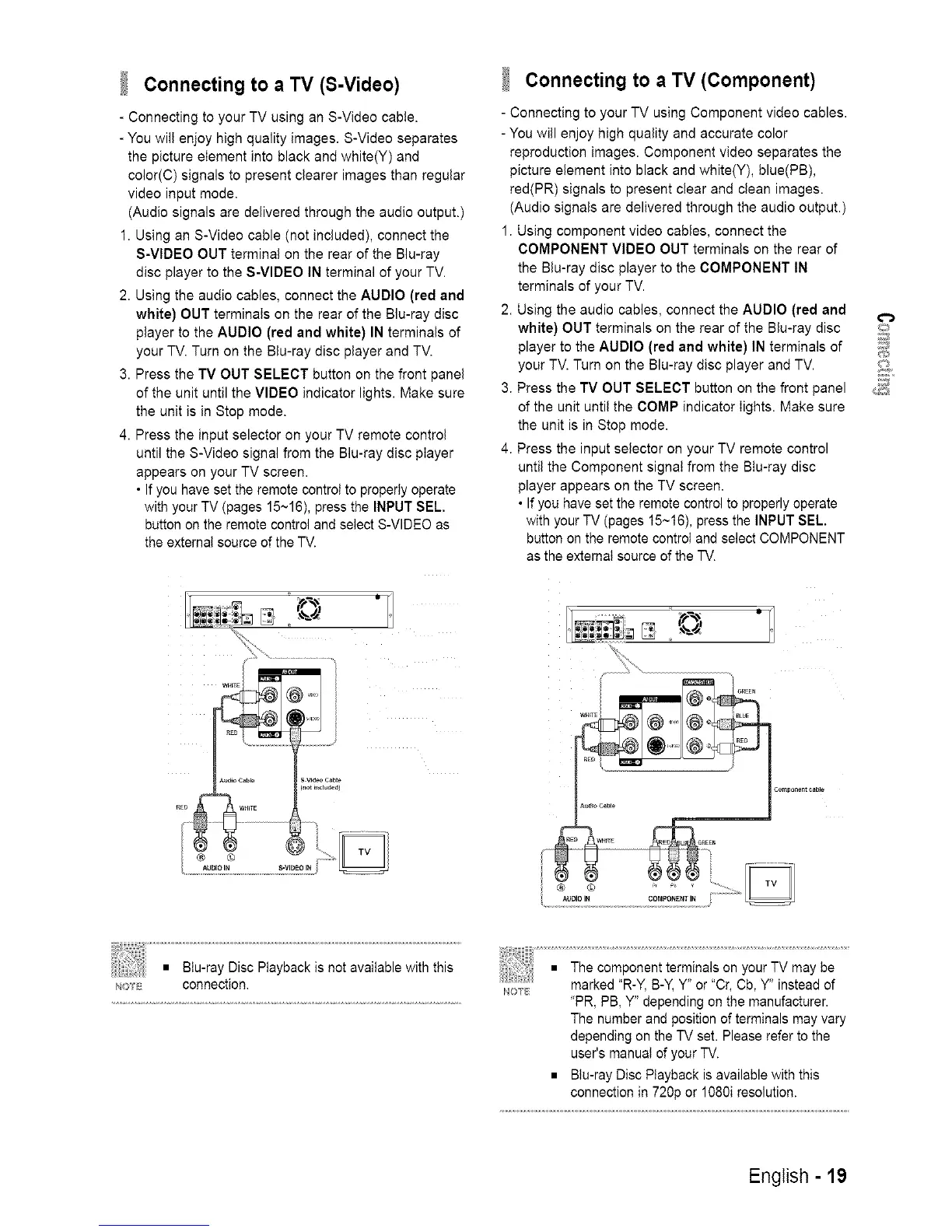
Connecting to a TV (S-Video)
- Connecting to your TV using an S-Video cable.
- You will enjoy high quality images. S-Video separates
the picture element into black and white(Y) and
color(C) signals to present clearer images than regular
video input mode.
(Audio signals are delivered through the audio output.)
1. Using an S-Video cable (not included), connect the
S-VIDEO OUT terminal on the rear of the Blu-ray
disc player to the S-VIDEO IN terminal of your TV.
2. Using the audio cables, connect the AUDIO (red and
white) OUT terminals on the rear of the Blu-ray disc
player to the AUDIO (red and white} IN terminals of
your TV. Turn on the Blu-ray disc player and TV.
3. Press the TV OUT SELECT button on the front panel
of the unit until the VIDEO indicator lights. Make sure
the unit is in Stop mode.
4. Press the input selector on your TV remote control
until the S-Video signal from the Blu-ray disc player
appears on your TV screen.
• If you have set the remote control to properly operate
with your TV (pages 15~16), press the INPUT SEL.
button on the remote control and select S-VIDEO as
the external source of the TV.
Connecting to a TV (Component)
- Connecting to your TV using Component video cables.
- You will enjoy high quality and accurate color
reproduction images. Component video separates the
picture element into black and white(Y), blue(PB),
red(PR) signals to present clear and clean images.
(Audio signals are delivered through the audio output.)
1. Using component video cables, connect the
COMPONENT VIDEO OUT terminals on the rear of
the Blu-ray disc player to the COMPONENT IN
terminals of your TV.
2. Using the audio cables, connect the AUDIO (red and
white} OUT terminals on the rear of the Blu-ray disc
player to the AUDIO (red and white) IN terminals of
your TV. Turn on the Blu-ray disc player and TV.
3. Press the TV OUT SELECT button on the front panel
of the unit until the COMP indicator lights. Make sure
the unit is in Stop mode.
4. Press the input selector on your TV remote control
until the Component signal from the Btu-ray disc
player appears on the TV screen.
• If you have set the remote control to properly operate
with your TV (pages I5~16), press the INPUT SEL.
button on the remote control and select COMPONENT
as the external source of the TV.
O
_s
NO_E connection.
NOS_
"PR, PB, Y" depending on the manufacturer.
The number and position of terminals may vary
depending on the TV set. Please refer to the
user's manual of your TV.
• BIu-ray Disc Playback is available with this
connection in 720p or 1080i resolution.
English - 19






 To Next Page