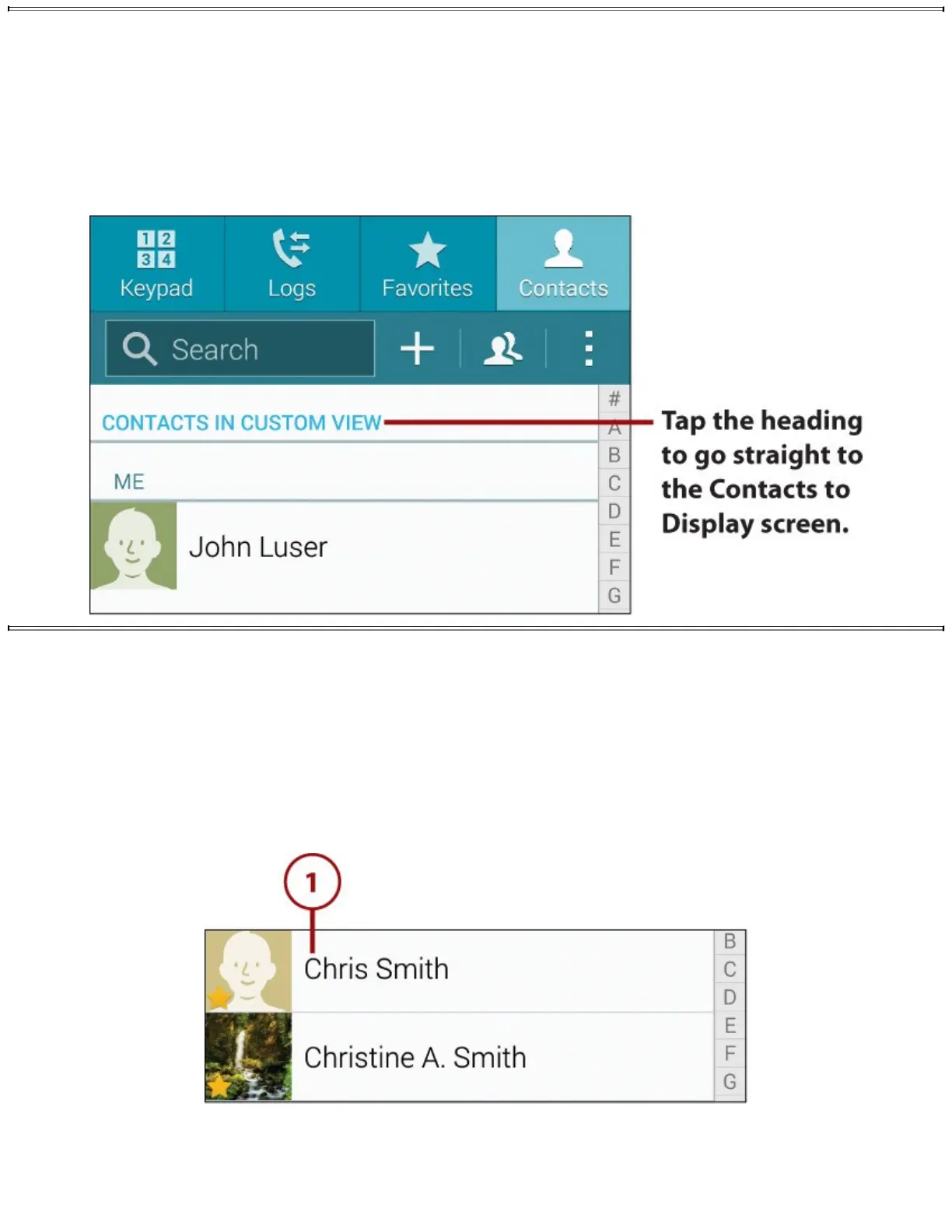
TheQuickWaytotheContactstoDisplayScreen
AfteryouusetheContactstoDisplayscreentochooseacontactselectionotherthanAll
Contacts,theContactsscreendisplaysaheadingtoindicatewhichcontactsyou’reviewing.For
example,theheadingshowsContactsinCustomViewwhenyouhavechosentheCustomized
Listoption;whenyouchooseanaccount,theheadingshows“Contactsin”andtheaccountname.
YoucantapthisheadingtojumpstraighttotheContactstoDisplayscreen,enablingyouto
changethecontactselectioneasily.
LinkandUnlinkContacts
AsyouaddcontactstoyourGalaxyNote4,theyareautomaticallylinkedifthenewcontactname
matchesanamethat’salreadystored.Sometimesyouneedtomanuallylinkcontactsorunlinkthemif
yourGalaxyNote4hasjoinedtheminerror.
LinkContactsManually
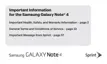
1.IntheContactsapp,tapthecontactyouwanttolinkacontactto.Thecontactrecordopens.
2.TaptheMenubutton.
3.TapLinkContactstodisplaytheLinkContactscreen.TheSuggestionslistshowscontactsin
whichContactshasfoundapparentlysuitabledata,butyoucanchooseacontactfromthemain
listifnecessary.







 To Next Page