Compose and Send Email
Compose and send email using any account you have set up on your phone. Increase your productivity
by attaching files such as pictures, videos, or documents to your email messages.
1.
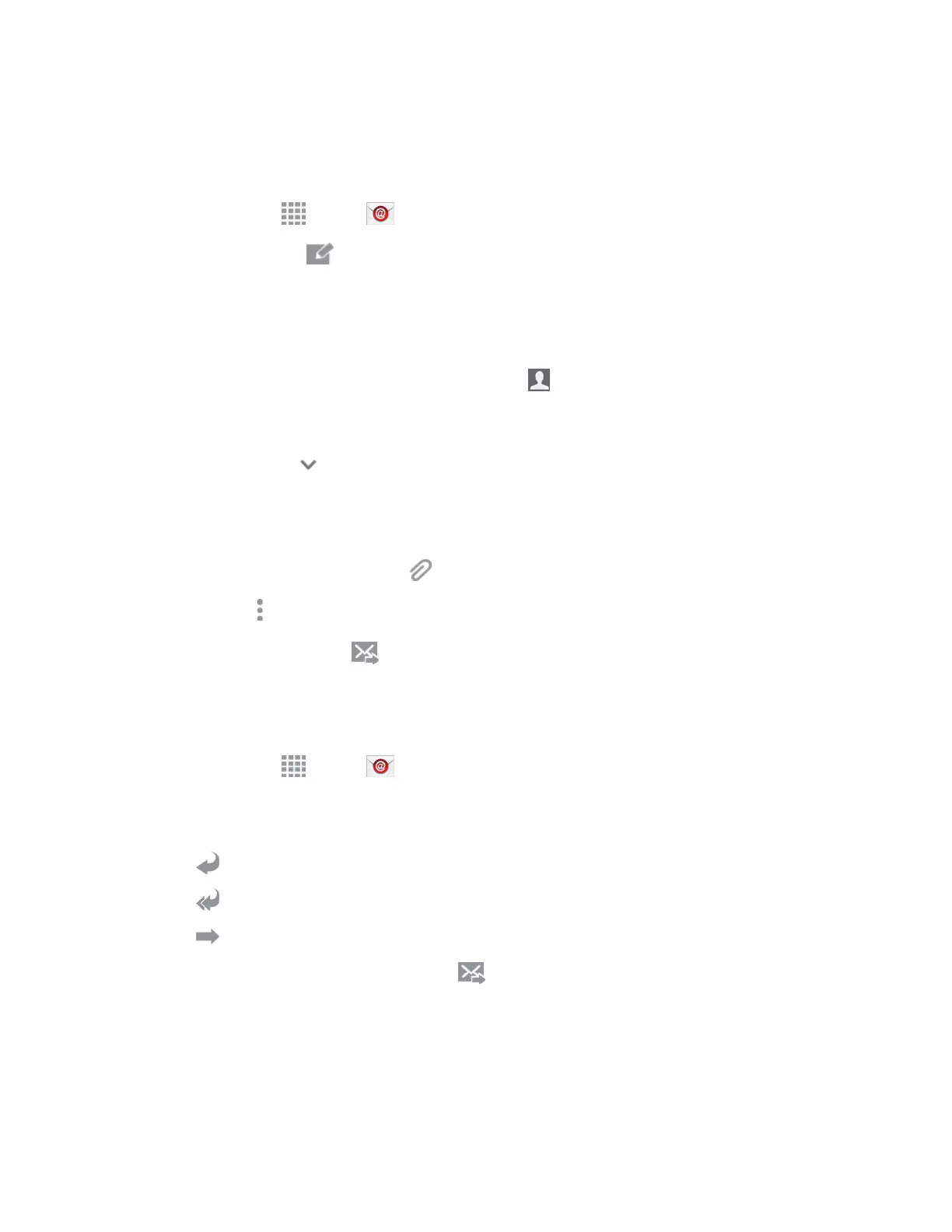
From home, tap
Apps
>
Em
ail.
2. From the Inbox, tap
Compose.
3. Tap fields t
o compose your message:
Tap the To
field and enter the recipient’s
email address. You can add multiple message
recipients.
•
To select recipients from your Contacts, tap
Contacts,
select desired recipients, and
tap Done.
To send a carbon copy (Cc) or a blind carbon copy (Bcc) of the current email to other
recipients, tap
Expand, and then tap Cc
or
Bcc.
Tap the Subject
field
and enter the email subject.
Tap the text entry
field and compose your email.
•
To add an attachment, tap
and select an attachment category.
• Tap
More options for a
dditional options.
4. To send the message, tap
Send.
Reply To or Forward Email
Reading and replying to email on your phone is as simple as on your computer.
1.
From home, tap Apps > Email.
2. On the email account Inbox, tap a message to view it.
3.
Choose an option:
Reply: Send a message to the original sender.
Reply all: Send a reply to the original recipient list.
Forward: Send the message to new recipient(s).
4. Enter
a message (if desired) and then tap
Send
.
Accounts and
Messaging 69








 To Next Page