Computer
1
Video Input
35
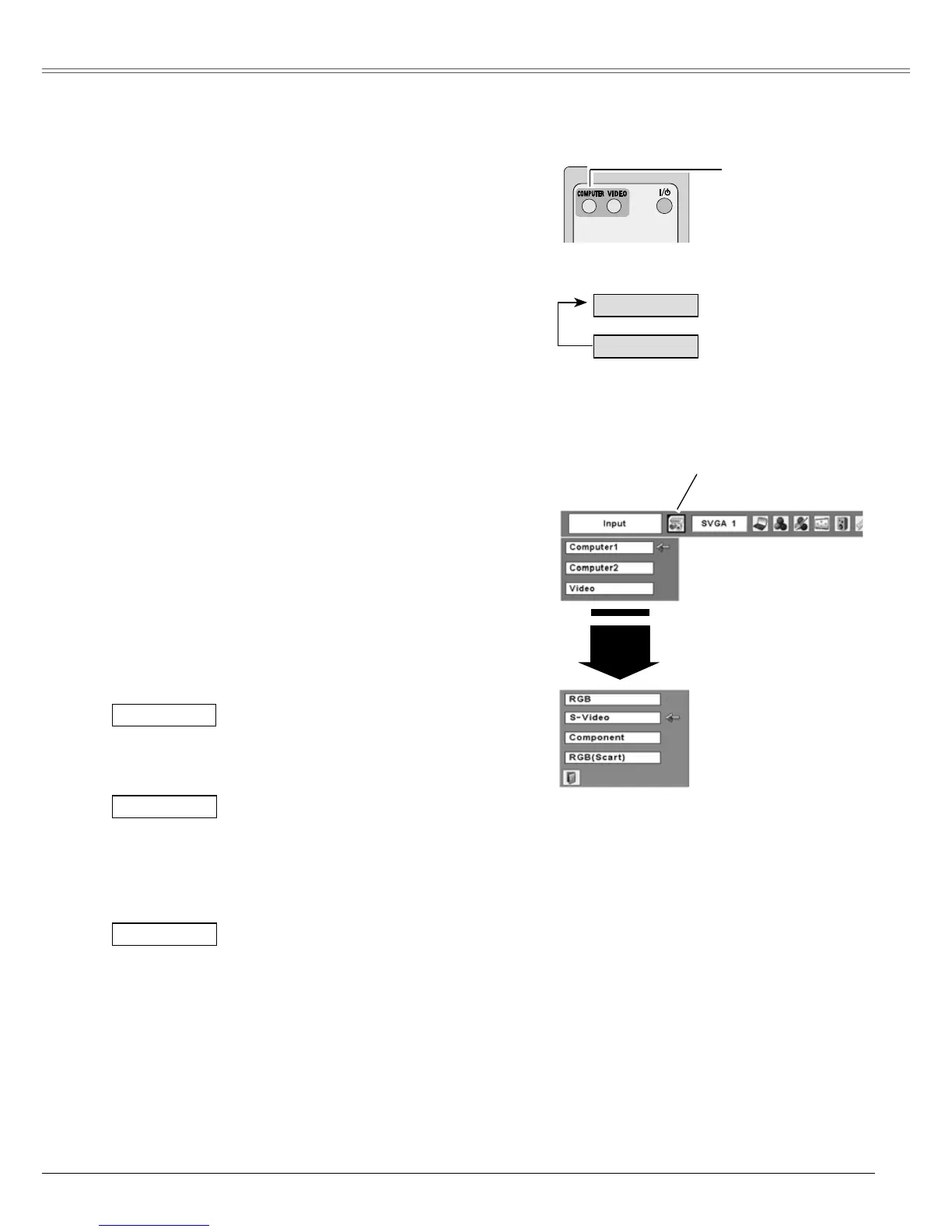
COMPUTER button
Remote Control
COMPUTER button
Choose Computer 1 by pressing the COMPUTER
button on the remote control.
Before using this button, correct input source should be
selected through Menu operation as described below.
Input Source Selection (S-Video, Component, RGB Scart 21-pin)
Direct Operation
Press the Point ▲▼ buttons to move the red arrow
pointer to Computer 1 and then press the SELECT
button.
After the Source Select Menu appeared for
Compu t er 1 , m o ve t he pointe r to S-Video,
Component or RGB (Scart) and then press the
SELECT button.
1
2
3
Menu Operation
Press the MENU button to display the On-Screen
Menu. Press the Point ◄► buttons to move the
red framed pointer to the Input Menu icon.
When the input source is coming
from video e quipment connected
to the COMPUTER IN 1/S-VIDEO
IN/COMPONENT IN terminal with
a C o mponent- V G A C a ble, select
Component.
When the input source is coming
from video equipment connected to
the COMPUTER IN 1/S-VIDEO IN/
COMPONENT IN terminal with a Scart-
VGA Cable, select RGB (Scart).
Component
RGB (Scart)
Input Menu
Input Menu icon
Move the pointer to
S-Video, Component or
RGB (Scart) and press the
SELECT button.
Source Select Menu
Note:
• When the Input Search function is set On1 or On2,
the input signal will be searched automatically
(p.45)
• When Monitor out is selected in the Terminal
function (p.45), Computer 2 is not displayed.
Move the pointer (red
arrow) to Computer 1 and
press the SELECT button.
W h e n S - v i d e o i n p u t s i g n a l i s
connected to the COMPUTER IN
1/S-VIDEO IN/COMPONENT IN jack,
select S-Video.
S-Video
Computer 1
Computer 2
See Note at the bottom of this page.


 To Next Page