12
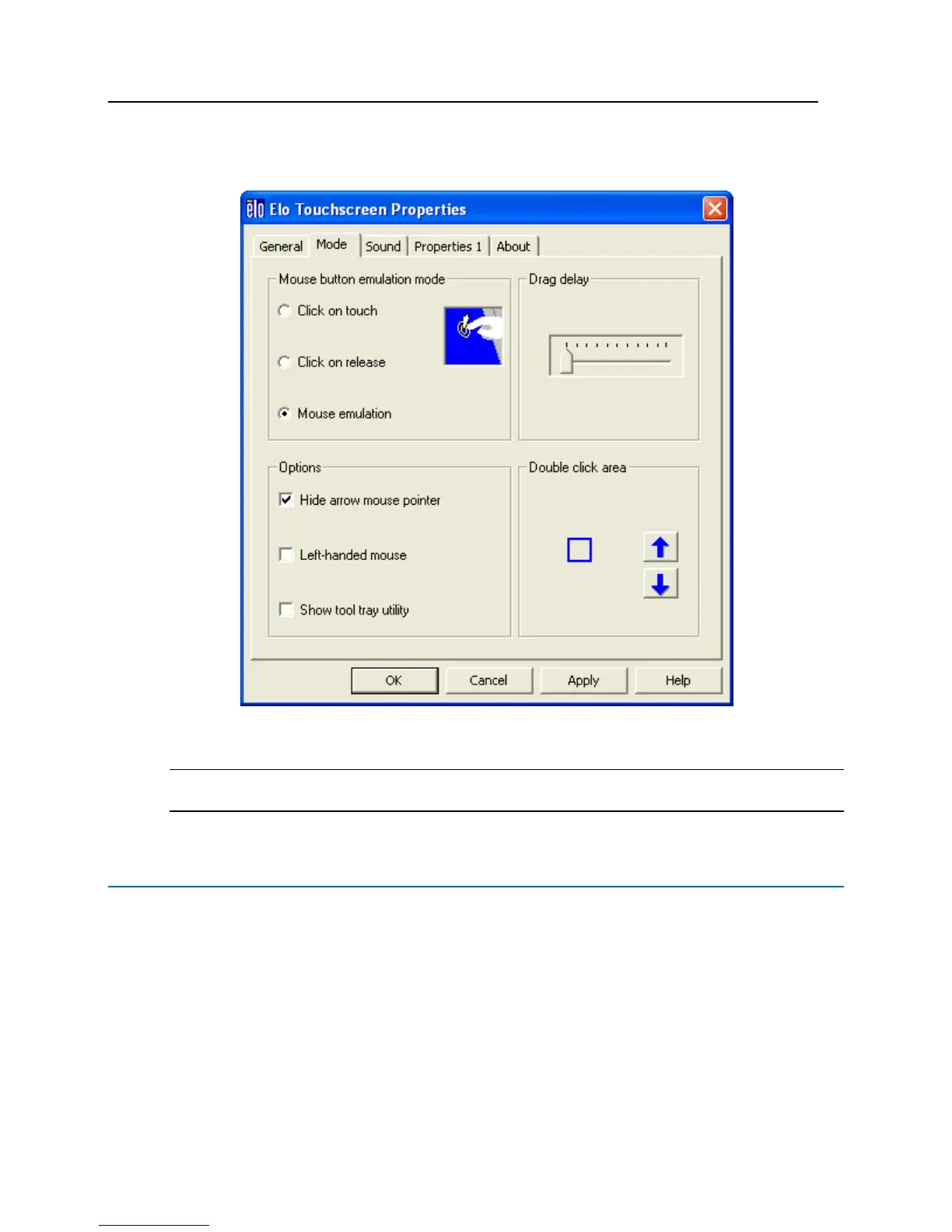
a) Open the Mode tab.
b) Click on the
Hide Arrow Mouse Pointer box in the Options section. This puts a check in this box.
c) Arrow Mouse Pointer is now disabled
Note: The Hide Arrow Mouse Pointer option will remove the cursor from the screen, making it much harder
to navigate during set up. This should be completed as the final step in setting up the kiosk.
Filling the Temporary Card Dispenser
Follow the instructions below to fill the temporary card dispenser.
1 Unlock the screen housing with the keys provided with the kiosk. The locks are located on the sides of the
kiosk in the upper left and the upper right sides of the screen housing.
2 Tilt the screen housing down towards you. Inside are the temporary card dispenser and the card encoder.
The temporary card dispenser is on the left.
3 Orient the temporary cards so that the magnetic stripe is facing down and on the right side.
4 Insert a stack of cards into the dispenser through the top bracket.
5 Insert more cards until they reach the top of the dispenser.
6 Close and re-lock the screen housing.


 To Next Page