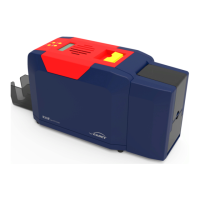
Seaory S21 Desktop Single-sided Card Printer
Excellent quality, Perfect service
www.seaory.com 50 / 51
12. FAQ
12.1 When card print no action
Verify that the card printer driver is installed correctly
Check power and USB cable connections
Check ribbons and cards
Print test picture
12.2 When print out the blank card
Check ribbons and cards
Please reset the card printer’s parameters by driver (Print option – Tool - -
Position Calibrate - Reset to factory default ) Or adjust the L,T and S value
Try to print again after adjust
Check whether the printing card is CR-80 standard
12.3 When partial or error printing
Check the card printer’s setting
Check the cable and ribbon
Make sure the cleaning roller is clean
Check the card is clean or not
Check the print head
12.4 When the printed card has a defect
The card surface is not clean
Please clean the card printer by cleaning card
Print head is not clean or damaged, need to wipe cleaning or replace
Check whether the cleaning roller need to replace
12.5 When the printed card appears white line
Check whether the ribbon is proper installed
Check whether the print head is not clean or damaged


 To Next Page