Rostock MAX v2 User's Guide
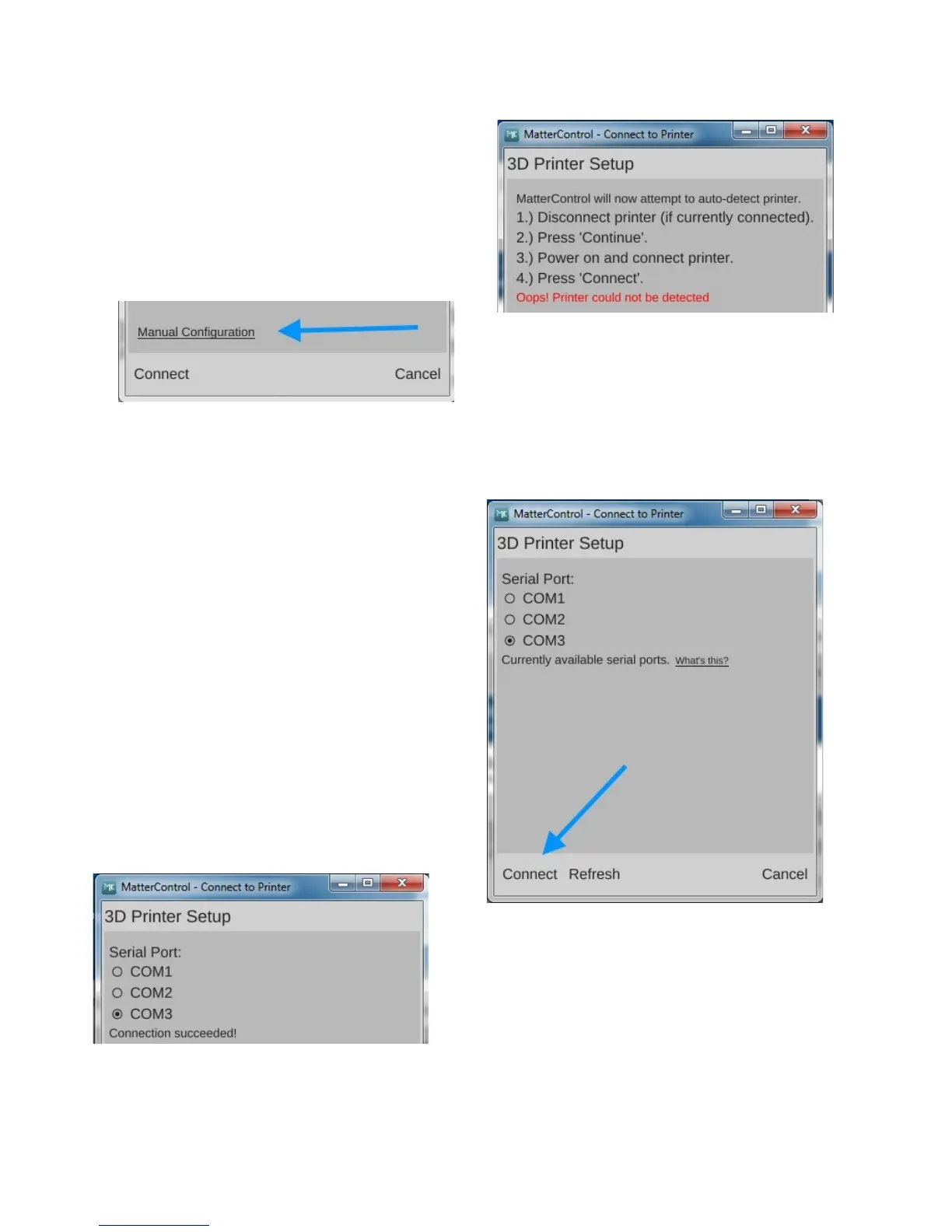
If for some reason MatterControl cannot “see”
the Rostock MAX v2, you may see an error like the
one shown on the right.
If you do get this error, click on the “Manual
Configuration” link at the bottom of the dialog box.
The Manual Configuration link will bring up a dialog box that allows you to choose which
communication port your printer is connected to.
You'll be presented with a list of the serial
ports that MatterControl can currently “see”. If you
don't see any ports, or the one you need isn't listed,
then click the “Refresh” button at the bottom of the
dialog. If the port STILL does not appear, check to
make sure that the USB cable to the Rostock MAX
v2 is correctly connected and the printer is turned on.
If you still see no port after clicking Refresh, please
contact SeeMeCNC support!
If your port is listed, click on the little circle
to select it and then click the “Connect” button at the
bottom of the dialog. You should be rewarded with
the following dialog:
2 – Installing MatterControl and Calibrating the Printer - 18
Fig. 2.1-5: Oops!
Fig. 2.1-6: Manual Configuration
Fig. 2.1-7: Serial port selection
Fig. 2.1-8: Success!


 To Next Page