Rostock MAX v2 User's Guide
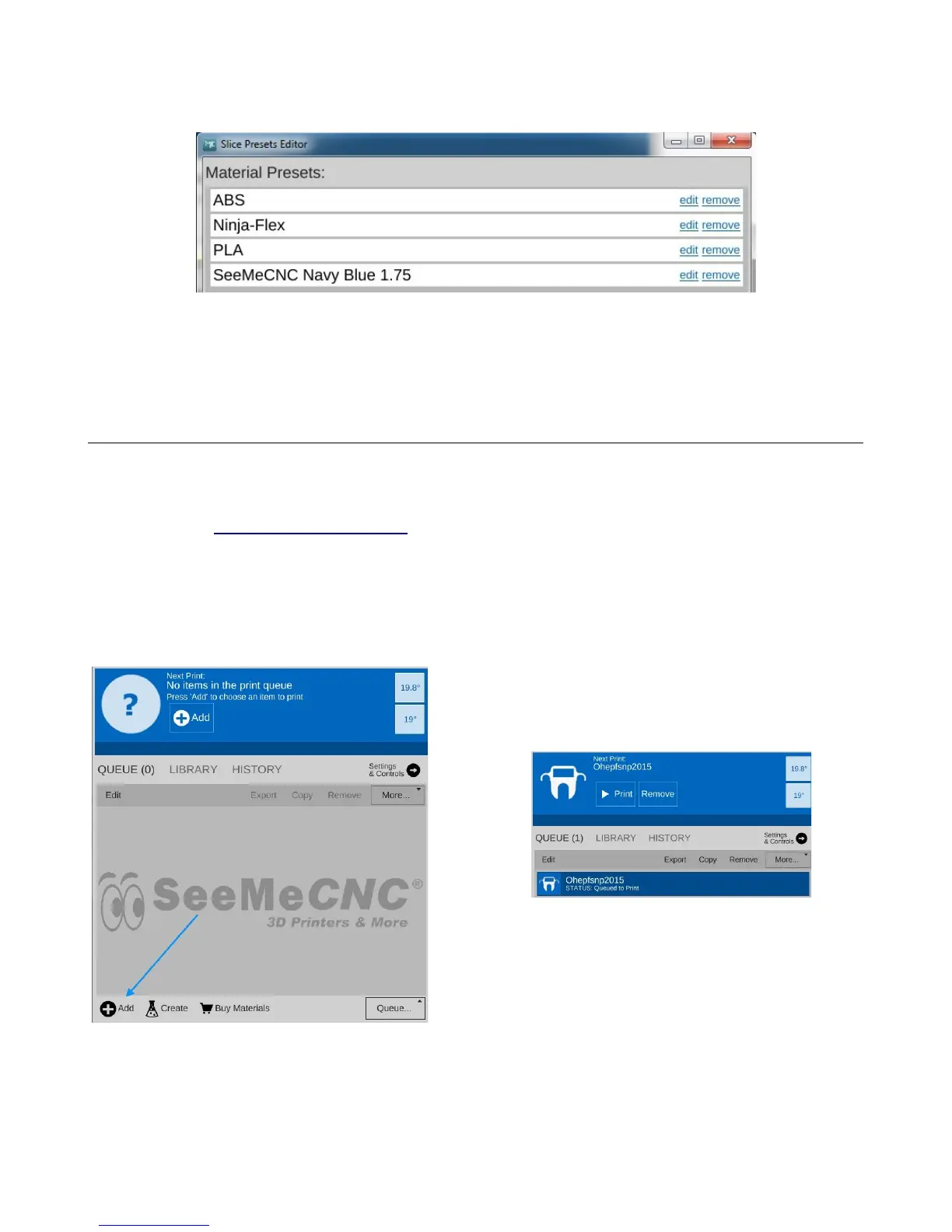
Click Close to dismiss the Presets Editor and we'll move on to the next step, printing your first
part!
3.2 – Printing The PEEK Fan Shroud
If you downloaded the MatterControl presets file, you can skip downloading the file from
Repables.
Go here: http://repables.com/r/620/ and click the “Download” link. When the download is
finished, unzip the file. This is the STL file that MatterSlice will process and turn into your first print!
When you've got the file downloaded, you can load it into MatterControl by clicking on the
“Add” button and selecting the STL file you want. Note that if your Queue shows the example parts
from MatterControl, click the Remove button to get rid of them.
Once the open file dialog opens, navigate to where
you unpacked the file.
Now that you've got the file loaded, we need to load filament into the printer!
3 – First Print: PEEK Fan Shroud - 36
Fig. 3.1-7: New material preset!
Fig. 3.2-1: Loading an STL file.
Fig. 3.2-2: Part loaded!


 To Next Page