Rostock MAX v2 User's Guide
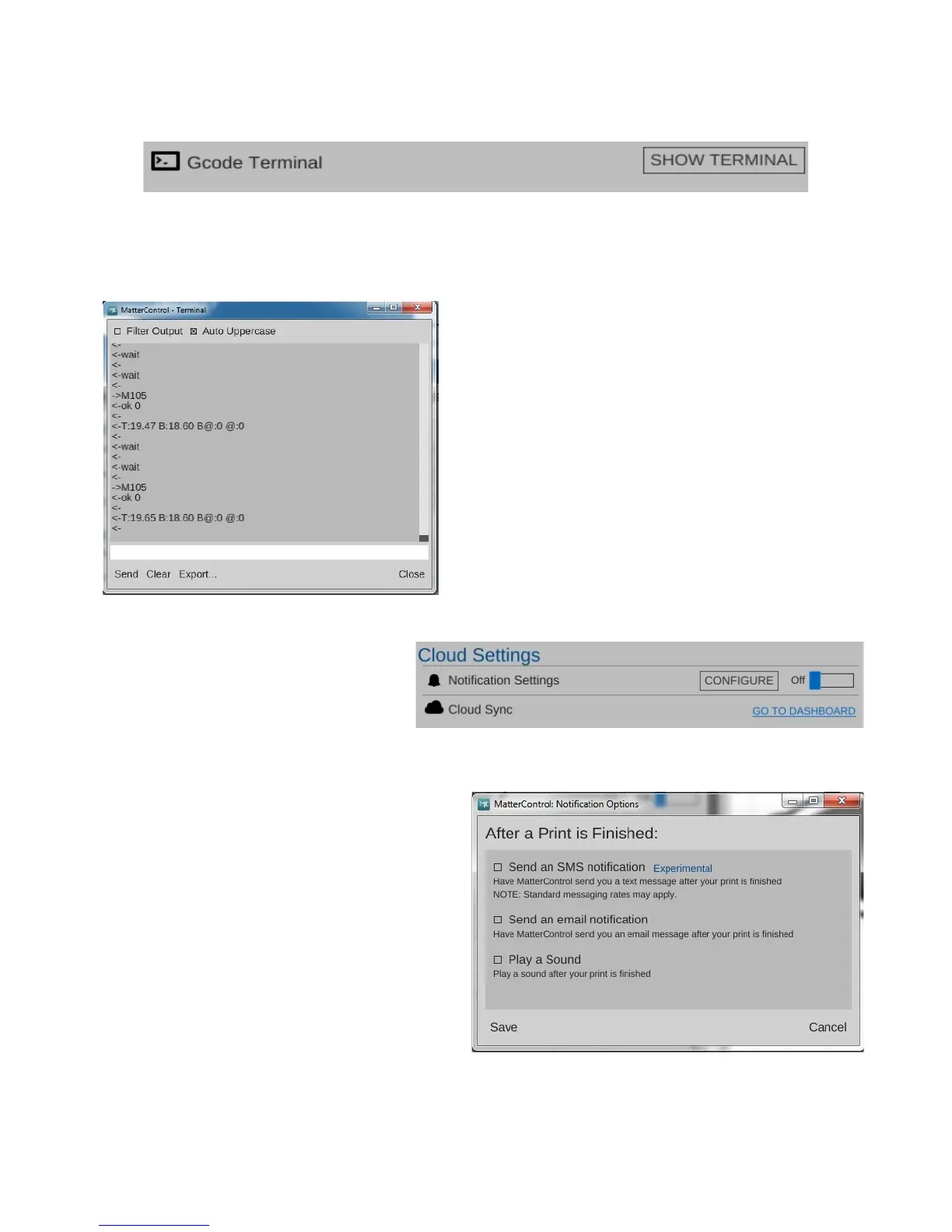
The G-Code Terminal is where you can directly interact with the firmware on your Rostock
MAX. When you first open the G-Code Terminal, you'll be presented with a window that looks similar
to the one below:
You'll notice that the display will scroll as new
information comes in from the Rostock MAX. This is
how MatterControl is able to continually update things
like the temperature displays. In order to be able to
use the terminal for basic tasks, you'll need to click on
the Filter Output check box that's at the upper left
corner of the window. This will filter out the telemetry
information coming from the Rostock MAX's
controller and allow you to directly interact with the
printer without having the output interleaved with the
periodic information that the Rostock MAX transmits.
MatterControl provides the ability
to remotely monitor your Rostock MAX
printer from anywhere in the world. To
learn more about this service, click on the
GO TO DASHBOARD link in
MatterControl.
By default, MatterControl will play a bell
sound when the current active print job completes.
However, you can change this behavior via the
Notification Settings configuration screen.
You'll be able to configure MatterControl
to send you an email or text message when your
printer completes a job. Note that this feature is
only available when you're using MatterControl to
run a print job. If you're printing from the SD
card, notification won't be possible.
7 – Advanced MatterControl: Configuration - 68
Fig. 7.1-4: Accessing the G-Code terminal.
Fig. 7.1-5: G-Code terminal window.
Fig. 7.1-6: Cloud Settings.
Fig. 7.1-7: Notification Options.


 To Next Page