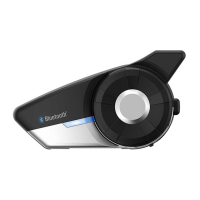
20S
36
17 GROUP INTERCOM
Group Intercom allows you to instantly create a multi-way conference
intercom of up to eight participants. You can create and start Group
Intercom through your Smartphone App.
1. Start your Smartphone App and go to ‘Group Setting’ under
‘Group Intercom’.
2. Browse your friends, and select up to seven other people you
want to group with.
3. Check your friends and press ‘Save to My 20S’ on the screen.
4. Press ‘Connect’ on the screen or the Ambient Mode Button for 1
second to begin Group Intercom.
Note:
To use Group Intercom with more than four participants, you must enable
Eight-way Intercom. Please refer to section 21.10, “Enabling/Disabling
Eight-way Intercom” for more details.
18 UNIVERSAL INTERCOM
You can have an intercom conversation with non-Sena Bluetooth
headsets using the Universal Intercom function. Non-Sena Bluetooth
headsets can be connected to the Sena Bluetooth headset if they
SUPPORTTHE"LUETOOTH(ANDS&REE0ROlLE(&04HEWORKINGDISTANCE
may differ depending on the performance of Bluetooth headset that it
is connected to. In general, it is shorter than normal intercom distance
SINCEITUSESTHE"LUETOOTHHANDSFREEPROlLE
18.1 Universal Intercom Pairing
The 20S can be paired with non-Sena Bluetooth headsets for Bluetooth
intercom conversation. You can pair the 20S with only one non-Sena
Bluetooth headset so if you pair with a different non-Sena Bluetooth
headset, the previous pairing list will be removed.
1. Turn on the 20S and a non-Sena Bluetooth headset that you want
to pair with.
0RESS THE *OG $IAL FOR SECONDS TO ENTER THE CONlGURATION
menu. Rotate the Jog Dial until you hear a voice prompt saying
“Universal intercom pairing”. Press the Phone Button to enter
INTO5NIVERSAL)NTERCOM0AIRINGMODEANDTHEBLUE,%$WILLmASH
rapidly and you will hear multiple beeps. Please refer to section
21.17, “Universal Intercom Pairing” for more details.


 To Next Page