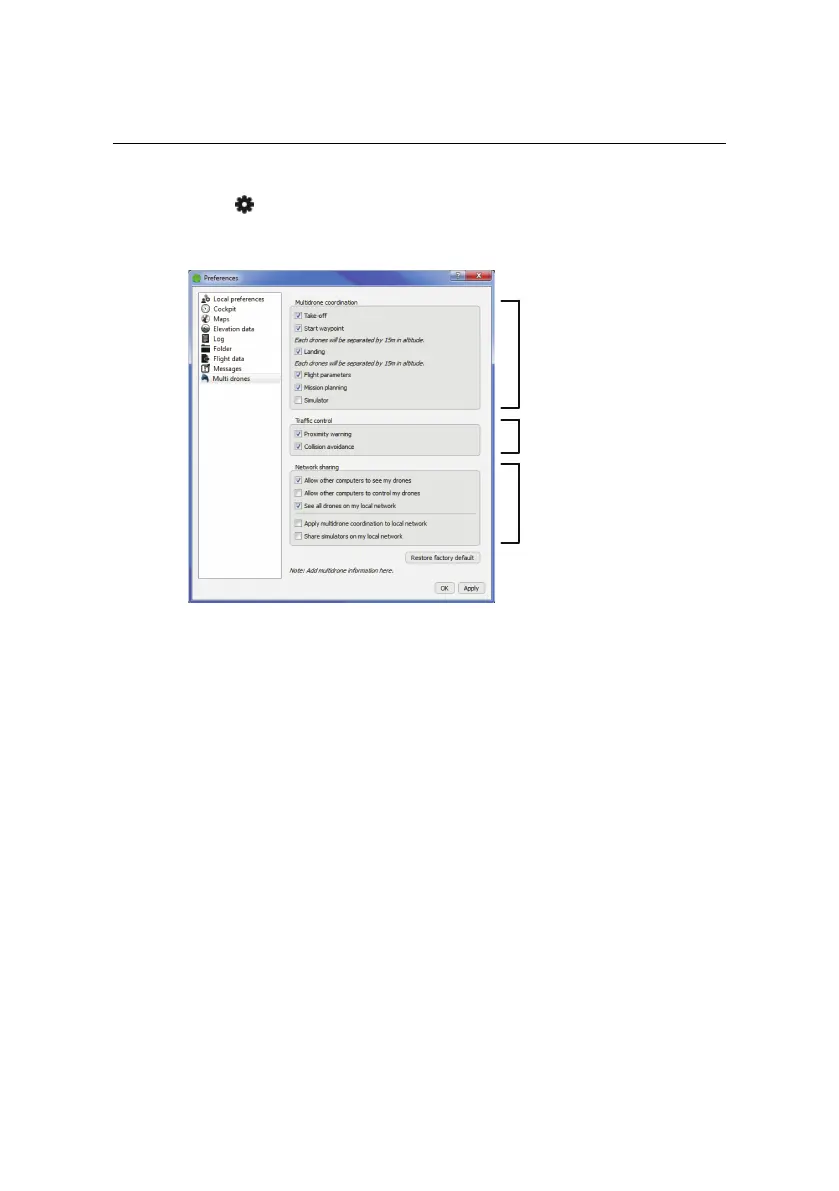
Advanced functionalities
Clicking on the icon in the Multi-drone panel allows you to either connect a
new drone or to bring up the Multi-drones preferences pane.
Multi-drone
coordination
Traffic control
Network sharing
eMotion provides Multi-drone coordination options to synchronise various way-
points and parameters among connected drones:
• Take-off: Synchronisingthe take-off applies specifically to Directionaltake-
off heading and transition altitude.
• Start waypoint: When the Start waypoint is synchronised, eMotion will
use the same location andaltitude for the Start waypointof each connected
drone. Every modification to the Start waypoint of one drone is thus trans-
ferred to all other drones. To prevent collisions between drones, eMotion
will automatically create a stack by incrementing the altitude of each drone
that is currently circling the Start waypoints to ensure a 15 m separation.
The base altitude of the Start waypoint, which is the altitude of the lowest
drone in the stack, can be set in the Multi-drone Panel.
• Home waypoint and landing: Similarly to the Start waypoint, when the
Home waypoint is synchronised eMotion will us the same Home waypoint
78



 To Next Page