44
LC-32LB261U Sharp 32" LED TV
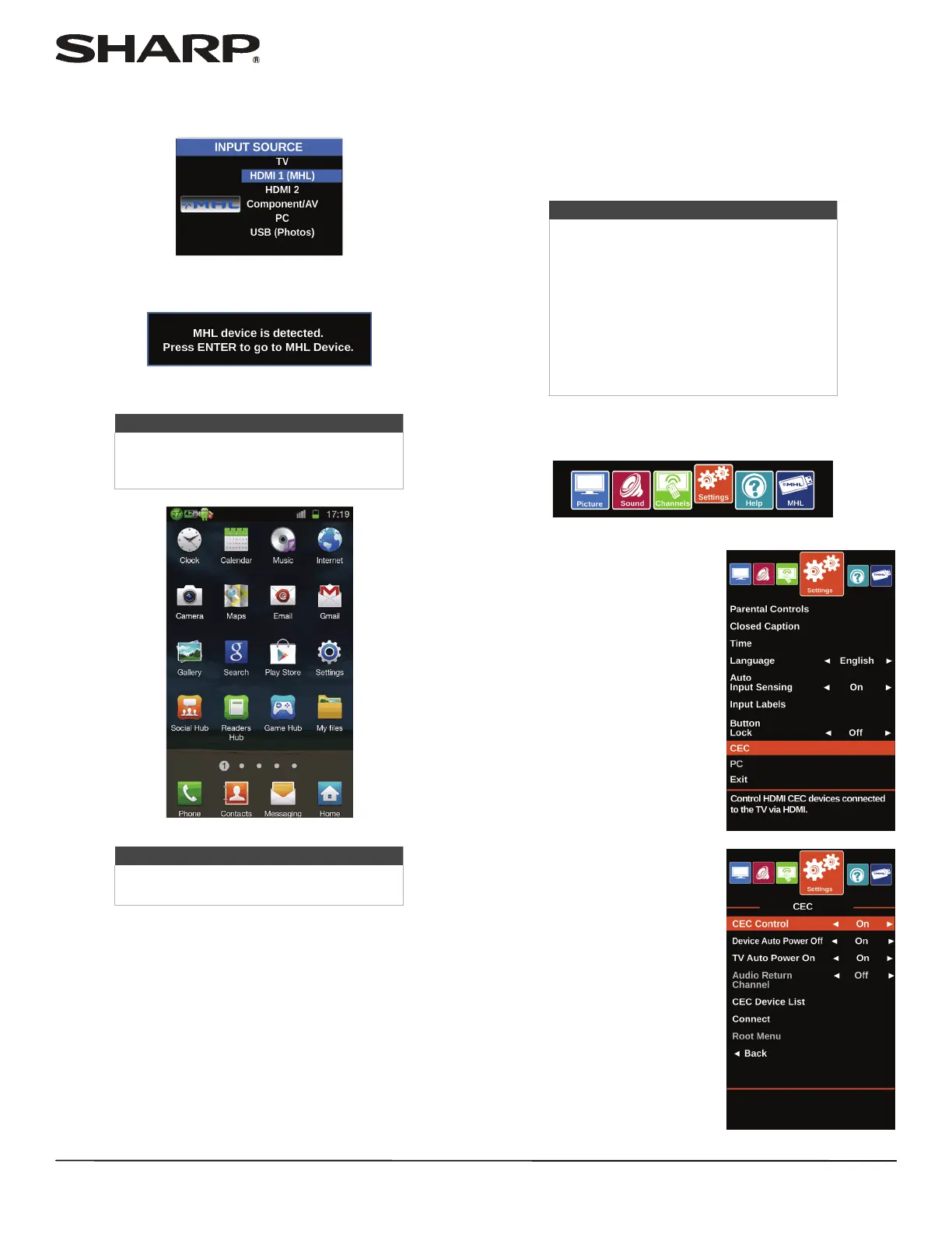
Switching back to the connected device
1 Press INPUT, then press S or T to select HDMI 2 (MHL).
OR
Press MENU, then press
W or X to highlight MHL.
2 Press ENTER to access your MHL-enabled device. Your
device’s menu opens.
3 Use
S T W X and ENTER to navigate on your device.
Using CEC Control
CEC Control lets you control HDMI CEC-compatible devices
connected to the HDMI jacks on your TV using the remote
control that came with your TV. To use CEC Control, you must
set the CEC Control setting on the Settings · CEC menu to On.
Turning CEC Control on or off
1 Press MENU.
2 Press
W or X to highlight
Settings, then press ENTER.
3 Press
S or T to highlight CEC,
then press ENTER.
Note
Your device’s menu will vary depending on
the device and the apps you have loaded
on the device.
Note
The buttons you use to navigate on your
device may vary depending on the device.
Notes
• HDMI cables must be used to connect
HDMI CEC-compatible devices to your
TV.
• The connected device’s HDMI CEC
feature must be turned on.
• If you connect an HDMI device that is
not HDMI CEC-compatible, all of the
CEC features do not work.
• Depending on the connected HDMI
device, the CEC feature may not work.




 To Next Page