47
LC-32LB261U Sharp 32" LED TV
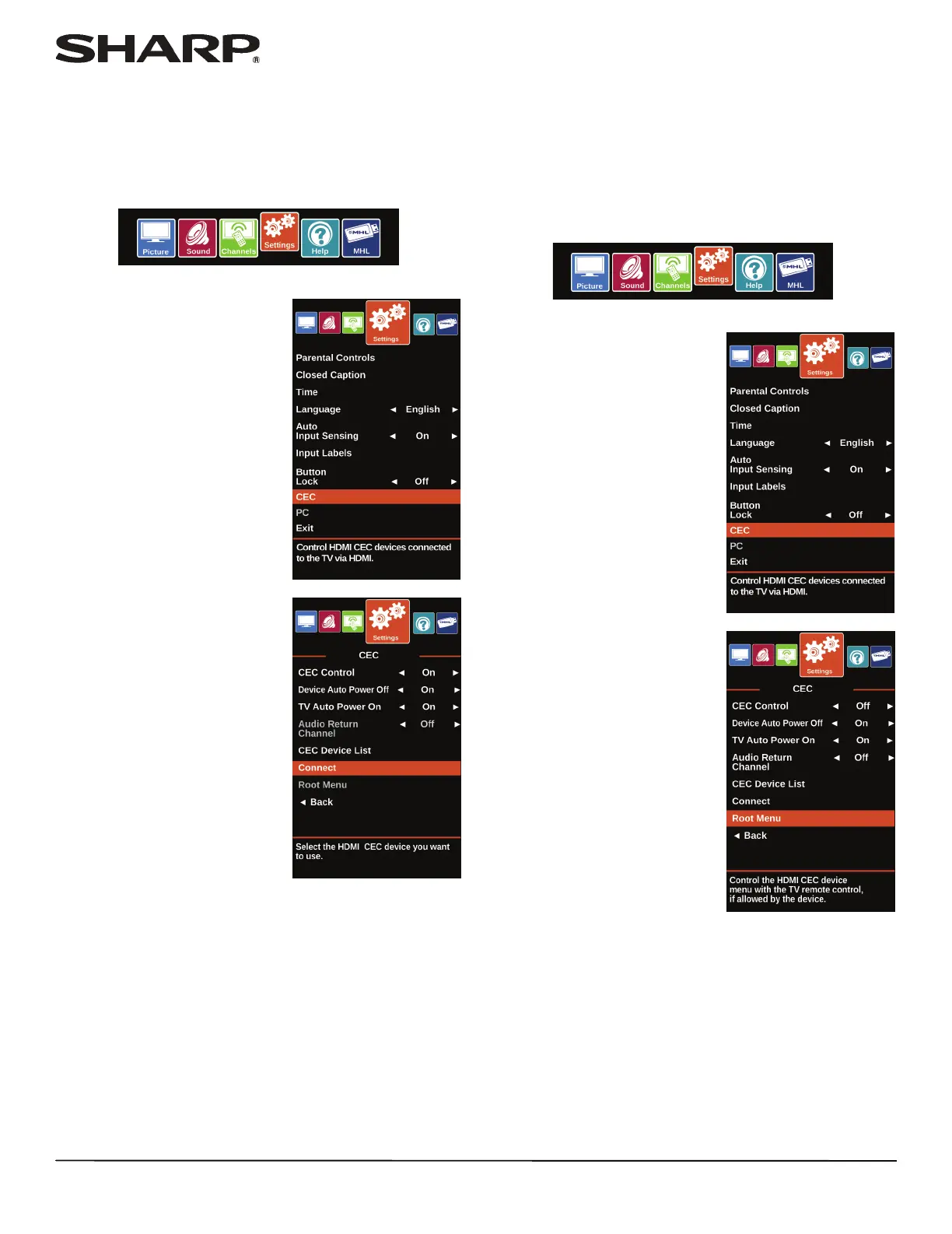
Selecting a CEC-compatible device
When you have more than one INlink-compatible device
connected, you can select the device you want to use.
1 Press INPUT, press
S or T to highlight the CEC-compatible
device you want to wake, then press ENTER.
2 Press MENU.
3 Press
W or X to highlight
Settings, then press ENTER.
4 Press
S or T to highlight CEC,
then press ENTER.
5 Make sure that the CEC Control option is turned on. See
“Turning CEC Control on or off” on page 44.
6 On the Settings · CEC menu, press
S or T to highlight
Connect, then press ENTER. A list of HDMI CEC-compatible
devices you have connected opens.
7 Press
S or T to highlight the HDMI CEC-compatible device
you want to connect to, then press ENTER.
8 Press MENU to return to the previous menu, or press EXIT
to close the menu.
Opening a CEC-compatible device’s root
menu
You can open a CEC-compatible device’s root menu, then use
your TV’s remote control to control the device, if the device has
this feature.
1 Press INPUT, press
S or T to highlight an HDMI input, then
press ENTER.
2 Press MENU.
3 Press
W or X to highlight
Settings, then press ENTER.
4 Press
S or T to highlight CEC,
then press ENTER.
5 Make sure that the CEC Control option is turned on. See
“Turning CEC Control on or off” on page 44.
6 On the Settings · CEC menu, press
S or T to highlight Root
Menu, then press ENTER. The device’s root menu opens,
and you can use your TV’s remote control to control the
device.
7 Press MENU to return to the previous menu, or press EXIT
to close the menu.




 To Next Page