49
LC-32LB261U Sharp 32" LED TV
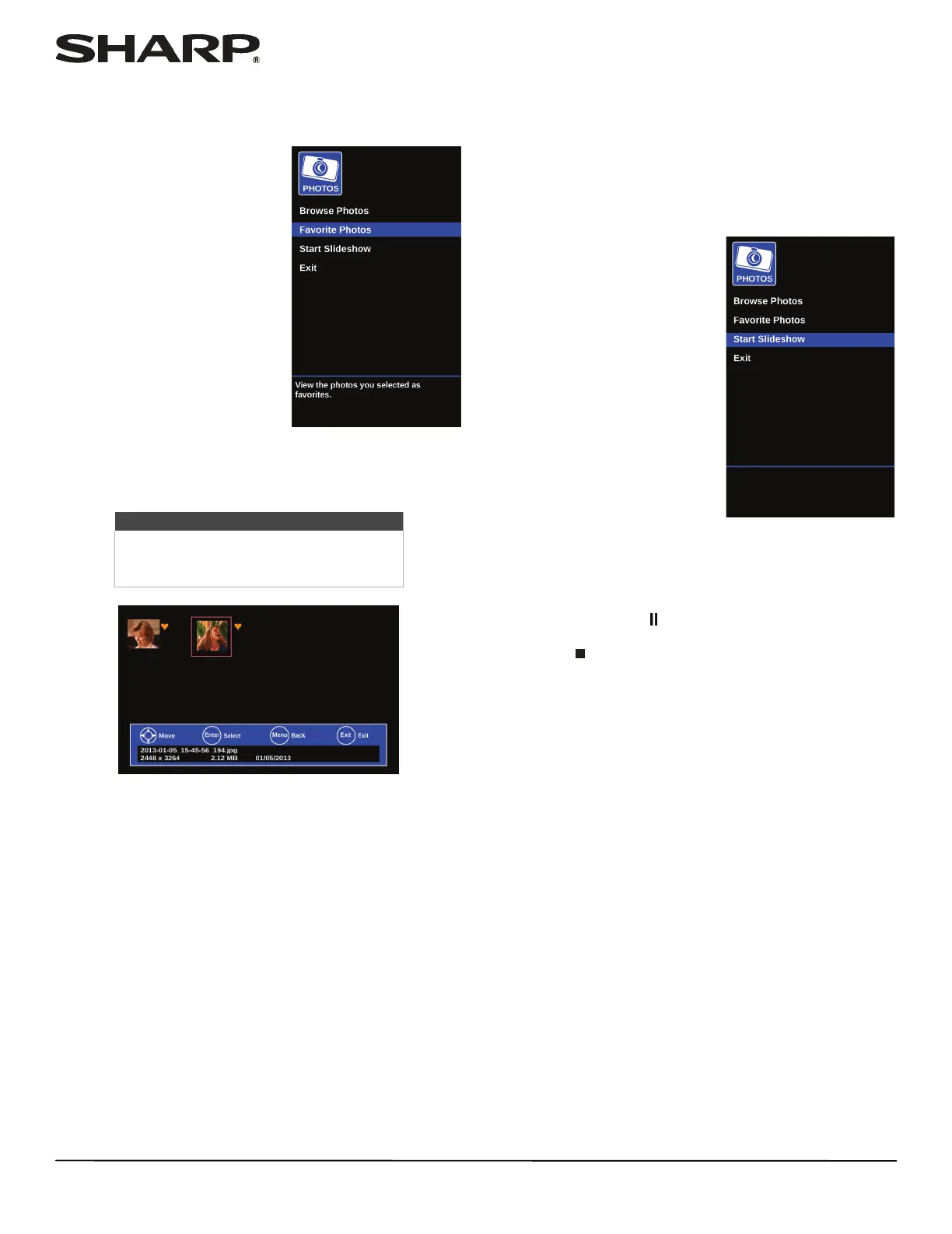
Viewing favorite photos
After you create your favorite photo list, you can browse
among your favorite photos quickly.
1 Switch to USB mode. See
“Switching to USB mode” on
page 48.
2 Press
S or T to highlight Favorite Photos, then press
ENTER. A thumbnail index of your favorite photos opens
with a control bar at the bottom of the screen. A heart
appears on a favorite photo.
You select photos and navigate on the photo screen
in the same way you do when you are browsing
through photos. For more information, see
“Browsing photos” on page 48.
Viewing photos in a slideshow
You can view your photos in a slideshow.
1 Switch to USB mode. See “Switching to USB mode” on
page 48.
2 If the photos you want to view are in a folder on the USB
flash drive, select the folder. For information about
selecting a folder, see “Browsing photos” on page 48 or
“Viewing favorite photos” on page 49.
3 Press MENU.
4 Press
S or T to highlight Start Slideshow, then press
ENTER. A slideshow starts with the first photo in the current
folder.
5 To control the slideshow, press:
• ENTER,
X (play), or (pause) to pause or start the
slideshow.
• EXIT or (stop) to exit the slideshow and go to the
thumbnail index.
• MENU to go to the Photos menu.
Note
Photos are shown in the order they appear
on the USB flash drive. They may not be
listed in file name order.




 To Next Page