Operating Instructions
Page 60
Doc. 15301-RevB (2023-11-24)
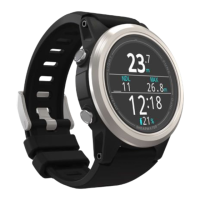
Once the Tern is connected, the connect tab will
show a picture of the dive computer�
TERN TX
TERN TX
Shearwater Cloud Desktop Connect Tab
Update Firmware
Select “Update Firmware” from the connect tab�
Shearwater Cloud Desktop will automatically select
the latest available firmware�
The Tern screen will display a progress indicator while
receiving the firmware� The Personal Computer will
read “Firmware successfully sent to the computer” on
completion�
Firmware updates can take up to 15
minutes�
Select the dives you wish to download and press OK
Change Language
After connecting to your dive computer, select
“Customize” from the connect tab and select
language� Choose the language you would like and
select “Install”�
The Tern Supports the following languages:
English German
Japanese Italian
Spanish Russian
Korean French
Polish Portuguese
Simplified
Chinese
Traditional
Chinese
Download Dives
Select “Download Dives” from the connect tab�
A list of dives will be generated� You can un-select
any dive logs you don’t want to download, then
press OK�
Shearwater Cloud Desktop will transfer the dives to
your computer�


 To Next Page