Operating Instructions
Page 61
Doc. 15301-RevB (2023-11-24)
12.2. Shearwater Cloud Mobile
Ensure you have the most recent version of
Shearwater Cloud Mobile�
Download it from Google Play or the Apple
App Store�
Connect to Shearwater Cloud Mobile
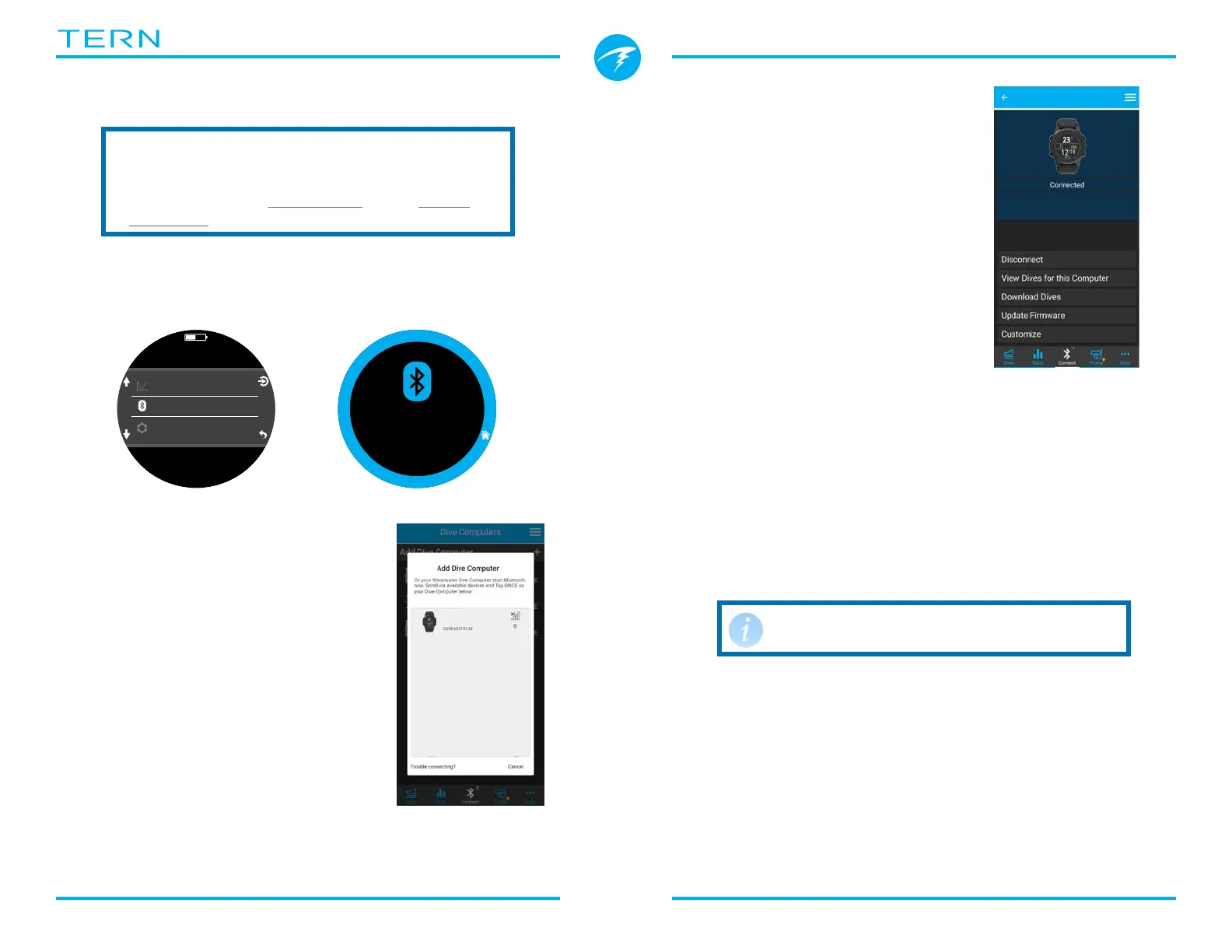
On your Tern, start Bluetooth by selecting the
Bluetooth menu item from the main menu�
m
0
.
0
O2/He
10/50
DECO
2
m
min
98
1.3
TTS
SURFACE
mh
1314
Wait Connect
2 : 50
On Shearwater cloud mobile:
1� Press the connect icon at the
bottom of the screen
2� Select “Add Dive Computer”
and then select your Tern
from the list of Bluetooth
devices�
Download Dives
Select “Download Dives”
A list of dives will be generated
and you can un-select any dive
logs you don’t want to download,
then press OK�
Shearwater Cloud will transfer the
dives to your smart phone�
Update Firmware
Once the Tern is connected to Shearwater cloud
mobile, select “Update Firmware” from the connect
tab�
Shearwater Cloud mobile will automatically select the
latest available firmware�
The Tern screen will display a progress indicator
while receiving the firmware� The mobile app will
read “Firmware successfully sent to the computer” on
completion�
Firmware updates can take up to 15
minutes�
TERN TX
TERN TX
Change Language
After connecting to your dive computer, select
“Customize” from the connect tab and select
language� Choose the language you would like and
select “Install”�


 To Next Page