Operating Instructions
Page 59
Doc. 15301-RevB (2023-11-24)
12.1. Shearwater Cloud Desktop
12. Firmware Update and Log
Download
It is important to keep the firmware on your dive
computer up to date� In addition to new features and
improvements, firmware updates address important
bug fixes�
There are two ways to update the firmware on your
Tern:
1) With Shearwater Cloud Desktop
2) With Shearwater Cloud Mobile
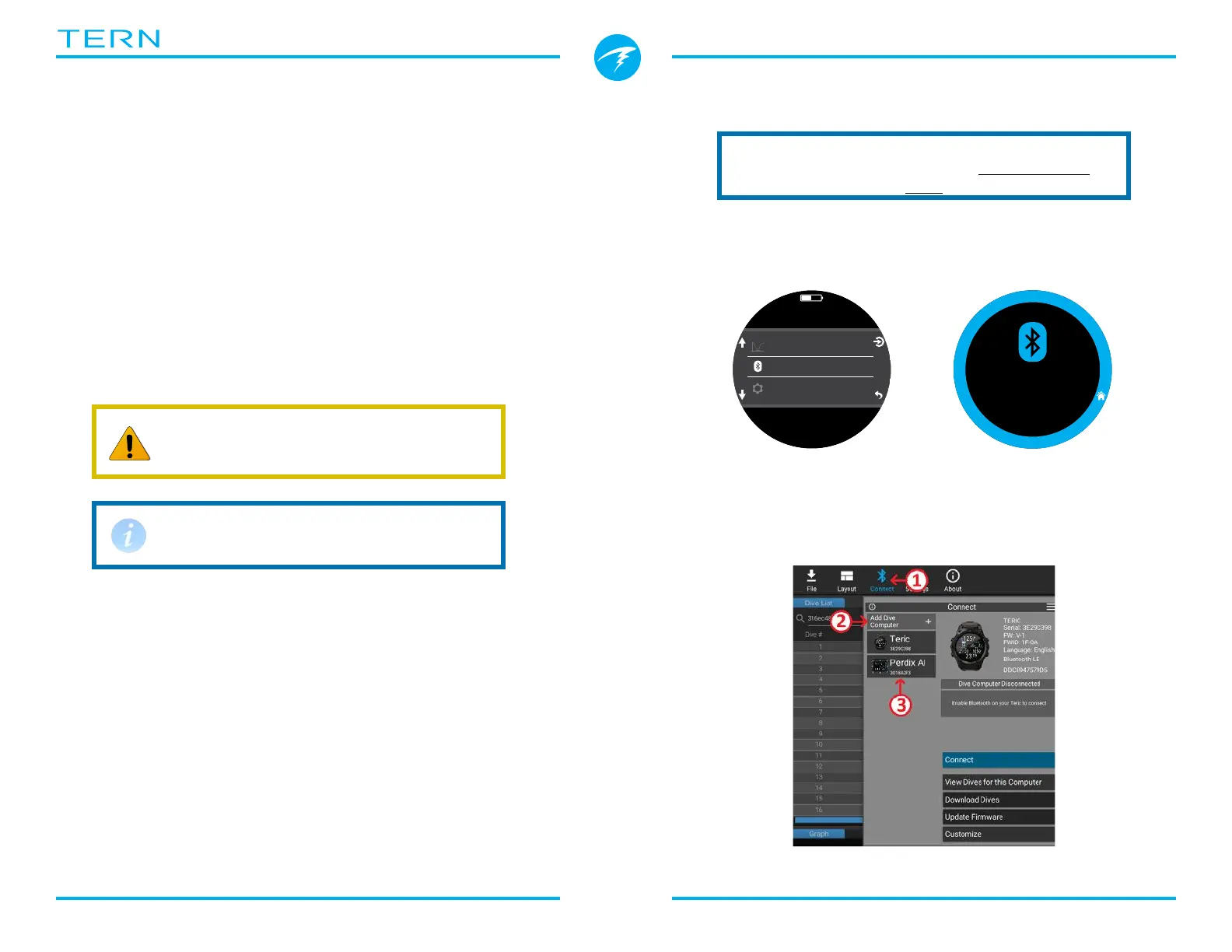
Connect to Shearwater Cloud Desktop
On your Tern, start Bluetooth by selecting the
Bluetooth menu item from the main menu�
Upgrading the firmware resets
decompression tissue loading� Plan
repetitive dives accordingly�
During the update process, the
screen may flicker or go blank for a
few seconds
Ensure you have the most recent version of
Shearwater Cloud Desktop� You can get it
here�
m
0
.
0
O2/He
10/50
DECO
2
m
min
98
1.3
TTS
SURFACE
mh
1314
In Shearwater Cloud Desktop:
1� Click the connect icon to open the connect tab�
2� Scan for Dive Computer
3� Once you’ve connected the computer once, use
the Tern tab to connect faster next time
Wait Connect
2 : 50
Shearwater Cloud Desktop Connect Tab


 To Next Page