Wi & Mysewnet Services – 31
Used Space in mySewnet Cloud
The mySewnet cloud will store designs, fonts, stitches and
other les from your machine.
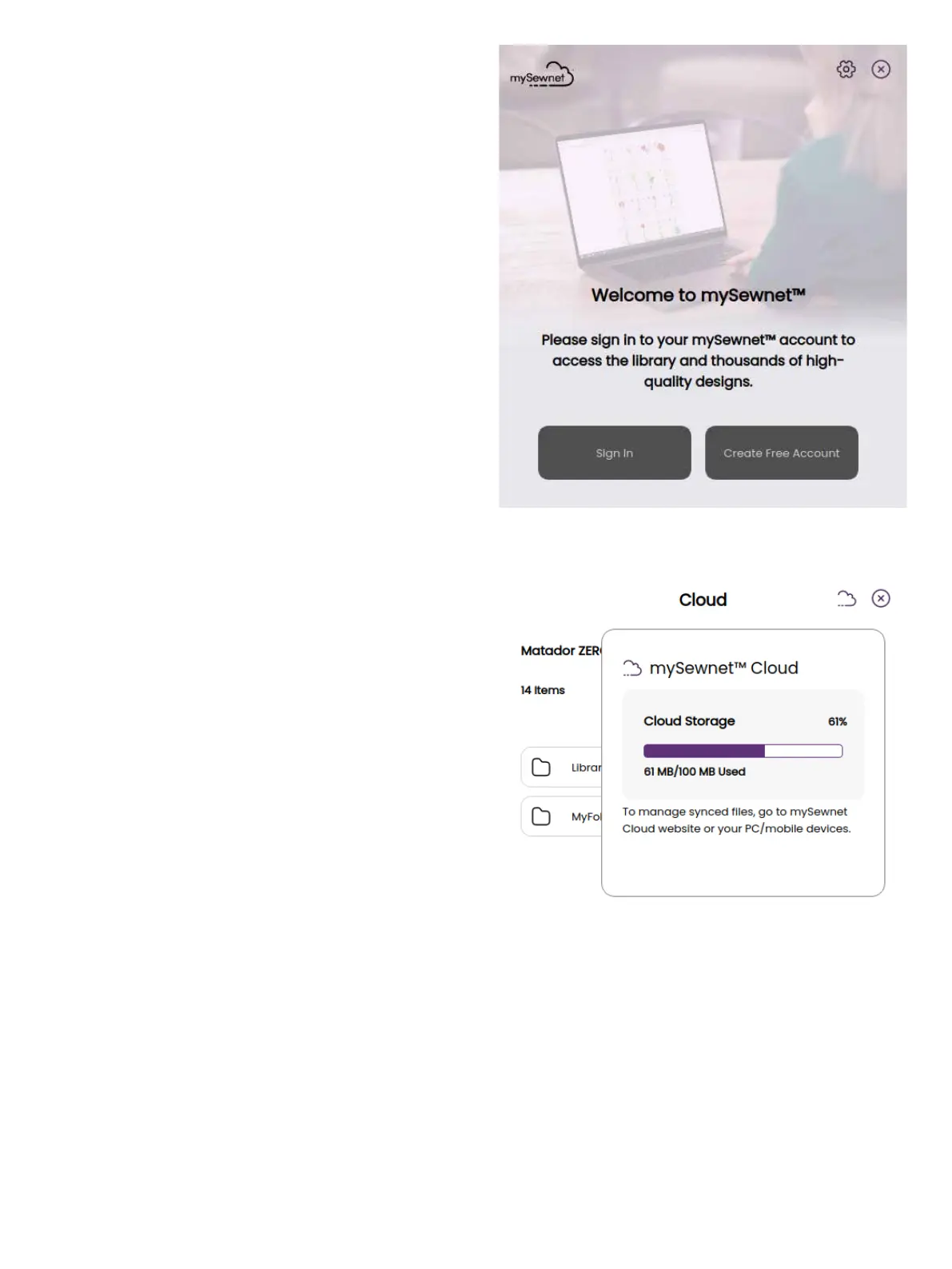
Touch the mySewnet button on the topbar and go to mySewnet
cloud, touch the cloud icon to see how much storage is aval-
ible. When only a small amount of space is left, your machine
will alert you once. If you continue to ll the space, it will not
remind you again, until the space is completely full. Delete or
move les to a USB device to free space.
Note: The mySewnet cloud space gets activated the rst time
you sign in on your mySewnet account from the machine.
mySewnet Library on your machine
If you have a subscription, WiFi is connected and you have
logged in to your mySewnet account, the mySewnet library
menu will be visible in your machine. Here you can scroll and
select from all your mySewnet library designs.
Connect to mySewnet on your machine
When you have established a WiFi connection, touch the exit
icon to return to the mySewnet login page where you can sign
in. If you do not have a user name and password, select Create
Free Account.
An account can also be created through the mySewnet website
at www.mysewnet.com.
When signed in you will see how much available space there is
left in the mySewnet cloud.
The synchronization status will be shown on the mySewnet
button on the topbar.



 To Next Page