1
2 3
4
44 – Embroidery
To Create Text:
1. Select the font menu and touch a font to select it.
2. Touch the dierent letters to create a sequence.
3. Touch the conrm button. The machine will stitch the letter
sequence that was saved and will stop when the sequence is
completed.
In order to repeat the sequence, press the Foot Control or the
Start/Stop Button.
Save your sequence by touching the save button.
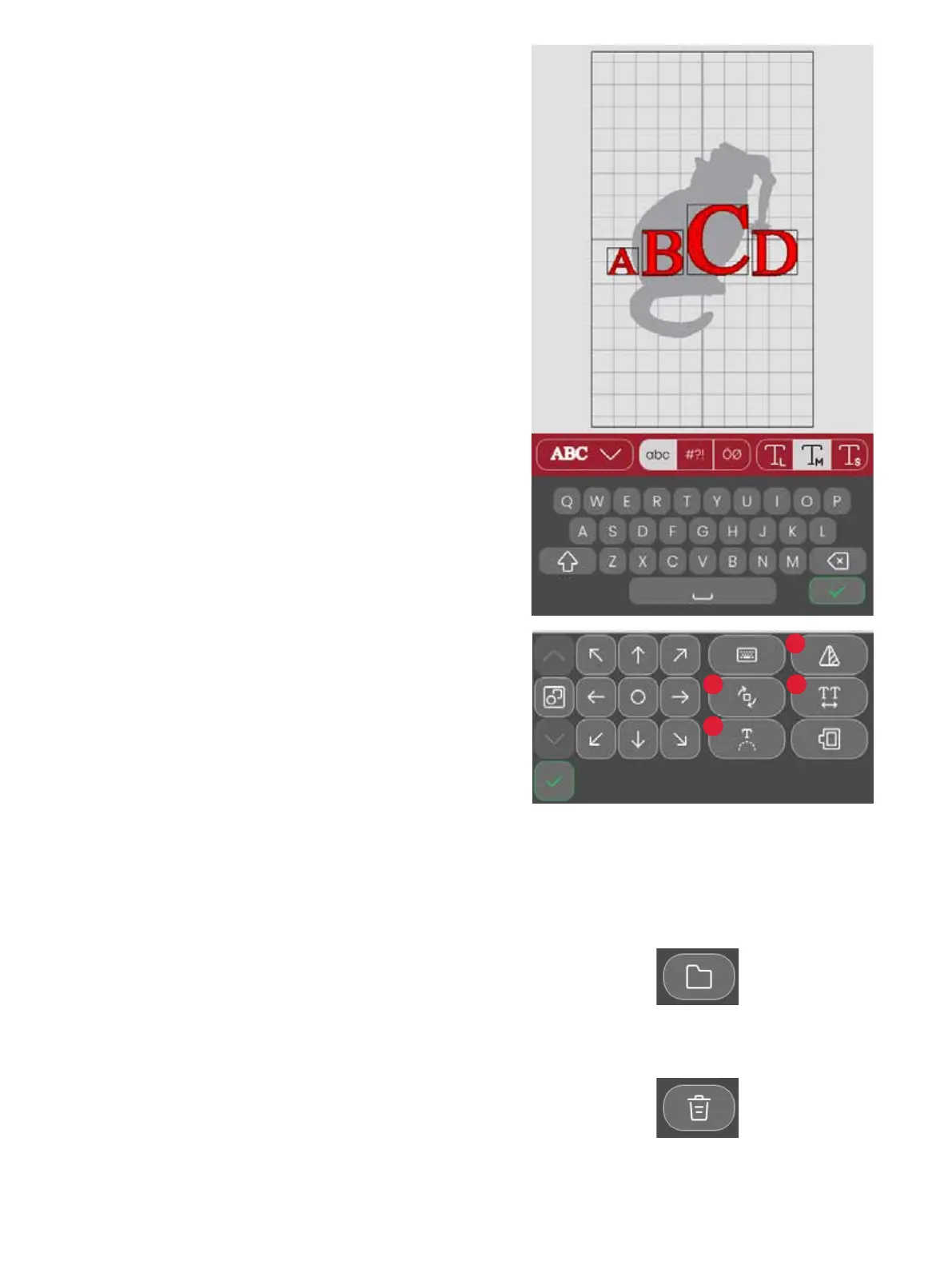
Create Embroidery Text
File Manager
To create a text, open the font menu and touch your desired
font on the screen. You can change the font and size of the text
as desired. Once you’ve written your text, touch the conrm
button to load it into text edit mode. Read about the various
text edit options below to learn more.
Mirror text (1)
To mirror your text sideways, touch the mirror side to side
button.
Rotate text (2)
Use the dierent rotation buttons to adjust the rotation of the
selected design(s) in one degree increments. Each touch in the
center of the control wheel will rotate the selected text(s) 90
degrees clockwise.
Text Spacing (3)
The distance between each letter can be increased or decreased
with the spacing option.
Text Shaping (4)
You can edit your written text using two dierent shaping
options. To do so, select a shaping option and your text will
follow the shape on the screen.
To view, open, or delete your designs saved in the machine’s
built-in memory, touch the le manager.
Delete
When you touch delete, the selected design(s) will be deleted
from the embroidery area. If more than one design is selected, a
pop-up message will appear.



 To Next Page