How to view the historic events
Up to 255 events are stored in the Historic log of the
panel. To view the Historic log.
a. Press MENU ON/OFF.
b. Press the F3 button to select [Info].
"
Ignore step c. if an external
printer is not fitted or is switched off.
c. To display the event(s): Press the F1 button to
select [Display]. Notice 'Display' appears on the
display.
To print the event(s): Press the F2 button to
select [Print]. Notice 'Print' appears on the
display.
d. Press the F2 button to select [Historic]. Notice
'Historic' followed by a flashing cursor appears
on the display.
e. Use the keypad to input an event number 1 to
255.
If you want to view events at another node in a
networked system, then you will need to know
the node number. Select [Node] and enter the
node number.
"
Event '1' is always the most recent event.
f. Press the F2 button to select [Enter]. Notice the
required event(s) are displayed or printed
depending on your selection.
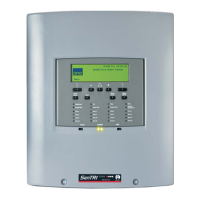
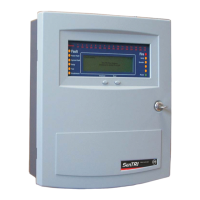
Cards inside the control panel
The control panel uses the following card reference
numbers.
¨
Card 0 is always the Main controller
board (MCB), also referred to as a local
controller.
¨
Cards 1 or 2 are always the Loop cards
that monitor and control the devices on loop
circuits within the protected premises.
¨
Card 14 is always the memory that resides
on the Main controller board.
20
Operating instructions


 To Next Page