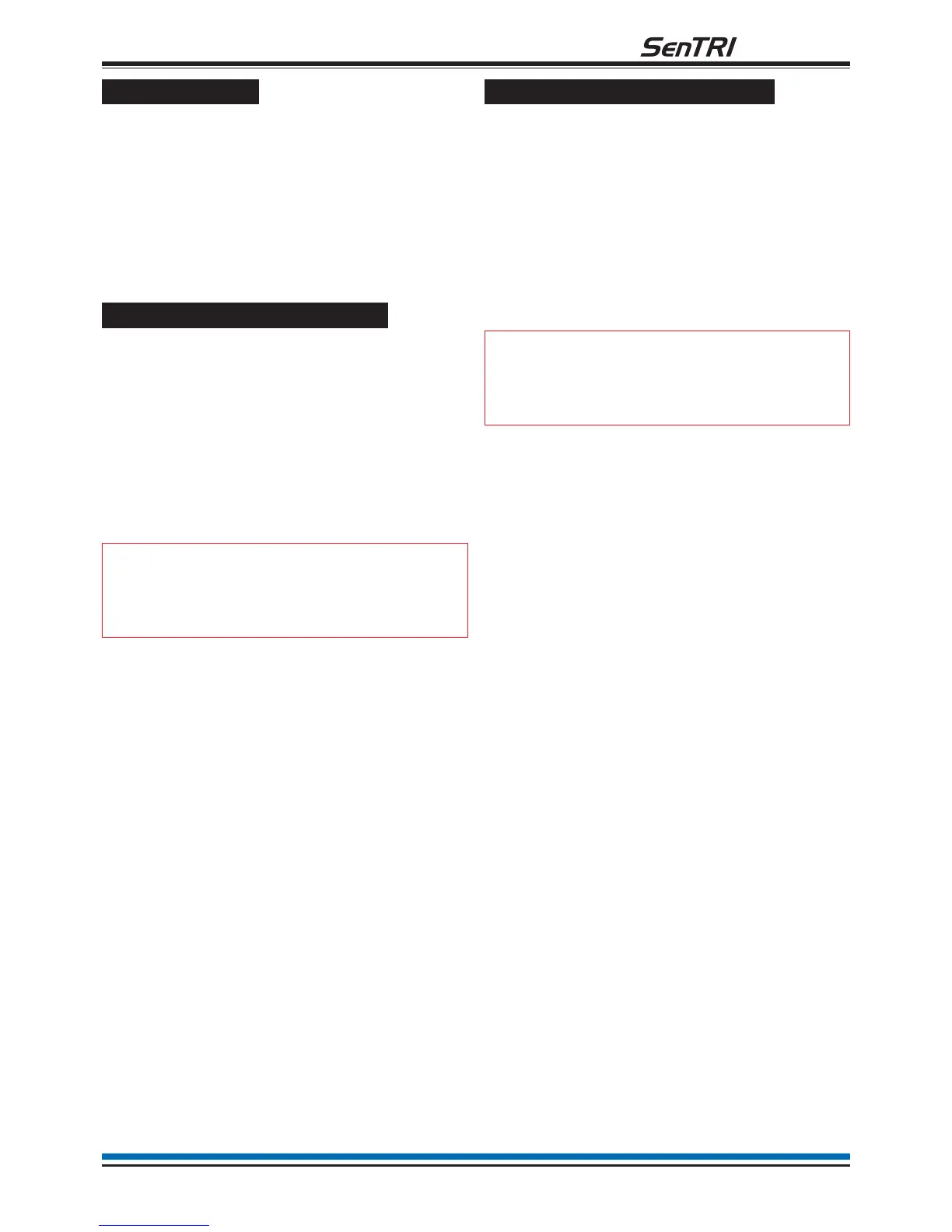
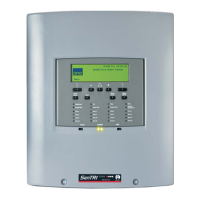
Viewing labels
The identification label given to each system device
can be checked. Devices such as fire sensors, alarm
sounders, manual call points, interface units -
including input/output lines may have been given
labels, groups and the local panel may also have
label. The label information can either be displayed or
printed, if a printer is connected to the panel.
How to view a device label
Each device is given a location label at the time the
system is commissioned to identify its installation
position. To view a device label you will need to know
the device address and the loop on which it resides.
You can find this information in the site specific
documentation, held by the person responsible for the
fire alarm system.
a. Press the MENU ON/OFF button.
b. Press the F3 button to select [Info].
"
Ignore step c. if an external
printer is not fitted or is switched off.
c. To display a Device label: Press the F1 button
to select [Display]. Notice 'Display' appears on
the display. To print a Device label: Press the
F2 button to select [Print]. Notice 'Print' on the
display, then continue.
d. Press the F4 button to select <etc>.
e. Press the F2 button to select [Label]. Notice
'Label' appears on the display.
f. Press the F3 button to select [Device]. Notice
'Device' followed by a flashing cursor appears
on the display. Use the keypad to input a Device
number or range (1-200).
g. Press the F2 button to select [Loop]. Notice
'Loop' followed by a flashing cursor appears on
the display. Use the keypad to input a loop
number (1 or 2).
h. Press the F2 button to select [Enter]. Notice the
selected label information is either displayed or
printed.
How to view a I/O line label
An interface unit can have up to four input/output (IO)
lines. Each line can be given a label that appears on
the display during an event. To view an IO line label
you will need to know the device address and the IO
line number and the loop number of the interface.
You can find this information in the site specific
documentation, held by the person responsible for the
fire alarm system.
a. Press the MENU ON/OFF button
b. Press the F3 button to select [Info].
"
Ignore step c. if an external
printer is not fitted or is switched off.
c. To display an I/O line label: Press the F1 button
to select [Display]. Notice 'Display' appears on
the display.
To print an I/O line label: Press the F2 button to
select [Print]. Notice 'Print' on the display, then
continue.
d. Press the F4 button to select <etc>
e. Press the F2 button to select [Label]. Notice
'Label' appears on the display.
f. Press the F2 button to select [IO Line]. Notice
'IO Line' followed by a flashing cursor appears
on the display. Use the keypad to enter an
input/output line number from a range 1 to 4.
g. Press the F2 button to select [Device]. Notice
'Device' followed by a flashing cursor on the
display. Use the keypad to input a Device
number (1-200).
h. Press the F2 button to select [Loop]. Notice
'Loop' followed by a flashing cursor appears on
the display. Use the keypad to input a loop
number (1 or 2).
i. Press the F2 button to select [Enter]. Notice the
selected label information is either displayed or
printed.
25
fire system


 To Next Page