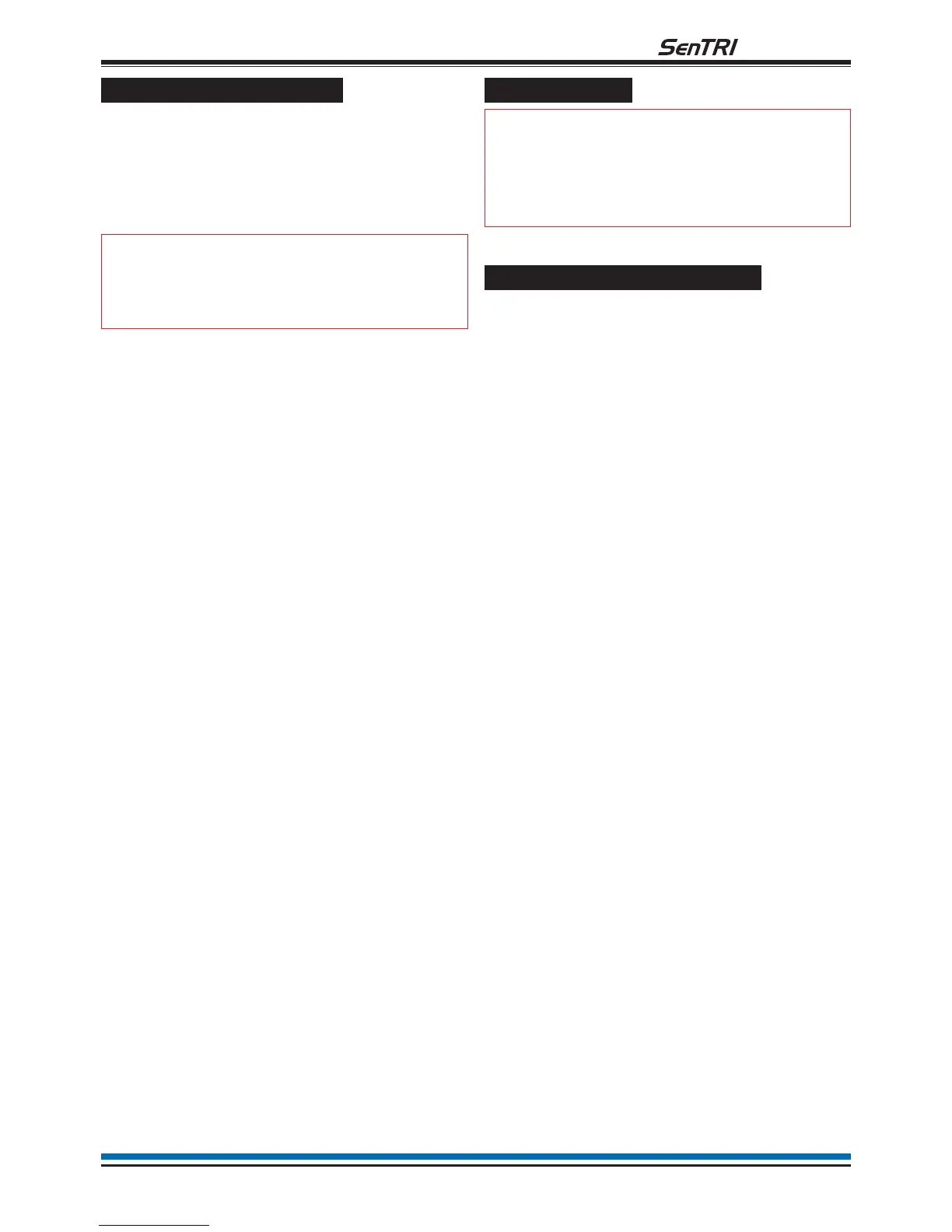
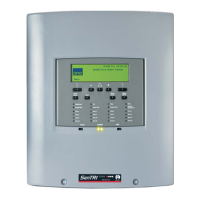
To view or print a map
A map provides information on devices that are
connected to a loop on the system or panels/nodes in
a system.
a. Press the MENU ON/OFF button.
b. Press the F3 button to select [Info].
"
Ignore step c. if an external
printer is not fitted or is switched off.
c. To display the loop map: Press the F1 button to
select [Display]. Notice 'Display' appears on the
display.
To print the loop map: Press the F2 button to
select [Print]. Notice 'Print' appears on the
display, then continue.
d. Press the F4 button to select <etc>.
e. Press the F4 button to select [UserCode].
Notice a message on the display 'Enter access
code', followed by a flashing cursor. Use the
keypad to input your PIN and then press Enter
button.
f. Press the F3 button to select [Loop Map] or
[Map].
g. On selecting [Map] you have a choice of either
[Loop Map] or [Net Map].
h. On selecting [Loop Map] notice 'Loop Map'
followed by a flashing cursor appear on the
display.
On selecting [Net Map] notice 'Node' followed
by a flashing cursor appear on the display.
i. Use the keypad to enter the loop number or
node number and then press F3 to select
[Enter]. Notice the map is either printed or
displayed.
Editing labels
"
Any changes to labels must be
backed up to the Memory, see the section
'How to save changes to the memory'.
How to edit a device label
There can be up to 200 devices connected to a loop,
devices like fire sensors and manual call points. Each
device can be given a label to identify its location in
the system. Devices in your system may have already
been given labels and these labels can be changed.
To edit a device label you will need to know the device
number and the loop on which it resides. You can find
this information in the site specific documentation,
held by the person responsible for the fire system.
a. Press the MENU ON/OFF button
b. Press the F2 button to select [Set Up].
c. Press the F4 button to select [UserCode].A
message is displayed: 'Enter access code'
followed by a flashing cursor. Use the keypad to
input your PIN and then press the Enter button.
d. Press the F4 button once to select <etc>.
e. Press the F1 button to select [Modify]. Notice
'Modify' appears on the display.
f. Press the F1 button to select [Label]. Notice
'Label' appears on the display.
g. Press the F3 button to select [Device]. Notice
'Device' followed by a flashing cursor appears
on the display.
h. Use the keypad to input a Device number.
i. Press the F2 button to select [Loop]. Notice
'Loop' followed by a flashing cursor on the
display. Use the keypad to input a loop number
either 1 or 2.
j. Press the F2 button to select [Enter]. Notice the
previous label appears on the display with a
flashing first character to prompt the
modification, if there is no label the line is blank.
k. Using the keypad to enter a label of up to
32 characters in length (28 for MCP) and then
press the Enter button.
27
fire system


 To Next Page