-127
Laser Engraving and Cutting
5.3.2 Generate the G-code File
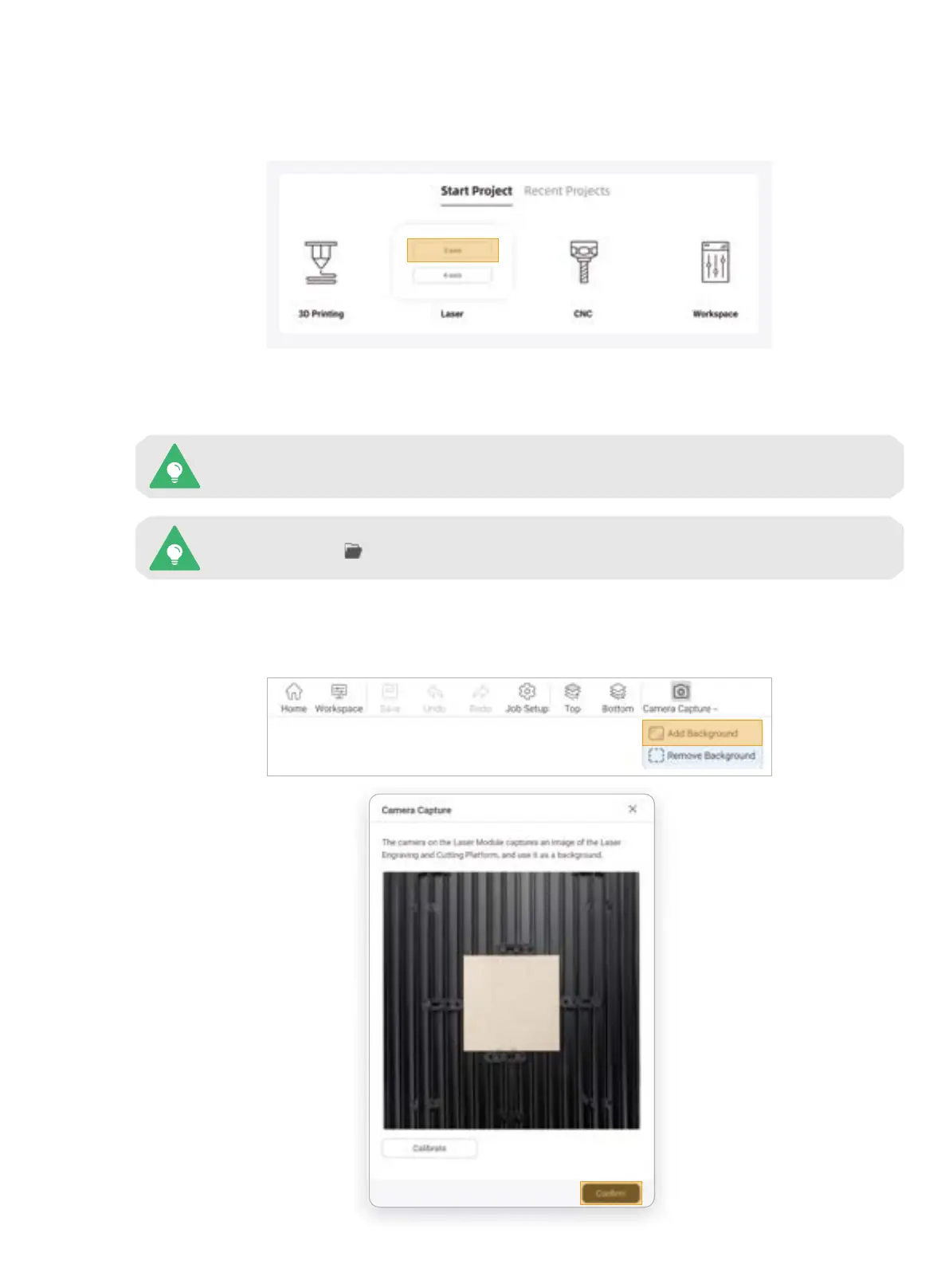
1. At the top-left corner of Workspace, click Back to return to the Home page. Then, click Laser > 3-axis to
enter the Laser G-code Generator.
2. Follow the Beginner's Guide to get familiar with the basic operations. During this process, Luban will
automatically load the test model and generate the G-code file.
You can also click to import your own files and configure the parameters.
If the Beginner’s Guide does not pop up or quits unexpectedly, you can click Help > Beginner’s
Guide in the menu bar.
3. In the menu bar, click Camera Capture > Add Background > Normal Mode > Start. The machine will take
a photo of the work area and use it as the background for the object to be engraved or cut. After the photo is
captured, click Confirm.
126



 To Next Page