User Guide 10
Tagg Map
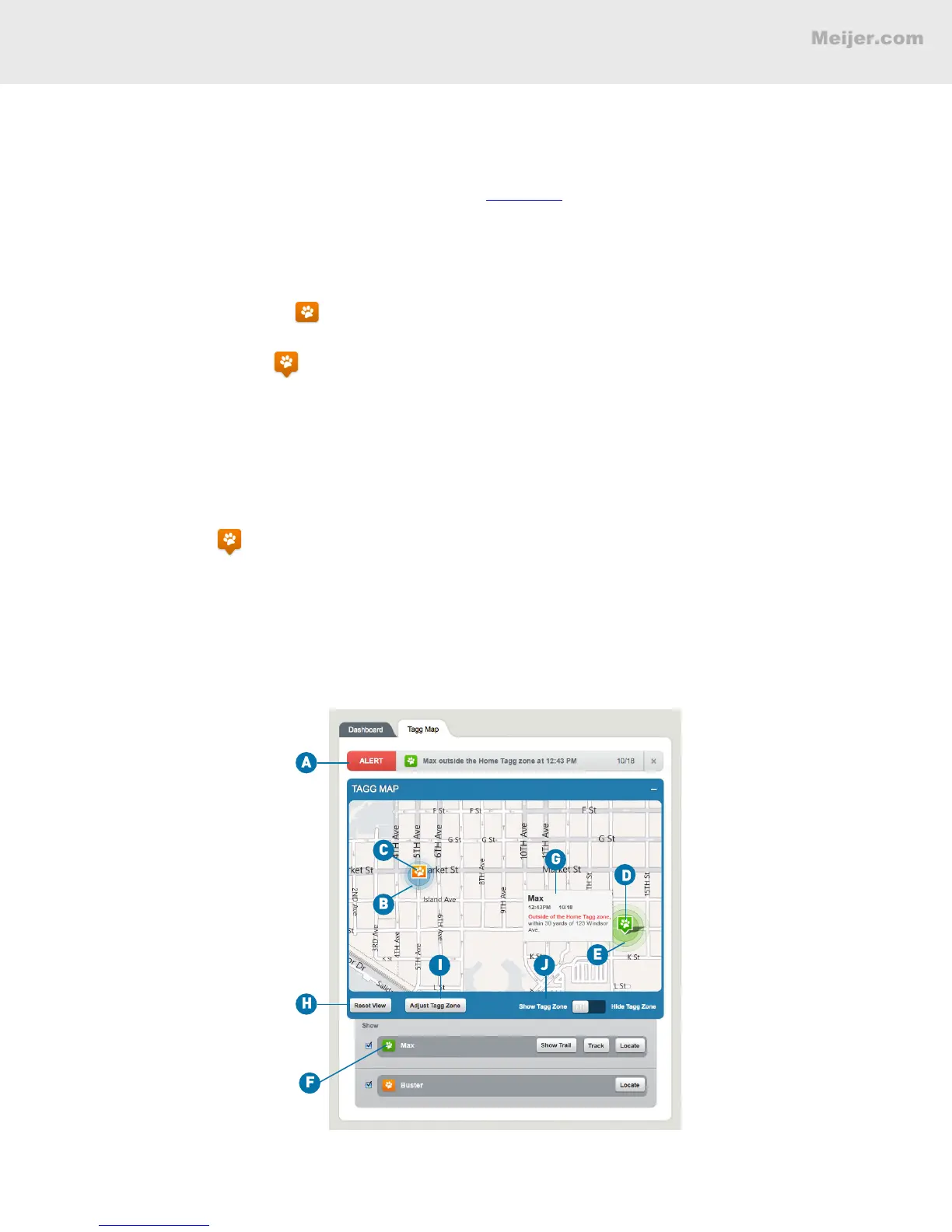
You’ll use the Tagg map to locate and track your pet. This section gives you a quick overview of the
map. To learn more, see How to Read Your Tagg Map on page 20.
A. Notication headline: Where you receive alerts and updates about your pet’s location or the Tagg
system.
B. Tagg zone: The boundary around your house that you set during activation.
C. Paw without pinpoint: Means there’s no pinpointed GPS location, since your pet is close to the
docking station and in power saving mode.
D. Paw with pinpoint: Means there is a GPS location available. If you hover over this icon, you’ll
see the last recorded location of your pet.
E. Radius of accuracy: The circle around the paw indicates the accuracy of the GPS location. In
general, the accuracy of the location will be within a few yards or up to a few hundred yards,
depending on the quality of the GPS signal available at the time.
F. Tracker command bar: Where you can command the tracker to Track, Locate, or Show Trail for your
pet.
G. Hover over : Gives the last recorded location of your pet.
H. Reset View: Adjusts the Tagg map to your original view, showing your pet and Tagg zone.
I. Adjust Tagg Zone: Where you can change your Tagg zone on the map.
J. Show/Hide Tagg Zone: Where you can choose to show or hide the Tagg zone on the map.
(Your screen will look similar to this.)
TAGG DASHBOARD AND MAP OVERVIEW


 To Next Page