User Guide 8
DOCKING STATION OVERVIEW
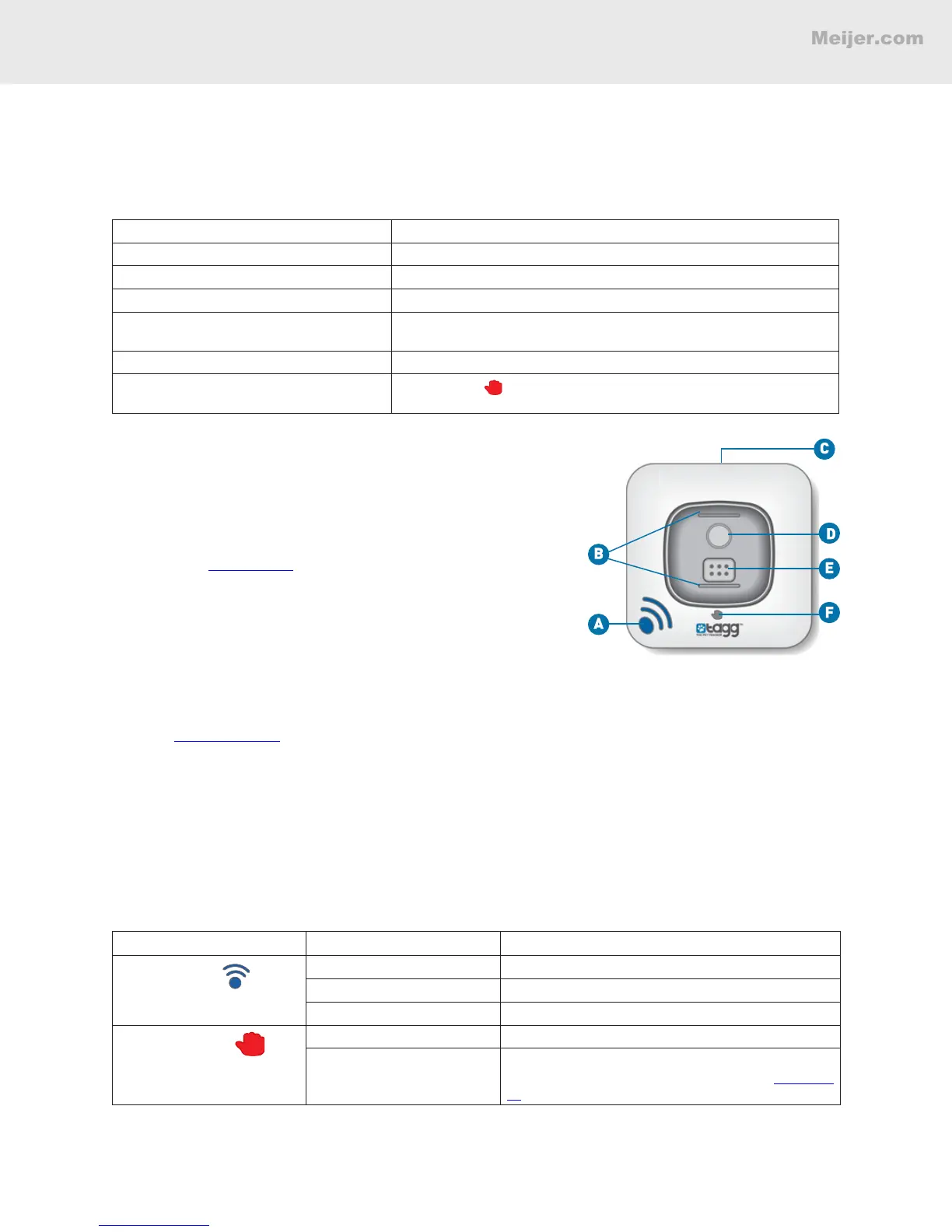
The docking station* does two things: 1) charges your Tagg tracker and 2) maximizes the tracker’s
battery life when your pet is nearby. It should always be plugged in, powered on, and located within
your Tagg zone.
Item What it Does
A. Power Indicator Tells you the docking station is on
B. Docking Posts Holds the tracker in place when docked
C. Power Port Connects the docking station to the USB cable
D. Page Button Locates the tracker when pressed (only when the tracker is near the
docking station)
E. Charging Pins Align with the tracker charging contact to charge
F. Upgrade Indicator
Lights up red
when a software upgrade is in progress. Do not
remove the tracker while the light is on
*If you only purchased a Tagg tracker, it does not include a docking station
and power kit.
About the Page Button
If you’re at home and the Tagg system says your pet is “near
the docking station” but you can’t nd him, you can page the
Tagg tracker. See page 24 for more information.
Positioning the Docking Station
For optimal system performance:
• Keep the docking station within the boundary of the
Tagg zone where your pet spends most of his time.
This will keep the tracker in power saving mode and maximize the tracker battery life. For more
information about how to get the most from your tracker battery, please visit the Support section
at www.tagg.com.
• Place the docking station indoors, in an open area, away from metal.
• Make sure the docking station is plugged into an electrical outlet using the AC adaptor and USB
cable provided. The docking station cannot be powered through your computer's USB port.
• Make sure the docking station is powered on (power indicator lights up blue).
Note: If you make a signicant relocation of the docking station (such as taking it to a vacation home), you
must adjust the Tagg zone to reect the new location and address.
Docking Station Indicator Indicator State What it Means
Power indicator
Not Lit Docking station is off or unplugged
Solid Blue Docking station is on
Flashing Blue - 15 minutes Page button pressed, locating pet
Upgrade indicator
Not Lit Normal operation
Solid Red
WAIT: Software upgrade in progress. Do not
remove tracker until upgrade is complete. See page
19 for more about upgrades.


 To Next Page