User Guide 19
Software Upgrades
The Tagg system will occasionally send you a notication for a software upgrade – some of the
upgrades will simply keep your system running efciently, and some may be critical to system
functionality. It is important to complete the upgrade as soon as possible.
When You Receive an Upgrade Notification
1. Dock your tracker on the docking station or travel charger. Make sure the docking station or
charger is plugged in and turned on.
2. The upgrade will begin when your tracker has reached sufcient battery life, which may take
anywhere from a few minutes, up to 30 minutes.
3. The upgrade indicator on the docking station will turn red when the upgrade begins and
will stay red while it’s in progress. Be sure to leave the tracker on the docking station or
charger the entire time it is red.
Pending Updates
When you make an update to your account, such as setting or adjusting the Tagg zone, the update will
not take effect until the tracker checks in with the Tagg system. This will happen automatically within
24 hours.
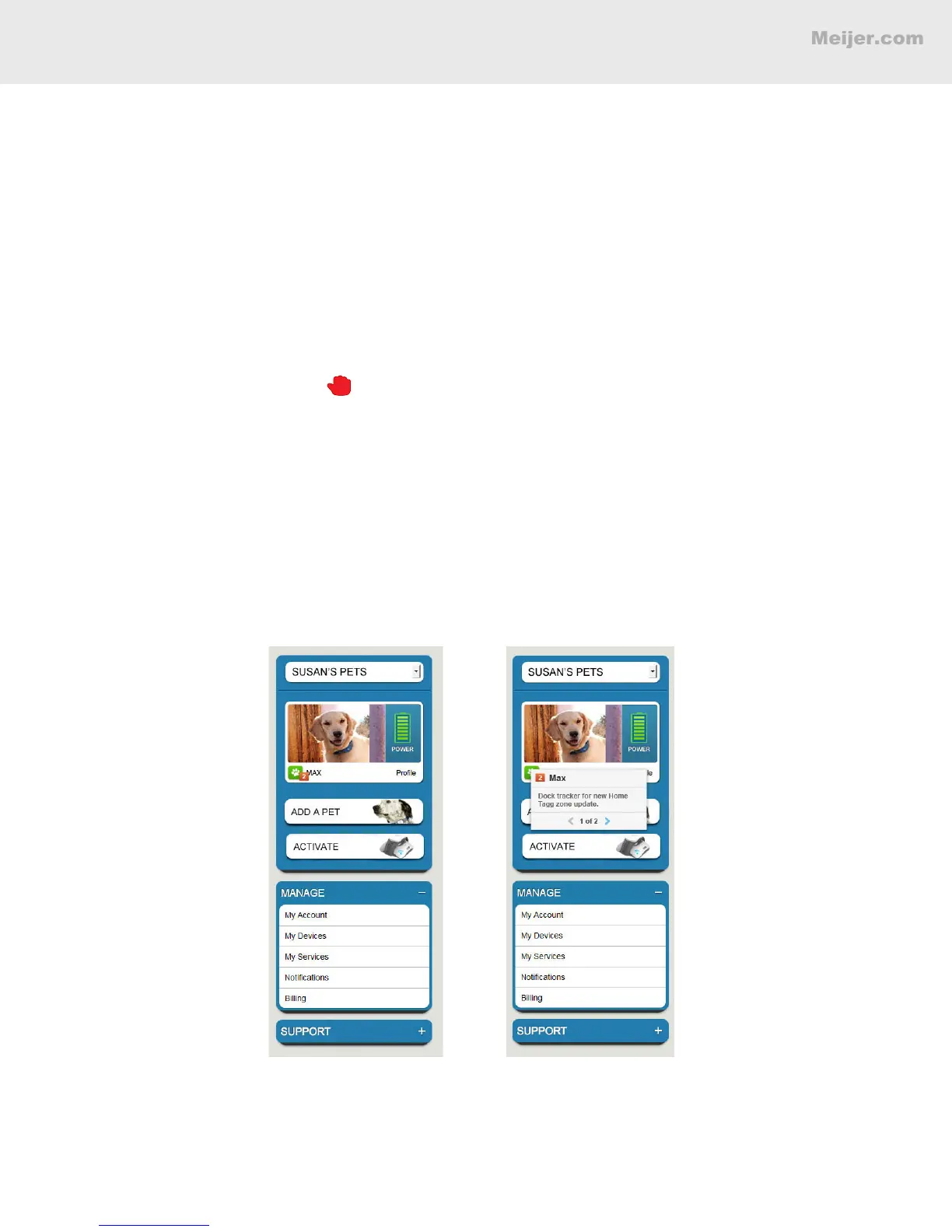
To update the setting immediately, place your tracker on the docking station. Pending updates are
indicated in your pet's prole, as shown below.
BASIC SETUP


 To Next Page