User Guide 7
TAGG TRACKER OVERVIEW
The Tagg tracker attaches to your pet’s collar and transmits your pet’s location to you through the Tagg
website and email/text notifications.
Item What it Does
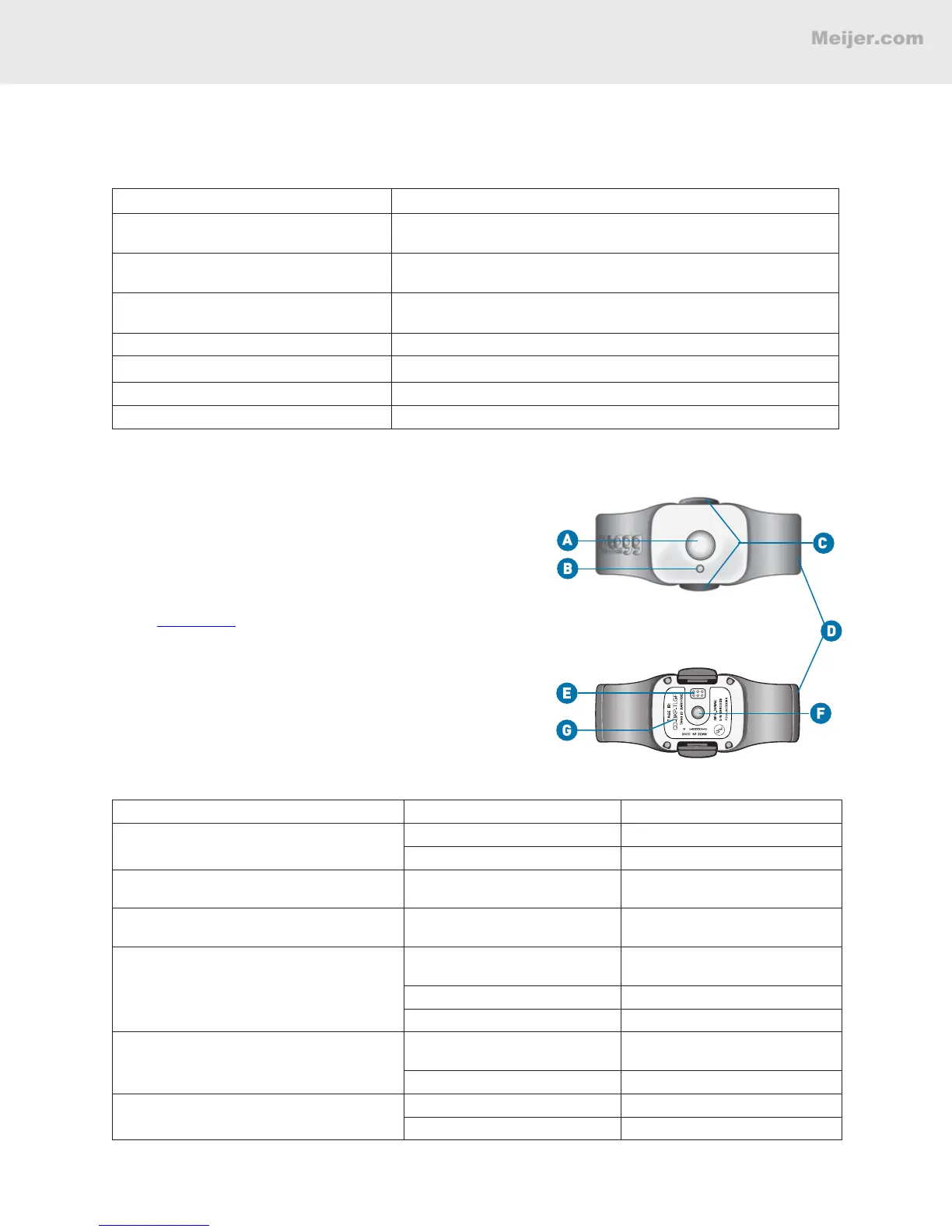
A. Power and Trip Button Turns the tracker on/off. Puts the tracker into "Trip mode" to avoid
sending alerts when you leave the Tagg zone
B. Status Indicator Tells you when the tracker is on/off, locating or tracking your pet, and
more (see more about the Status Indicator below)
C. Release Points Release the tracker from the docking station, travel charger, or
collar when pressed
D. Wings Antenna for the Tagg system
E. Charging Contact Align this with the docking station or travel charger to charge
F. Attachment Sensor Senses when the tracker is attached or detached from the collar clip
G. Tagg ID Unique code for activating your tracker
About the Power/Trip Button
This button does two things:
• Turns the tracker on/off (see chart below).
• Puts the tracker into “Trip mode.” You can use
Trip mode when you take your dog on a walk or
run errands to avoid sending alerts when you
leave the Tagg zone. For more about Trip mode,
see page 27.
About the Status Indicator
The status indicator on the Tagg tracker tells you
when the tracker is on/off, locating or tracking your
pet, and more. To conserve battery life, the status
indicator will not be illuminated except when
performing the actions listed below.
Action Tracker Status Indicator State What it Means
Turn tracker on or off: Press and hold the
Power/Trip button for 3 seconds
Solid Blue for 5 seconds Tracker is powering on
Solid Red for 5 seconds Tracker is powering off
Put tracker into Trip mode: Double-press
the Power/Trip button
3 Quick Flashes, then Flashing
Blue for 15 minutes
Tracker is in Trip mode
Page, Track, or Locate Flashing Blue and Red Tracker is being paged, tracked,
or located
Check if tracker is on or off: Press and
release Power/Trip button (for less than 3
seconds)
Solid Blue for 2 seconds Tracker is on, with sufcient
battery
Flashing Red 4 times Tracker is on, with low battery
Not lighting up Tracker is off
Charge tracker: Place it on docking station
or travel charger
Flashing Blue Tracker is charging (may take up
to 60 seconds to start ashing)
Solid Blue Tracker is fully charged
Remove the tracker from the docking
station
Solid Blue for 2 seconds Battery is sufciently charged
Not lighting up Battery needs to be charged
Tracker – Top View
Tracker – Bottom View


 To Next Page