10
snom 710 User Manual Notational Conventions
Notational conventions
Throughout this manual you will see the below-listed symbols and notations, indicating the action you
need to take next.
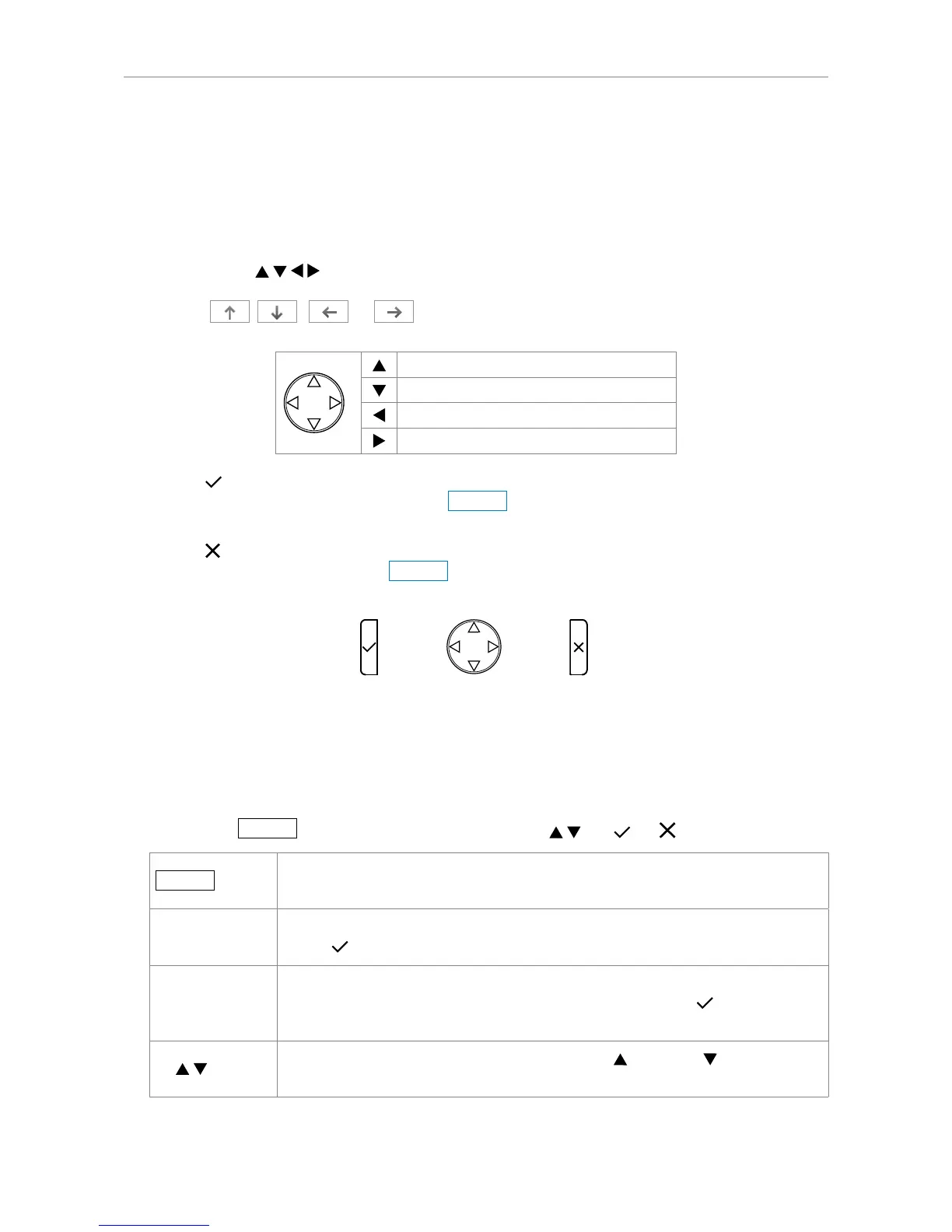
• Arrow symbols
: Depending on the context, they indicate either pressing the top, bottom,
left, or right edge of the navigation key or pressing the function keys underneath the display
symbols
, , , or when these symbols are available. Sometimes both
methods will work.
Press top edge of navigation key
Press bottom edge of navigation key
Press left edge of navigation key
Press right edge of navigation key
• Symbol
: Depending on the context, they indicate pressing either the confirmation key or the
function key underneath the display symbol
Ok
, when this symbol is available. Sometimes
both methods will work.
• Symbol
: Depending on the context, they indicate pressing either the cancel key or the function
key underneath the display symbol
Cancel
, when this symbol is available. Sometimes both
methods will work.
Confi rmation
key
Cancellation
key
Navigation
key
• Menu items: Represented by number and title, e.g., "5 Maintenance".
• Sequences of actions to be taken. The character ">" indicates the next step in a sequence of
actions to change a setting or perform a function.
Example 1:
Settin
> 1 Preferences > 4 Language > > >
Settin
Press the function key underneath this text in the function key line to open
the Settings menu
> 1 Preferences
Next, press the number "1" key on the alphanumeric keypad. Alternatively
press
.
> 4 Language
Next, press the number "4" key on the alphanumeric keypad. Alternatively,
navigate to "4 Language" with the navigation key and press
to open the
list of available languages.
>
Scroll through the list by pressing either the up and down arrows on the
navigation key.



 To Next Page