27
snom 710 User Manual Getting to Know Your Phone
Settings
A comparatively small number of settings can be adjusted on the phone; many more are available on
the phone's web interface. For further information, see also "Customizing the phone settings" on page
62.
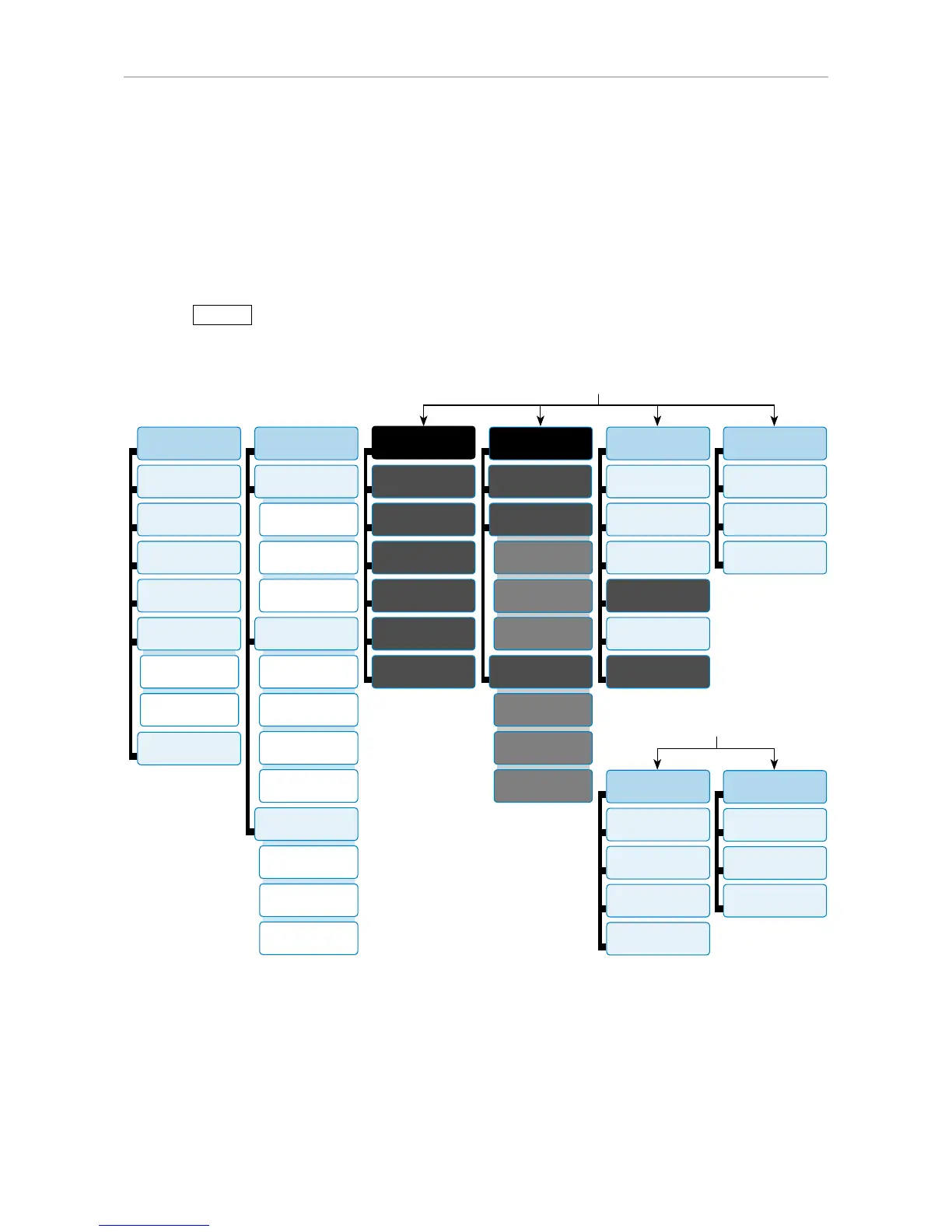
Phone menu
Press the
Settin
function key to open the main menu on the display. To open a submenu and
subsequent submenus, press its number on the alphanumeric keypad.
1
Preferences
1
Time Zone
2
Tone Scheme
3
Ringer
4
Language
5
Display
6
F-keys
2
Call Features
1
Call Forwarding
1
Forward all
2 Forward
when busy
3
Fwd after timeout
2
Outgoing Calls
1
Auto Dial
1
Contrast
2 Number
Guessing
2
Backlight
3
Call Completion
4 Hide own
outgoing ID
3
Incoming Calls
1
Reject anonymous
2
Call Waiting
3 Auto Answer
Indication
3*
Identity
1 Outgoing
Identity
2
Reregister
3
Edit
4
Logoff
5
Logoff all
6
Call Voicemail
4*
Network
1
IP Setting
2
Webserver
1
Webserver Type
2
HTTP Admin
3
HTTP Password
3
Reset VLAN
3
VLAN
1
VLAN ID (0-4095)
2 VLAN Priority
(0-7)
5
Maintenance
1
System Info
2
User Mode
3
Reboot
5
Change PIN
3
Help
4*
Reset Values
6**
Vision
6
Information
1
Status Info
2
System Info
In administrator mode
3
Maintenance
1
System Info
2 Administrator
Mode
4
Change PIN
3
Reboot
4
Information
1
Status Info
2
System Info
3
Help
In user mode
* The submenus and the settings shaded black and gray are not available when the phone is running
in user mode. The factory setting is administrator mode. For more information on user/administrator
modes, see "User mode/administrator mode" on page 32.
** Item 6 in the Maintenance submenu, Vision, is visible only when a snom Vision is paired with the
phone or when there is a snom Vision in the network available for pairing.


 To Next Page