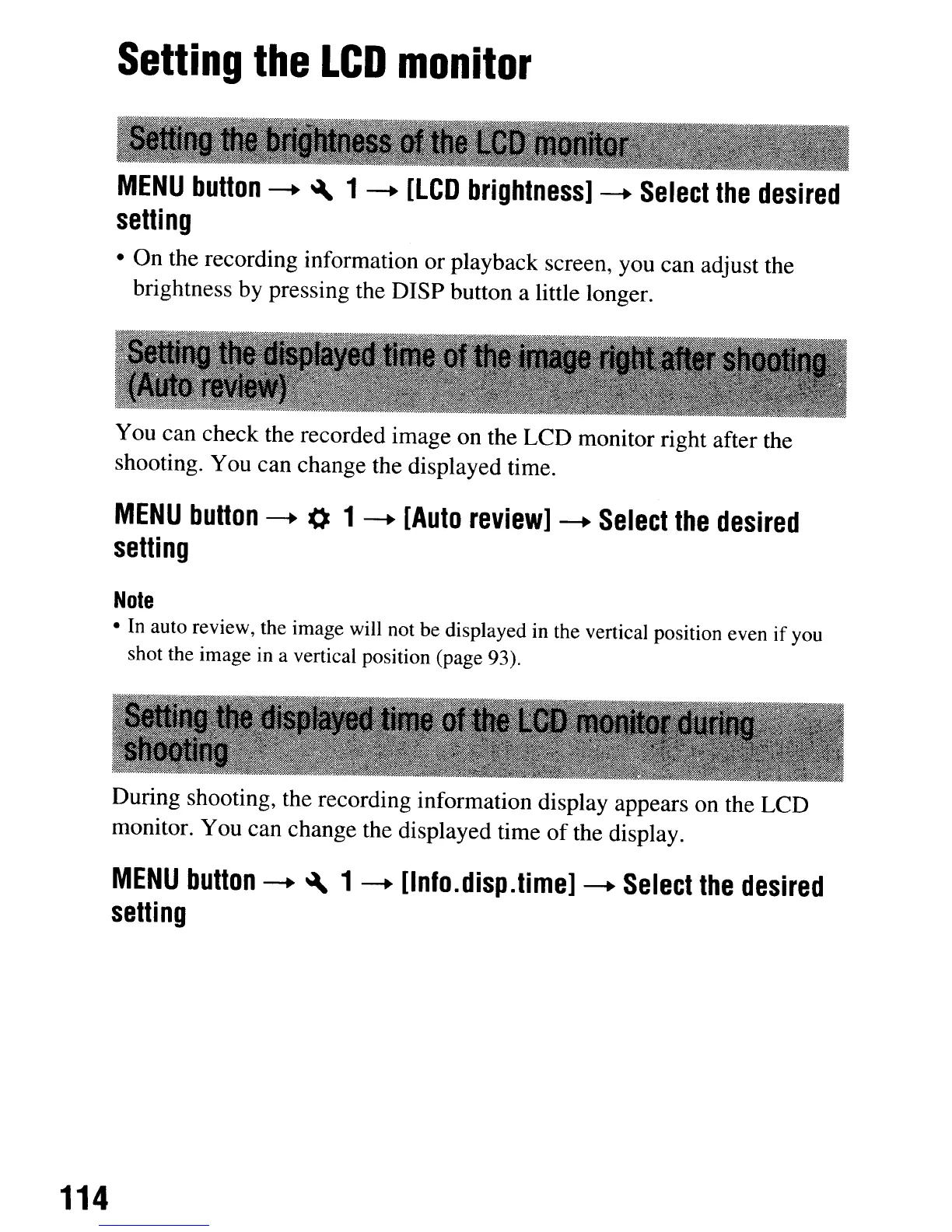
Setting
the
LCD
monitor
MENU
button
-+
~
1
-+
[LCD
brightness]
-+
Select
the
desired
setting
• On the recording information or playback screen, you can adjust the
brightness by pressing the DISP button a little longer.
You can check the recorded image on the LCD monitor right after the
shooting. You can change the displayed time.
MENU
button
-+
0 1
-+
[Auto
review]
-+
Select
the
desired
setting
Note
• In auto review, the image will not be displayed in the vertical position even if you
shot the image
in
a vertical position (page 93).
During shooting, the recording information display appears on the LCD
monitor. You can change the displayed time
of
the display.
MENU
button
-+
~
1
-+
[lnfo.disp.time]
-+
Select
the
desired
setting
114
Setting
the
LCD
monitor
MENU
button
-+
~
1
-+
[LCD
brightness]
-+
Select
the
desired
setting
• On the recording information or playback screen, you can adjust the
brightness by pressing the DISP button a little longer.
You can check the recorded image on the LCD monitor right after the
shooting. You can change the displayed time.
MENU
button
-+
0 1
-+
[Auto
review]
-+
Select
the
desired
setting
Note
• In auto review, the image will not be displayed in the vertical position even if you
shot the image
in
a vertical position (page 93).
During shooting, the recording information display appears on the LCD
monitor. You can change the displayed time
of
the display.
MENU
button
-+
~
1
-+
[lnfo.disp.time]
-+
Select
the
desired
setting
114






 To Next Page