Note
• "Picture Motion Browser"
is
not compatible with Macintosh computers.
["f{::::::
,:::'1
••••
=:."""
...
" .
I
•••••
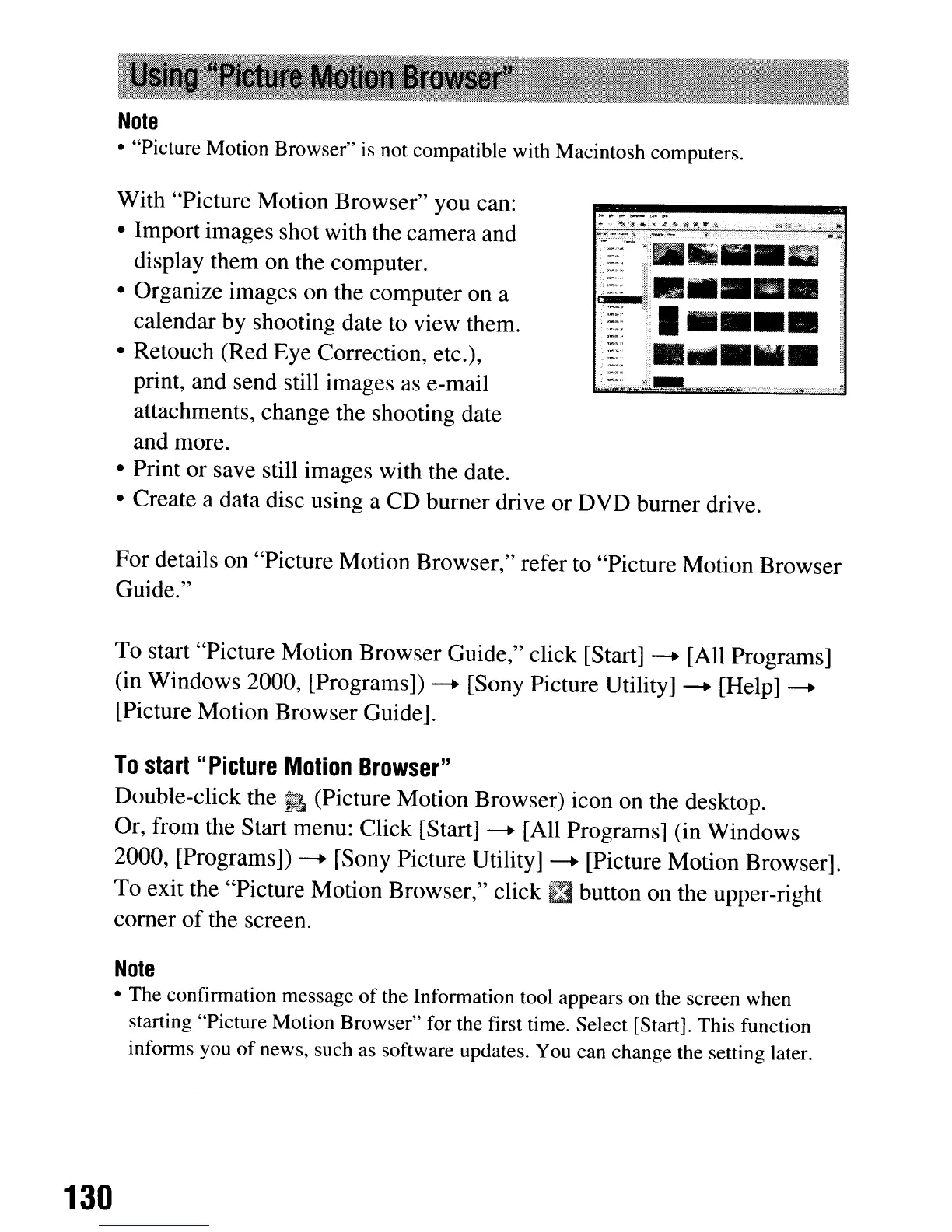
With "Picture Motion Browser" you can:
• Import images shot with the camera and
display them on the computer.
• Organize images on the computer on a
calendar by shooting date
to
view them.
• Retouch (Red Eye Correction, etc.),
print, and send still images
as
e-mail
attachments, change the shooting date
and more.
• Print or save still images with the date.
• Create a data disc using a CD burner drive or DVD burner drive.
For details on "Picture Motion Browser," refer to "Picture Motion Browser
Guide."
To start "Picture Motion Browser Guide," click [Start]
-+
[All Programs]
(in Windows 2000, [Programs])
-+
[Sony Picture Utility]
-+
[Help]
-+
[Picture Motion Browser Guide].
To
start
"Picture
Motion
Browser"
Double-click
the.
(Picture Motion Browser) icon on the desktop.
Or, from the Start menu: Click [Start]
-+
[All Programs] (in Windows
2000, [Programs])
-+
[Sony Picture Utility]
-+
[Picture Motion Browser].
To exit the "Picture Motion Browser," click
mbutton on the upper-right
comer
of
the screen.
Note
• The confirmation message
of
the Information tool appears on the screen when
starting "Picture Motion Browser" for the first time. Select [Start]. This function
informs you
of
news, such as software updates. You can change the setting later.
130
Note
• "Picture Motion Browser"
is
not compatible with Macintosh computers.
["f{::::::
,:::'1
••••
=:."""
...
" .
I
•••••
With "Picture Motion Browser" you can:
• Import images shot with the camera and
display them on the computer.
• Organize images on the computer on a
calendar by shooting date
to
view them.
• Retouch (Red Eye Correction, etc.),
print, and send still images
as
e-mail
attachments, change the shooting date
and more.
• Print or save still images with the date.
• Create a data disc using a CD burner drive or DVD burner drive.
For details on "Picture Motion Browser," refer to "Picture Motion Browser
Guide."
To start "Picture Motion Browser Guide," click [Start]
-+
[All Programs]
(in Windows 2000, [Programs])
-+
[Sony Picture Utility]
-+
[Help]
-+
[Picture Motion Browser Guide].
To
start
"Picture
Motion
Browser"
Double-click
the.
(Picture Motion Browser) icon on the desktop.
Or, from the Start menu: Click [Start]
-+
[All Programs] (in Windows
2000, [Programs])
-+
[Sony Picture Utility]
-+
[Picture Motion Browser].
To exit the "Picture Motion Browser," click
mbutton on the upper-right
comer
of
the screen.
Note
• The confirmation message
of
the Information tool appears on the screen when
starting "Picture Motion Browser" for the first time. Select [Start]. This function
informs you
of
news, such as software updates. You can change the setting later.
130






 To Next Page