16
Selecting the Menu
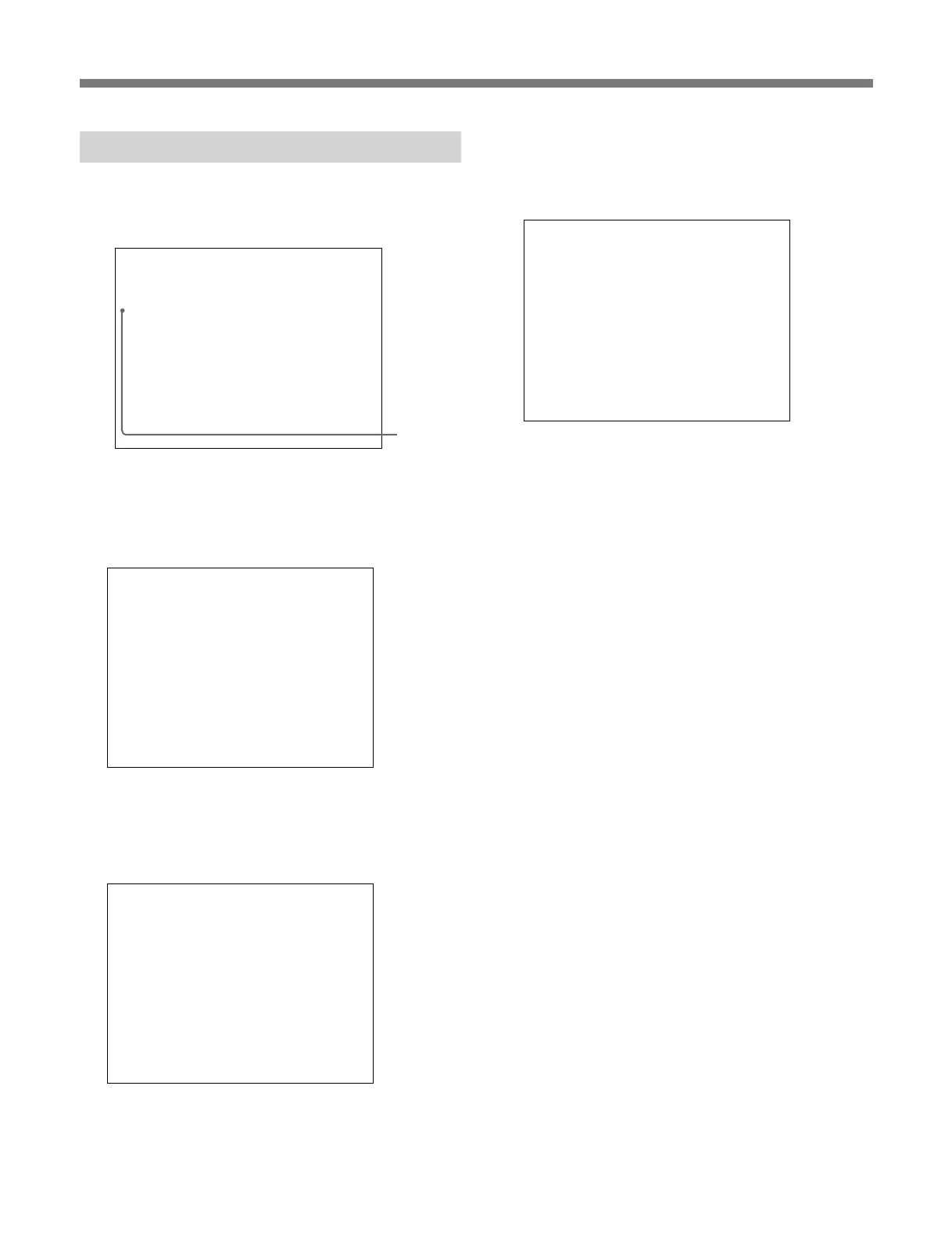
1 Using the UP or DOWN button, move the cursor to
the desired item. (Example: move the cursor with
the DOWN button to SET UP.)
CONTROL PRESET ADJ...
MENU
COLOR TEMP ADJ...
SETUP...
MEMORY CARD...
COPY...
STATUS...
MAINTENANCE...
KEY PROTECT OFF
p
Menu list
2 Press the ENTER button.
The SET UP menu list is displayed.
INPUT CONFIGURATION...
SETUP
REMOTE...
PASSWORD...
SYSTEM CONFIGURATION...
ON SCREEN SET...
ALIGNMENT...
EXTEND MENU...
p
SET UP menu list
3 Using the UP or DOWN button, move the cursor to
the desired item. (Example: select the INPUT
CONFIGURATION menu.)
SETUP
EXTEND MENU...
INPUT CONFIGURATION...
REMOTE...
PASSWORD...
SYSTEM CONFIGURATION...
ON SCREEN SET...
ALIGNMENT...
p
4 Press the ENTER button.
The INPUT CONFIGURATION menu is
displayed.
APERTURE OFF
APERTURE VALUE 100
10 CH
INPUT CONFIGURATION ↓
FORM AT... NTSC-7 .5
SLOTNO2
INPUTNO1
YCSEP...3LINES COMB
SYNC MODE INT
SCREEN MODE... 4:3-NORM
SAFE AREA OFF
SAFE AREA SCALE... 80%
p
INPUT CONFIGURATION menu
The “ ↓” to the right of the menu title indicates that
the menu continues onto another page. Items
which are followed by “...” have sub-lists for
settings.
Basic Menu Operations
Cursor



 To Next Page