59
Display Function Menu
Chapter 3 Menu
Display Function Menu
Overview
This menu is used to set the function related to the picture display.
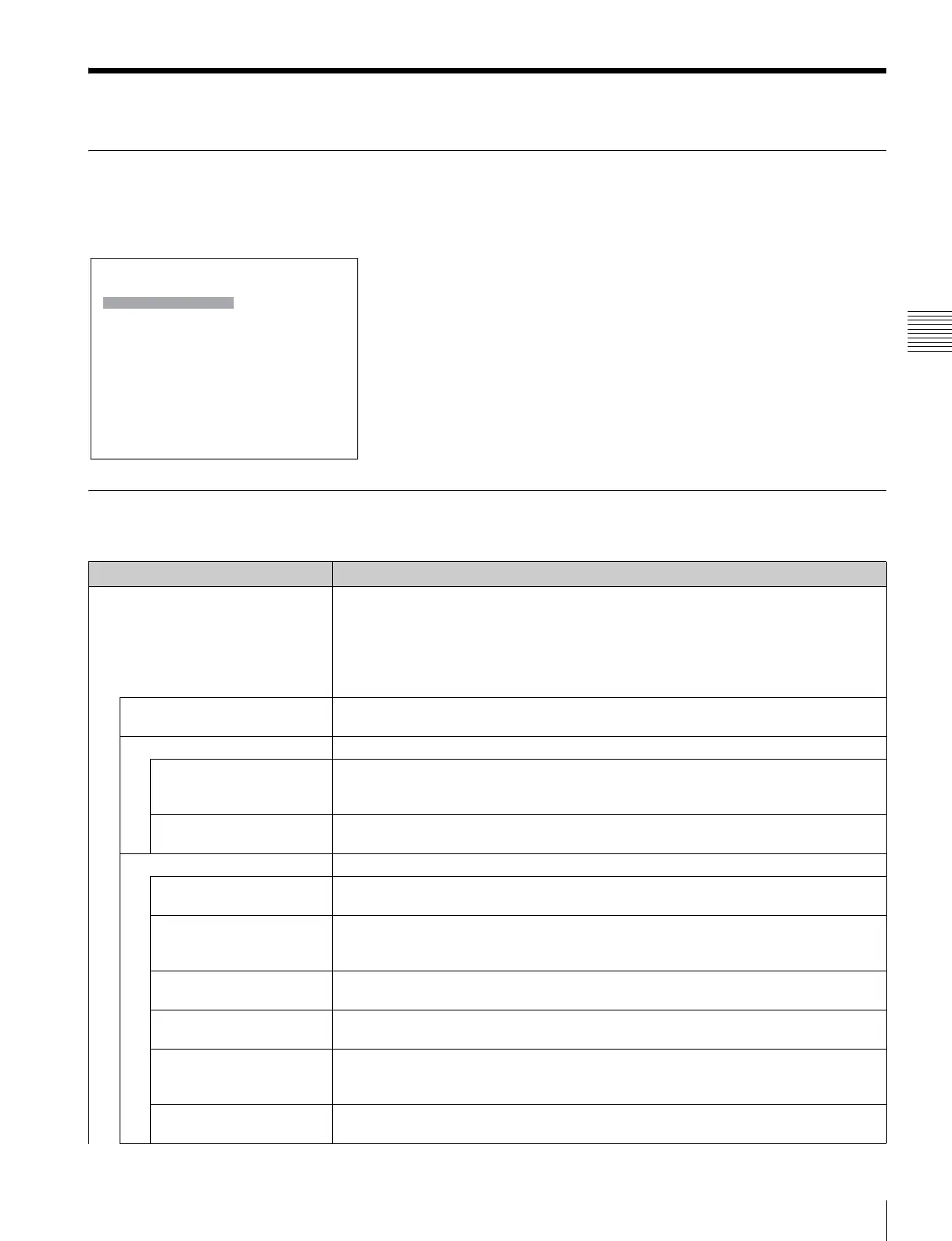
When Display Function is selected, the following menu is displayed.
Menu Function and Operation
Menu Function and operation ([ ]: factory setting)
Marker Setting Sets whether or not to display the marker when the MARKER button is pressed, and the
display mode.
To hide the characters on the monitor during setting
Set the CHAR OFF button of the controller to on. As the characters on the display are
hidden, it becomes easy to adjust the picture. To display the characters, set the CHAR OFF
button to off.
Marker Preset Sets the marker preset data.
You can select from Marker1 to Marker5. [Marker1]
Aspect Blanking Sets the display of the blanking outside the area of the aspect marker.
Aspect Blanking Sets whether or not to set the blanking.
[Off]: Blanking is released.
On: Blanking.
Mode Sets the blanking mode when Aspect Blanking is set to On.
You can select from Black (blanking) or [Half] (half blanking).
Aspect Marker Sets the aspect marker display.
Aspect Marker Sets whether or not to display the aspect marker when the MARKER button is pressed ([Off]
or On).
Aspect Mode Sets the aspect ratio of the aspect marker.
You can select from [16:9], 15:9, 14:9, 13:9, 4:3, 2.39:1, 2.35:1, 1.85:1, 1.66:1, 1.896:1 or
Variable.
Aspect Sets the aspect ratio of the aspect marker when Variable is selected in Aspect Mode.
Set to 1.00:1 to 3.00:1. [1.78]:1
Line Sets the thickness of the aspect marker.
You can select from [Thick] (thick) or Thin (thin).
Color Sets the color of the aspect marker.
You can select from [White] (white), Red (red), Green (green), Blue (blue), Yellow (yellow),
Cyan (cyan) or Magenta (magenta).
Bright Sets the luminance of the aspect marker.
You can select from [90IRE] (bright) or 40IRE (dark).
iDisplay Function
Marker Setting B
P&P Setting B
Pixel Zoom Setting B
Gamut Error Display B
Black Detail Setting B
Capture B
Internal Signal B
Function Switch B





 To Next Page