178
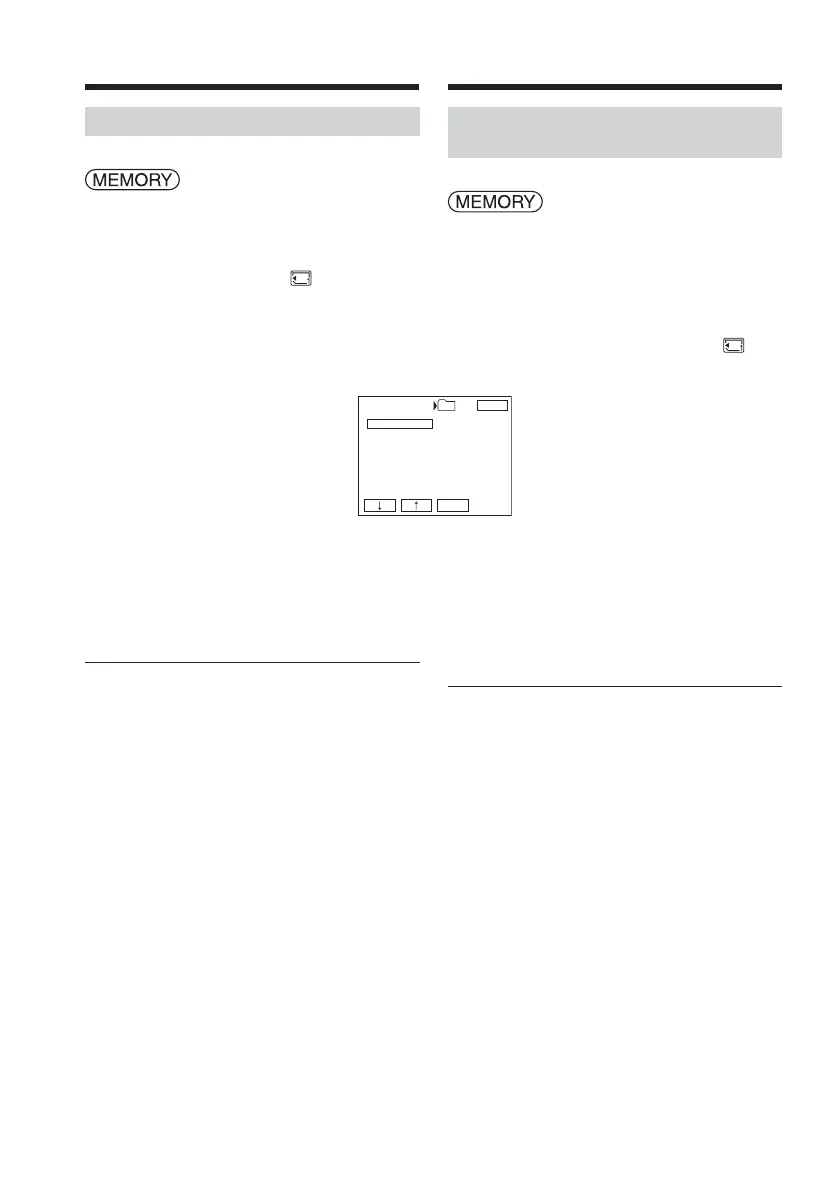
Selecting the recording folder
The POWER switch should be set to
.
Operate by touching the panel.
(1) Press FN to display PAGE1.
(2) Press MENU to display the menu.
(3) Select REC FOLDER in
, then press
EXEC (p. 245).
(4) Press r/R to select a folder you want to
record in, then press EXEC.
To return to FN
Press EXIT.
Notes
•Up to 9 999 image files can be recorded in
each folder. When a folder is full, a new
folder is automatically created.
•Once a folder is created, it cannot be deleted
with your camcorder.
•As the number of folders increases, the
number of recordable images in the
“Memory Stick” decreases.
Changing the recording folder
REC FOLDER
101MSDCF
102MSDCF
103MSDCF
104MSDCF
EXIT
EXEC
DATE :
4 7 2003
12:24:24
FILES
7
101
Sélection du dossier
d’enregistrement
Réglez le commutateur POWER sur
.
Effectuez cette opération à l’aide de l’écran
tactile.
(1) Appuyez sur FN pour afficher PAGE1.
(2) Appuyez sur MENU pour afficher le
menu.
(3) Sélectionnez REC FOLDER sous
,
puis appuyez sur EXEC (p. 255).
(4) Appuyez sur r/R pour sélectionner le
dossier dans lequel vous souhaitez
enregistrer, puis appuyez sur EXEC.
Pour revenir à FN
Appuyez sur EXIT.
Remarques
•Vous pouvez enregistrer jusqu’à 9 999
fichiers d’images dans chaque dossier.
Lorsqu’un dossier est plein, un nouveau
dossier se crée automatiquement.
•Une fois qu’un dossier a été créé, il ne peut
pas être supprimé avec votre caméscope.
•A mesure que le nombre de dossiers
augmente, le nombre d’images pouvant être
enregistrées sur le « Memory Stick » diminue.
Modification du dossier
d’enregistrement



 To Next Page