Setting Edit Points
3-6 Editing
Chapter 3 Editing
To set audio IN points
separately from video IN
points (audio split editing)
In insert editing, press the AUDIO IN
button together with the ENTRY/
SHIFT button at the point you want to
set as the audio IN point.
The audio IN point is set and the
AUDIO IN button lights.
3-3-2 Checking Edit
Points
You can check the time data of edit
points and the duration between two
edit points by displaying them in the
sub LCD.
To display the time data of
edit points
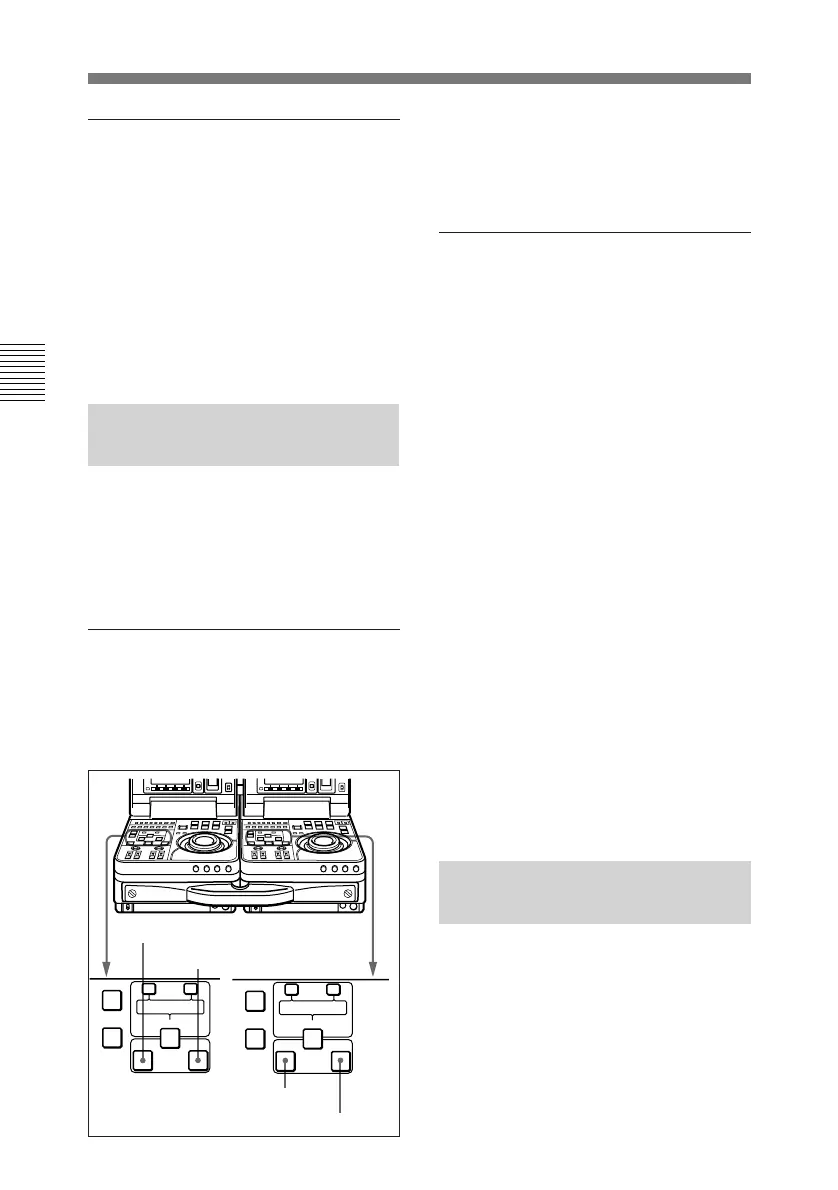
Press the recorder side or player side
IN or OUT button.
While the button remains pressed, the
time data for the corresponding edit
point is displayed in the sub LCD.
To display the duration
between two edit points
From among the recorder side and
player side IN buttons (or AUDIO IN
buttons) and OUT buttons, press two
of the buttons together.
The duration appears in the sub LCD
while the buttons are kept pressed. In
some cases, negative durations
preceded by a minus sign (–) may be
displayed.
The displayed durations are calculated
as follows.
When two edit points are set: The
duration between the two edit
points
When only one edit point is set:
The duration between the edit
point and the current tape
position
When no edit points are set: The
duration of the most recently set
edit points
3-3-3 Cueing Up Edit
Points
You can cue up any edit point, or cue
up a position located a specified
amount of time before the edit start
point (preroll).
AUDIO IN
TRIM
LIST MARK
GOOD
SHOT
IN OUT
–+
TRIM
LIST MARK
GOOD
SHOT
ENTRY SHIFT
IN OUT
–+
DELETE
AUDIO IN
DELETE
ENTRY SHIFT
IN button
OUT button
IN button
OUT button


 To Next Page