Menu Operations
147
Chapter 6 Menu Displays and Detailed Settings
2 Press the MENU knob. Then select the
page that you want to delete, and press
the MENU knob.
The EDIT FUNCTION page appears.
3 Select DELETE, and press the MENU
knob.
The previously displayed page appears
again, and the message “DELETE OK? YES
b NO” appears at the upper right.
4 Select YES, and press the MENU knob.
To replace pages
1 Follow steps 1 to 3 in “To add a page”
(page 146).
2 Press the MENU knob. Then select the
page that you want to move, and press
the MENU knob.
The EDIT FUNCTION page appears.
3 Select MOVE, and press the MENU
knob.
The previous screen appears again.
4 Select the position to which you want to
move the page, and press the MENU
knob.
The page selected in step 2 is moved to the
position.
You can return all settings in the USER menu to
standard settings.
(How to select an item in the menu screen: Turn
the MENU knob to move b to the desired item.)
1 Display the USER FILE page of the
FILE menu, and press the MENU knob.
For details on menu operations, see “Basic
menu operations” on page 140.
2 Press the MENU knob, then select
USER PRESET, and press the MENU
knob.
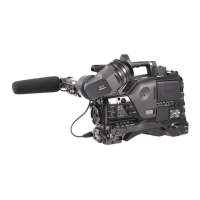
The message “PRESET OK? YES b NO”
appears.
3 Select YES, and press the MENU knob.
The message “COMPLETE” appears, and
the settings for all items in the USER menu
are reset to the standard settings.
Resetting USER menu settings to
the standard settings
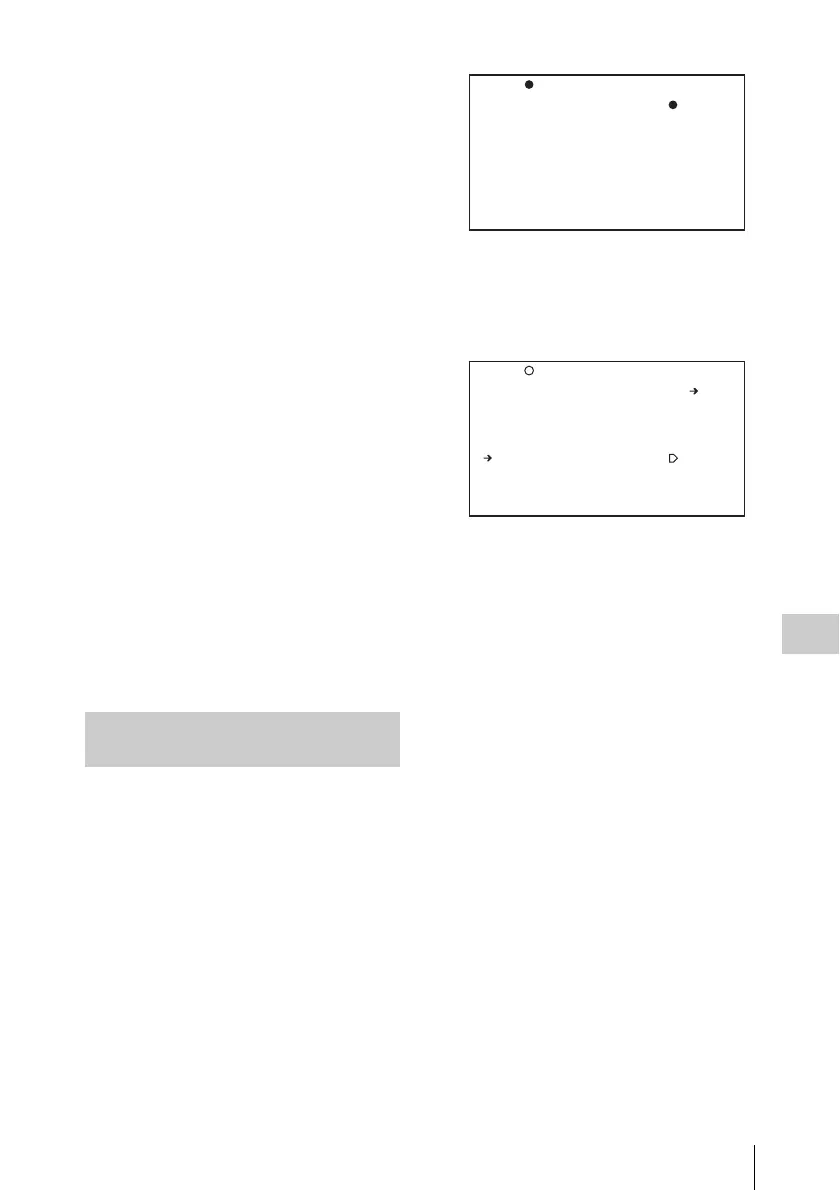
TOP?F01 USER FILE
USER FILE LOAD : EXEC
USER FILE SAVE : EXEC
F.ID :
ssssssssssssssss
USER PRESET : EXEC
TOP F01 USER FILE
PRESET OK? YES NO
USER FILE LOAD : EXEC
USER FILE SAVE : EXEC
F.ID :
ssssssssssssssss
USER PRESET : EXEC



 To Next Page