Applications ---> Accessories ---> Terminal
Type: "gmplayer -vo sdl" and hit enter. I only had to do this once. After that, Mplayer caught
on.
❍ To go to full screen, DON'T PRESS f, Press C. just trust me. To exit, press ESC
❍ For further controls, check the Mplayer website.
12. Installing SNES9x: (Super Nintendo Emulation)
❍ Download the Snes9x source code. Extract it in windows and transfer it to your PS3.
(Methods for transfer are mentioned above in the repositories section)
❍ Log in as root. Launch Terminal. Type: "yum install snes9express".
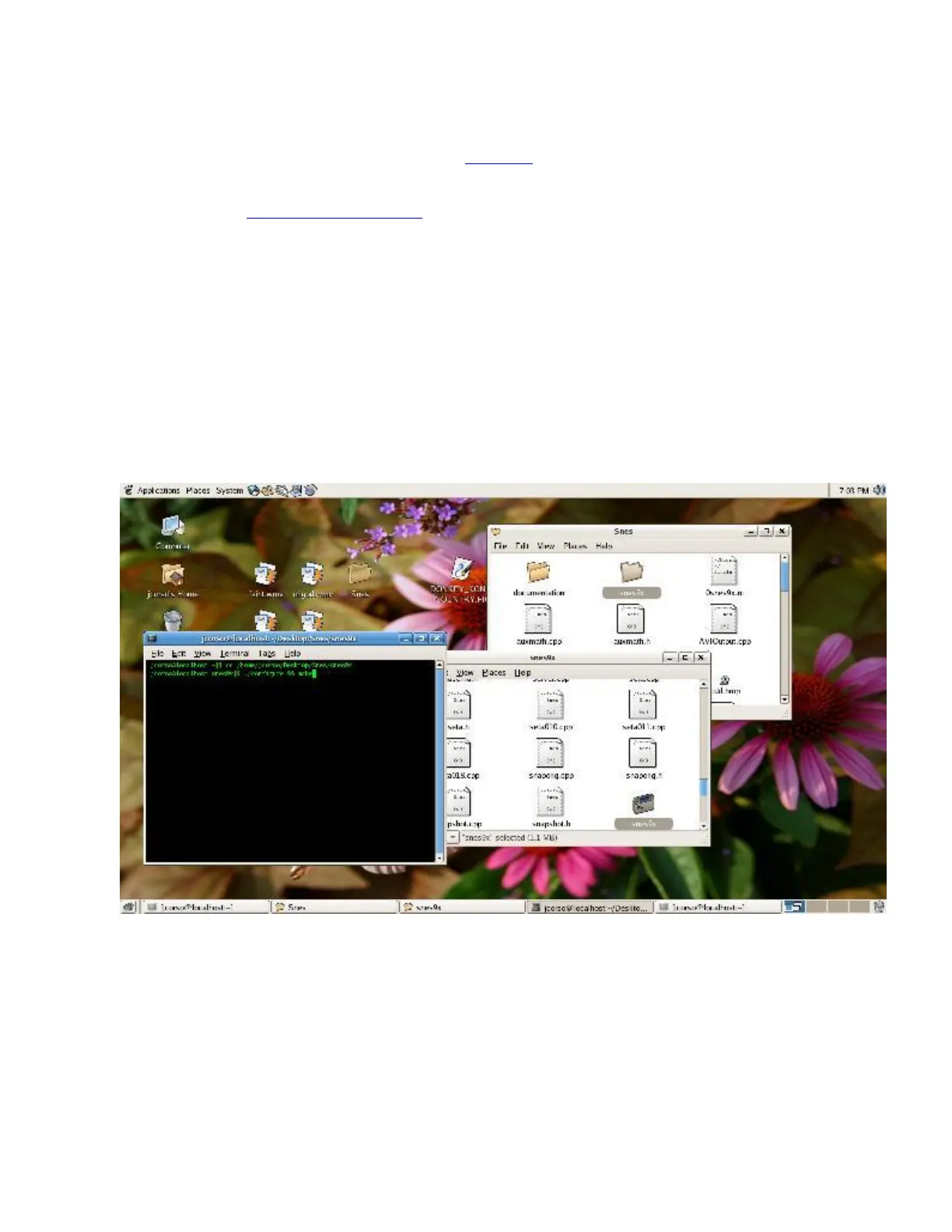
❍ Back in GNOME "not as root", Launch a Terminal, and browse to the snes9x folder where
placed your source code.
For example, I placed the extracted folder called "Snes" on my Desktop. And, I want to get to
the snes9x subfolder.
My code would be: "cd /home/jcorso/Desktop/Snes/snes9x", where jcorso is replaced by your
username.
Once There, Type ?./configure && make?. if everything goes well, an executable with name
"snes9x" will be created.
❍ To make life easier, I place the snes9x executable on the desktop after that.
❍ Now Launch snes9express, go to:
Applications ---> Games
❍ Ignore the skin error. Go to Console--->Preferences, point it to the location of the snes9x
executable and the ROMs and Hit Ok.



 To Next Page