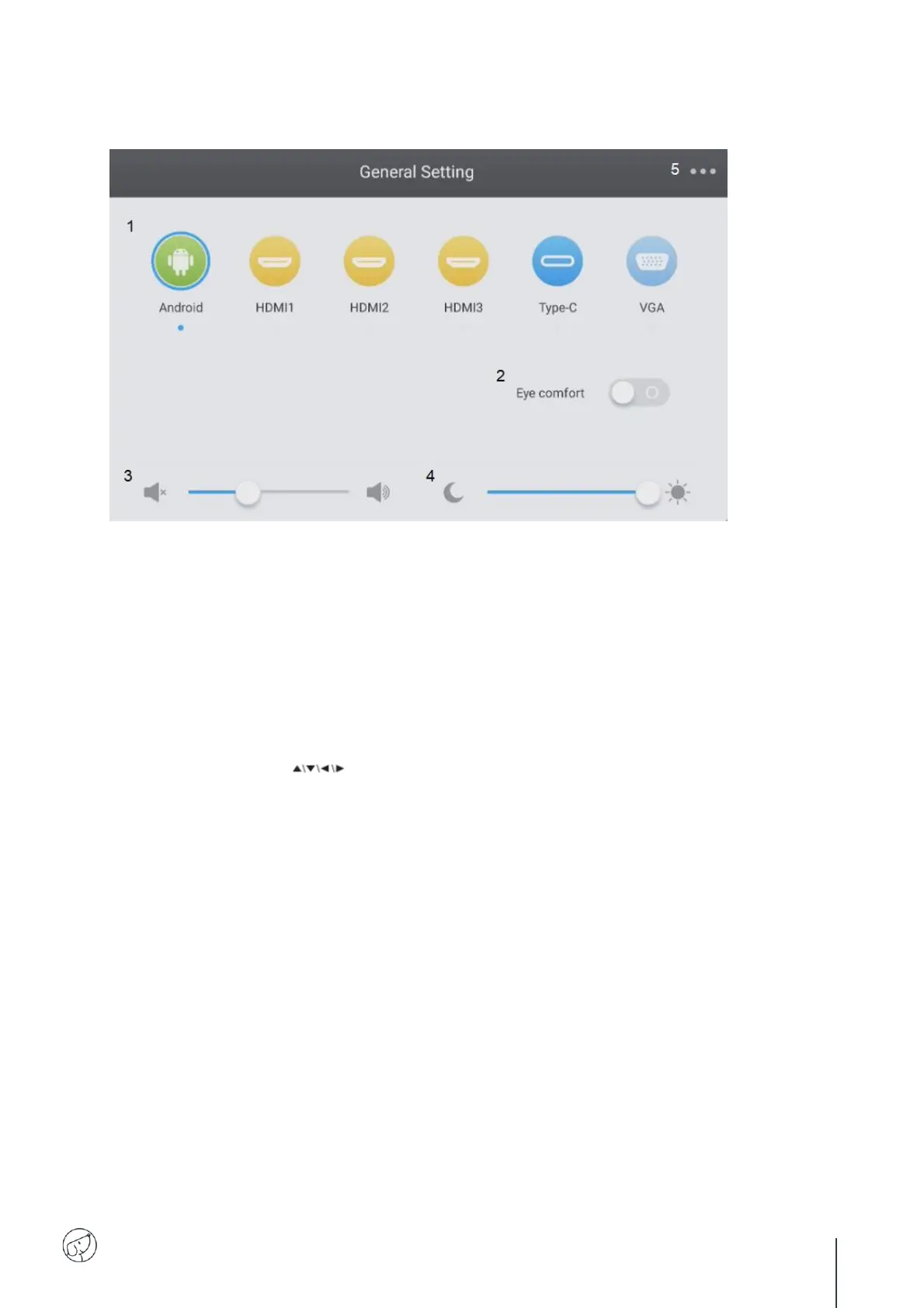
6.2. General settings menu
1. Change the channel
2. Eye-care (activate to reduce blue light)
3. Adjust volume
4. Adjust brightness
5. Advanced settings
6.2.1. Change the channel
N°1 on the diagram
Press the INPUT button on the remote control, or slide your finger upwards from the bottom of
the screen as shown above, to bring up the screen settings menu.
Press the buttons on the remote control to select a channel.
Press the Enter button on the remote control or click directly on the screen to confirm channel
selection.
Press the return key on the remote control or click next to the window to close it.
Available sources have a blue dot under their name.
6.2.2. Eye Care
N°2 on the diagram
Activate Eye Care to apply a blue-light filter to the screen and protect users' eyes from eyestrain.
6.2.3. Adjust volume
N°3 on the diagram
To adjust the volume of the screen, set the sound in the same way as the brightness, by sliding the
slider. This can be done by touch or with the remote control. With the remote control, you can also
press the "Mute" button to deactivate the sound.


 To Next Page