6.2.4. Adjust brightness
N°4 on the diagram
To adjust screen brightness, slide the slider to the left (to decrease) or to the right (to increase). This
can be done by touch or with the remote control.
6.2.5. Advanced settings
N°5 on the diagram
PTo access the advanced settings, click on the 3 dots at the top right of the settings window. Some
settings cannot be changed, depending on the channel.
6.2.5.1. Audio
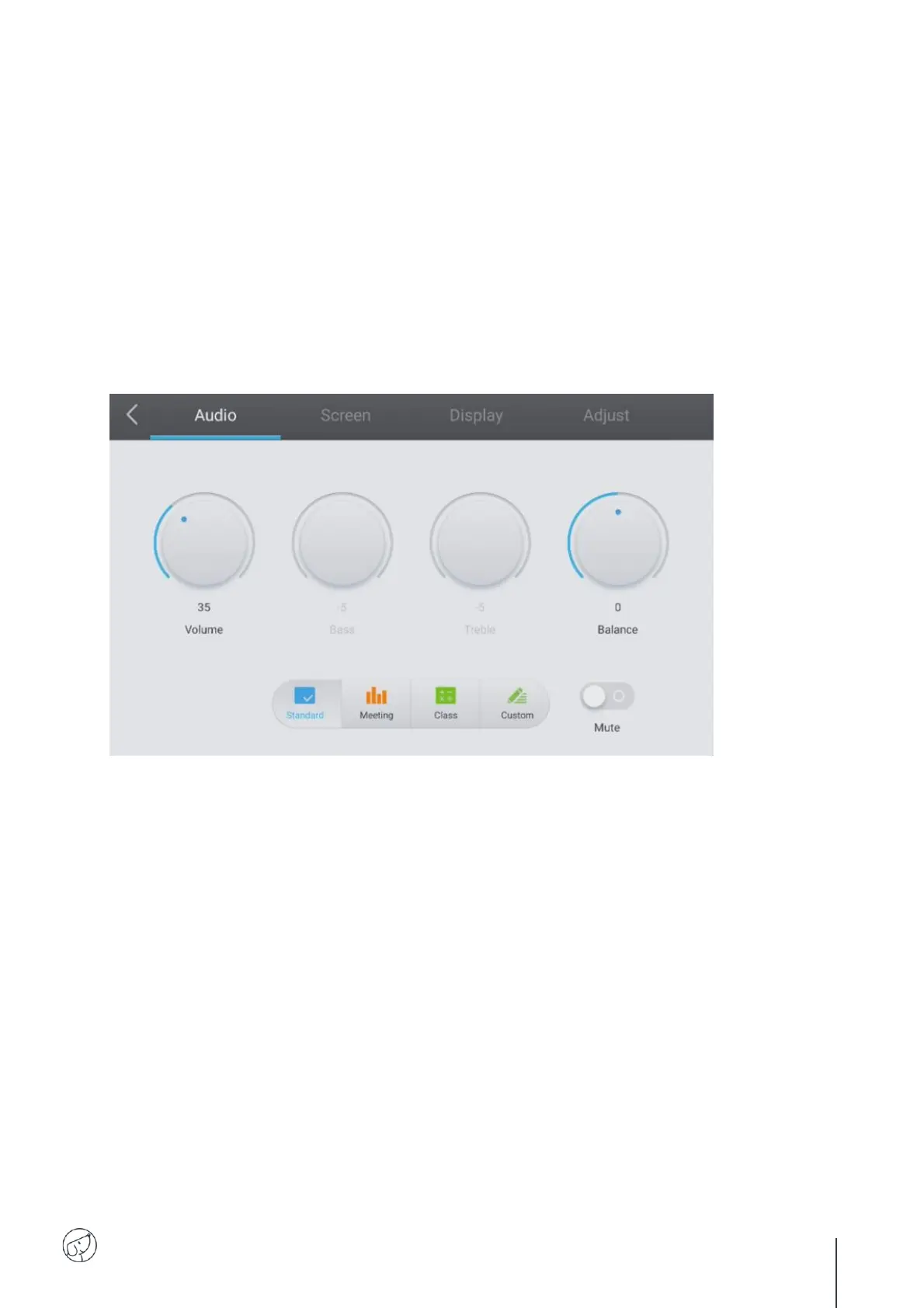
To fine-tune the sound, click on the "Audio" tab.
You can manage each of these parameters manually using their respective knobs:
Volume
Bass
Treble
Balance
You can also use one of the available presets:
Standard (by default)
Meeting
Class
Each corresponds to a predefined volume, bass, treble and balance setting, adapted to a particular
application.
Finally, you can choose to mute the sound by clicking on the "Mute" button.


 To Next Page