1
2
6
7
8
3
4
5
ISP Immersive Sound Processor
21
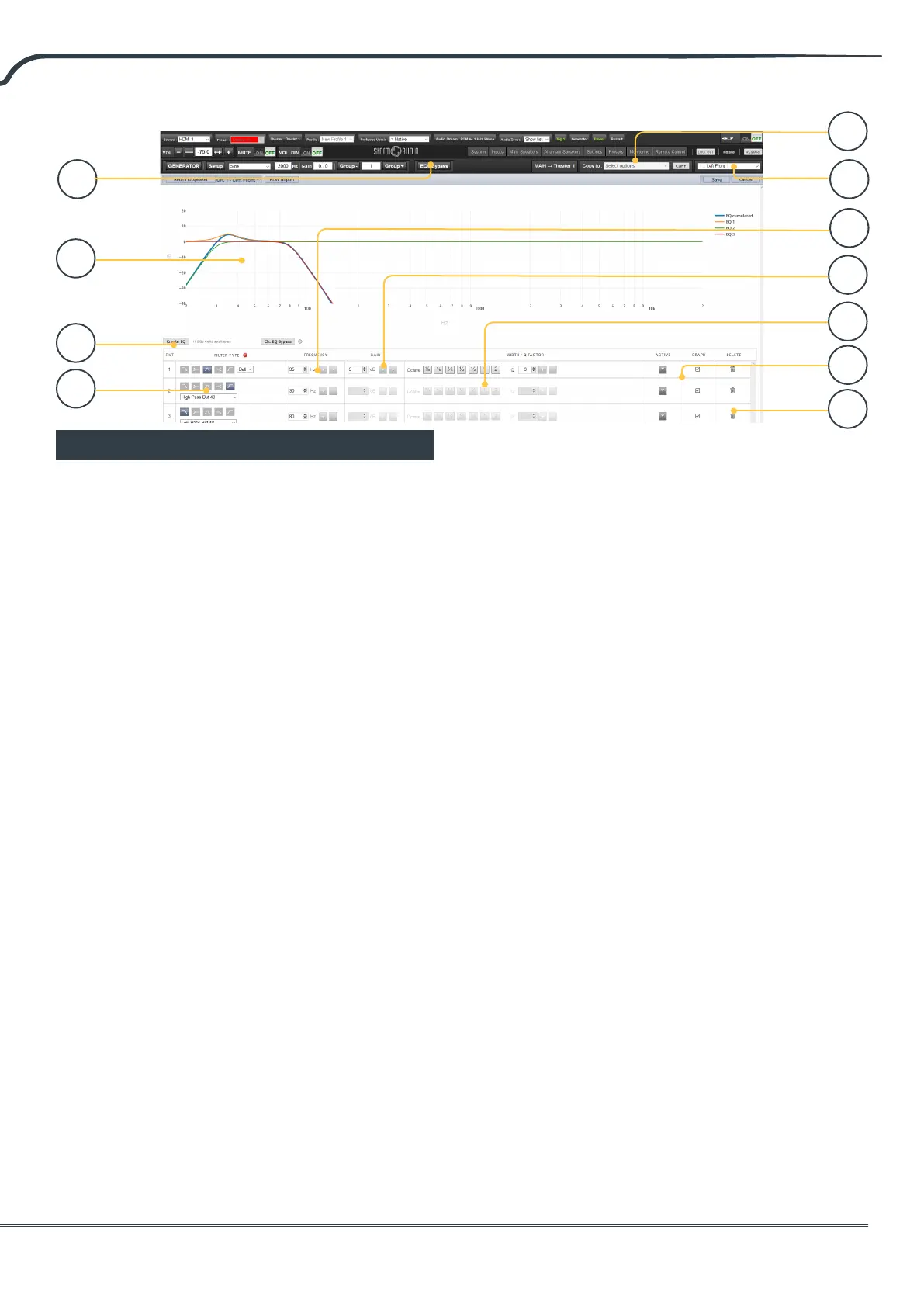
Channel EQ
Each channel can have up to 20 lters cells for
equalization, including additional crossover
capabilities.
1. EQ Bypass
When developing a custom set of EQ per
channel, it is sometimes helpful to bypass
the entire group of EQ to check your progress
against the starting point.
2. Graphical UI
The EQs dened are visualised in a graphical
window. Individual and combined EQ curves
are shown, providing an instant understanding
of EQ impact on the correction curve.
3. Create EQ
To design EQ curves for any channel, you need
to add EQ denition line using the Create EQ
button (3).
4. Filter Shape
Each lter must begin with a variation of one of
5 types.
• Low Pass: Continuously declining output above a
cuto frequency at a dened rate.
• High Pass: Continuously declining output below a
cuto frequency at a dened rate.
• Bell: Band pass or cut lter with a dened center
frequency, boost or cut amount, and Q.
• Low Shelf: Boost or cut frequencies below a cuto
frequency by a xed amount.
• High Shelf: Boost or cut frequencies above a cuto
frequency by a xed amount.
For LPF and HPF choose a type and slope
amongst Butterworth (6dB / oct, 12dB / oct,
18dB / oct, 24dB / oct and 48dB / oct), Linkwitz
Riley (12dB / oct, 24dB / oct, 36dB / oct and
48dB / oct).
5. Delete
Unused EQ line can be removed using the Bin
button.
6. Status
In the course of designing your lter, you may
wish to measure or listen to progress compared
to the absence of that lter. Click Active “No” to
temporarily omit that lter from the aggregate
curve. Click “Yes” to activate it back. You can
also decide here whether it is shown in the
visualization curve by checking the Graph item.
7. Quality Factor / Bandwidth
Bell lters require that you specify a Q. High Q
aects a narrow bandwidth, and low Q aects
a wide bandwidth. You can enter this number
directly in the text box or increment/decrement
by the amount chosen in the header row using
the +/- buttons to the right. Or, click a fractional
or multiple octave button to automatically
calculate Q.
8. Gain
Bell and shelving lters require that you set
the amount of boost or cut. You can enter this
number directly in the text box or increment/
decrement by the amount chosen in the header
row using the +/- buttons to the right.
9
10
11



 To Next Page