22
9. Frequency
Each lter requires that a center or cuto
frequency be specied. You can enter this
number directly in the text box or increment/
decrement by the amount chosen in the header
row using the +/- buttons to the right.
10. Channel Select
Select the desired channel to equalize here.
11. Copy to Channel
You may wish to duplicate your lter set to
another channel without manually rebuilding
it for each identical channel. Select a channel
to copy the current lters to and click COPY.
Note that aer making any changes,
you must press the SAVE button near
the top right of the screen or you will
loose your changes.
1. REW import
The ISP oers the possibility to use external
Room Correction tool such as the Room EQ
Wizard (REW). REW oers very advanced
measurements and ltering capabilities where
you can dene equalization and measure the
eect in both time and frequency domain. This
gives a total exibility for ISP users to go from a
fully automated approach with Dirac Live to a
fully manual approach that REW oers.
To allow for importing lters dened in the
REW tool, you must make sure that you rst set
the REW tool for StormAudio ISP compatibility.
Once done, you can then do your EQ for each
channel and export the equalization to a “*.txt”
le.
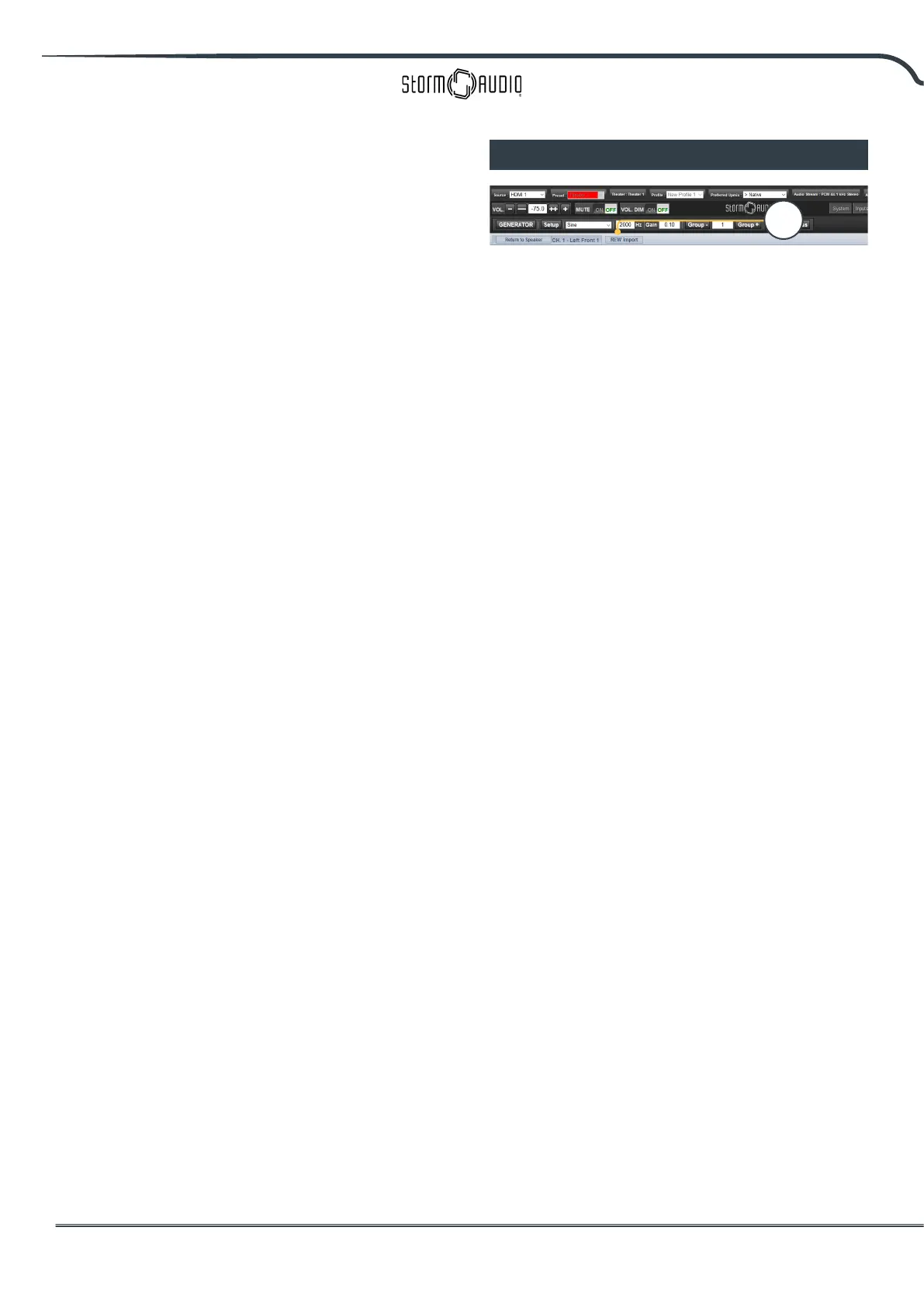
Select REW Import (1) and load the le
corresponding to the selected channel. The EQ
page will then be loaded with the REW dened
lters.
Note that you can dene up to 12x Parametric
EQ and 2x High Pass or Low Pass lters (up
to 48dB slope) in the REW tool with the
StormAudio compatibility mode.
Room EQ Wizard integration
1



 To Next Page