14
Building a Theater - Defining Channels
To assign analog outputs to particular channels,
you must build a theater. A theater may occupy as
few as 2 channels or as many as 16 or 32 depending
on the Optional module assembled. There are over
90 options for theaters. Any channels le over may
be assigned to secondary multi-channel theaters, 2
channel A/V zones, audio only zones, mono zones
or headphone zones. A physical output can only be
assigned to one theater or zone.
To assign channel outputs, you must rst build
a Theater or Zone. Theaters are multi-channel
systems. Zones are either 1 or 2 channel audio or
audio/video zones. Any theaters or zones created
appear to the right and are listed by their names
which you assign. By default, the ISP ships with a
2 channel theater congured. To build your own,
delete this theater and create a new one.
Click EDIT, then DELETE. Click OK to conrm. You
will be returned to the Main Speakers page.
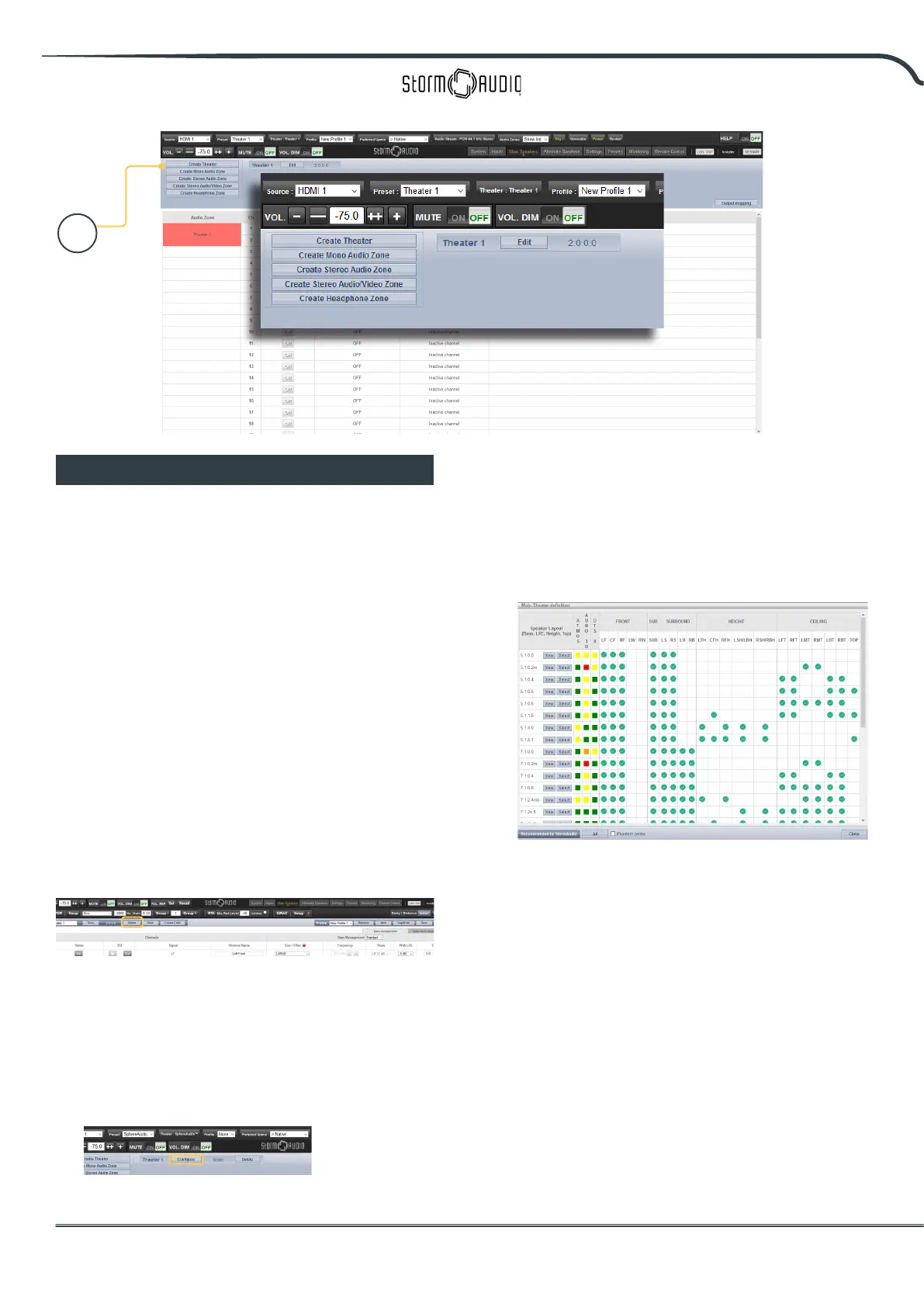
1. Create Theater
Click Create Theater to build your new theater.
Theater 1 will appear to the right of the Create
Theater button. Click Congure to proceed.
2. Select Speaker Layout
All possible loudspeaker layouts based on
available channel count are listed. A shorter
list “Recommended by StormAudio” is listed
by default and contains most commonly used
options. Click All to see all possible options.
Denitions are titled by channel count in the
following order, “Base Layer . LFE . Height
Layer . Top Layer”. For example, 9.1.0.6
would feature 9 ear level speakers, 1 sub
channel, 0 height speakers (common only
for Auro3D layouts), and 6 ceiling speakers.
For each denition, you can use the matrix to see
how compatible that layout is with each of the
3 codecs and which possible speaker locations
are occupied. To reduce ambiguity, you can also
click VIEW to see the layout visualized in a room.
1



 To Next Page