32
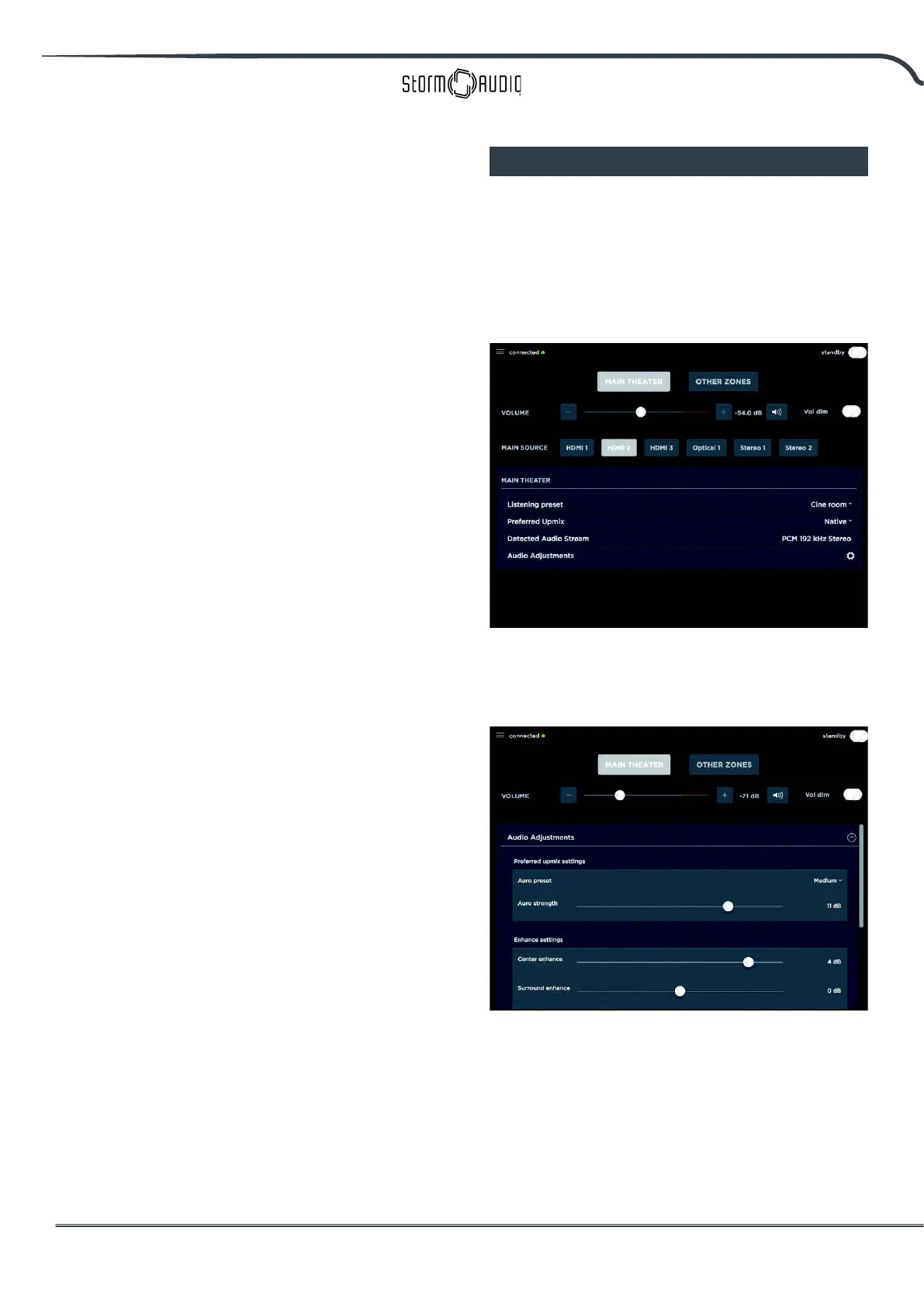
7. Temporary Audio Adjustments
Even though you may have meticulously
calibrated the theater in Main Speakers settings,
some material may sound best with slight
adjustments. Adjustments here are temporary
and reset to 0 with each change of Preset.
• Center Enhance: Adjust the level of the center
channel between -6 and +6dB in 1dB increments.
• Surround Enhance: Adjust the level of the surround
channels between -6 and +6dB in 1dB increments.
• Sub Enhance: Adjust the level of the subwoofer
channels between -6 and +6dB in 1dB increments.
• Bass: Tone control to adjust the bass level in the
entire theater using both the subwoofer and main
channels between -6 and +6dB in 1dB increments.
• Treble: Tone control to adjust the treble level in
the entire theater between -6 and +6dB in 1dB
increments.
• Brightness: Tilt the tonal balance of the presentation
towards darker timbre (negative gures) or brighter
timbre (positive gures).
• Lipsync: Temporarily adjust lip sync delay to
accommodate some sources. Note that this is also
reset every time a new input is selected, so if you
nd yourself regularly setting this to the same gure,
adjust the delay either per source (“8. AV Delay” on
page 13) or for the entire theater (“Audio/Video
General Delay per AV Zone” on page 28).
8. Zone Control
Within the conguration for each preset, you
may select auxillary zones which may be
enabled. If zones are enabled for the currently
selected preset, you may choose them from
the dropdown menu and individually adjust
volume, bass, treble, EQ (except for Downmix
zone), mute for each A/V and Headphone zones,
also include a temporary lipsync adjustment. A
secondary input can be selected for the Zone2
auxiliary audio zones (9), dierent from the
Main Theater input. For each Zone it is possible
to then select either the Secondary Zone2
source or the source currently playing in the
Main Theater.
iPad App
Apple iPad users can download the app called
StormRemote from the App Store and control
their ISP using features identical to those found
in the web UI remote control. Once the app is
downloaded, enter the IP address of the player in
the setup screen and press Connect.
Touch one of the 5 icons at the bottom of the screen
to access features found in the web UI remote
including the Main Theater control as shown below.



 To Next Page