ISP Immersive Sound Processor
31
1
2
4
5
6
7
8
3
Web UI Remote Control
Using the recommended web browser on your
laptop, one can access the remote control. When
not logged in as an expert user or installer, the
remote is accessible as well, but the header (above
Main Source) is not visible. The web UI remote
control is best used with a computer or tablet. It
can be used with a mobile phone, but items do
not properly t the screen. iPad users can also
download the iPad app from the App Store.
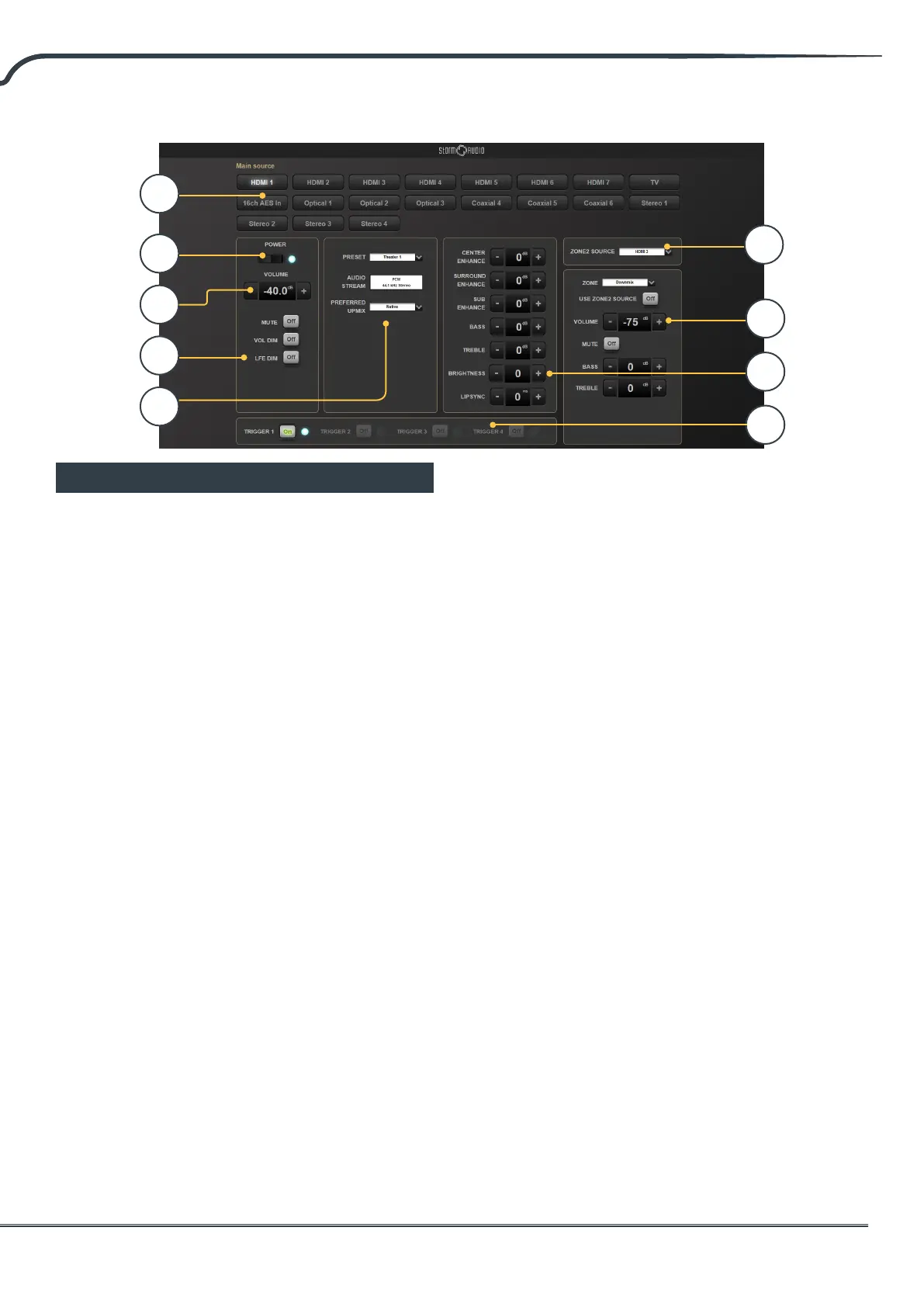
1. Input Select
Any inputs enabled on the Inputs setup page
will appear here titled according to your
setup. See “Input Settings” on page 12. The
currently selected input will be highlighted in
grayed. Tap any input to select it.
2. Power
Toggle the standby/ON status by pressing this
button.
3. Main Volume
Adjust the volume in the currently selected
theater by pressing the +/- buttons. One press
is a 1dB increment.
4. Mute / Dim / LFE Dim
This section contains easy access to select
features.
• Mute: Cuts sound to the currently selected theater.
• Vol Dim: Immediately attenuates volume by the
amount specied in “Parameters” on page 28.
• LFE Dim: In some cases, movies encoded with
Dolby may have bass that appears to be too loud.
Use LFE Dim to attenuate the LFE channel by -10dB.
5. Preset & Audio Decoder Options
• Preset: Use the Preset dropdown menu to select
the desired preset. Remember that Preset includes
activating a specic theater, so if your ISP includes
multiple theaters, you should have presets available
for each. See “Presets” on page 29.
• Audio Stream: Indicates real time information
about the incoming audio of the selected source.
• Preferred Upmix:
• Native plays audio back in the recorded format
and/or channel count according to the source
material. Stereo Downmix will downmix surround
material to 2 channel played through front le and
right (and sub if loudspeakers are congured as
Small or Large and Sub) loudspeakers only.
• Dolby Surround, DTS Neural:X and Auro-Matic will
force any legacy surround audio into one of these 3
formats. Immsersive source audio will be rendered
natively and this selection will be grayed out.
• DRC: Dynamic range control for Dolby and DTS
streams. On will reduce the range of volume levels
on the soundtrack by compressing the loudest
sounds. Auto will engage DRC when directed to by
the soundtrack.
6. Triggers
Any triggers congured for Manual Switching
(see “Triggers” on page 27) will have a button
available here. Clicking one of these buttons will
toggle the trigger and therefore the connected
device.
9



 To Next Page