4
Front Panel
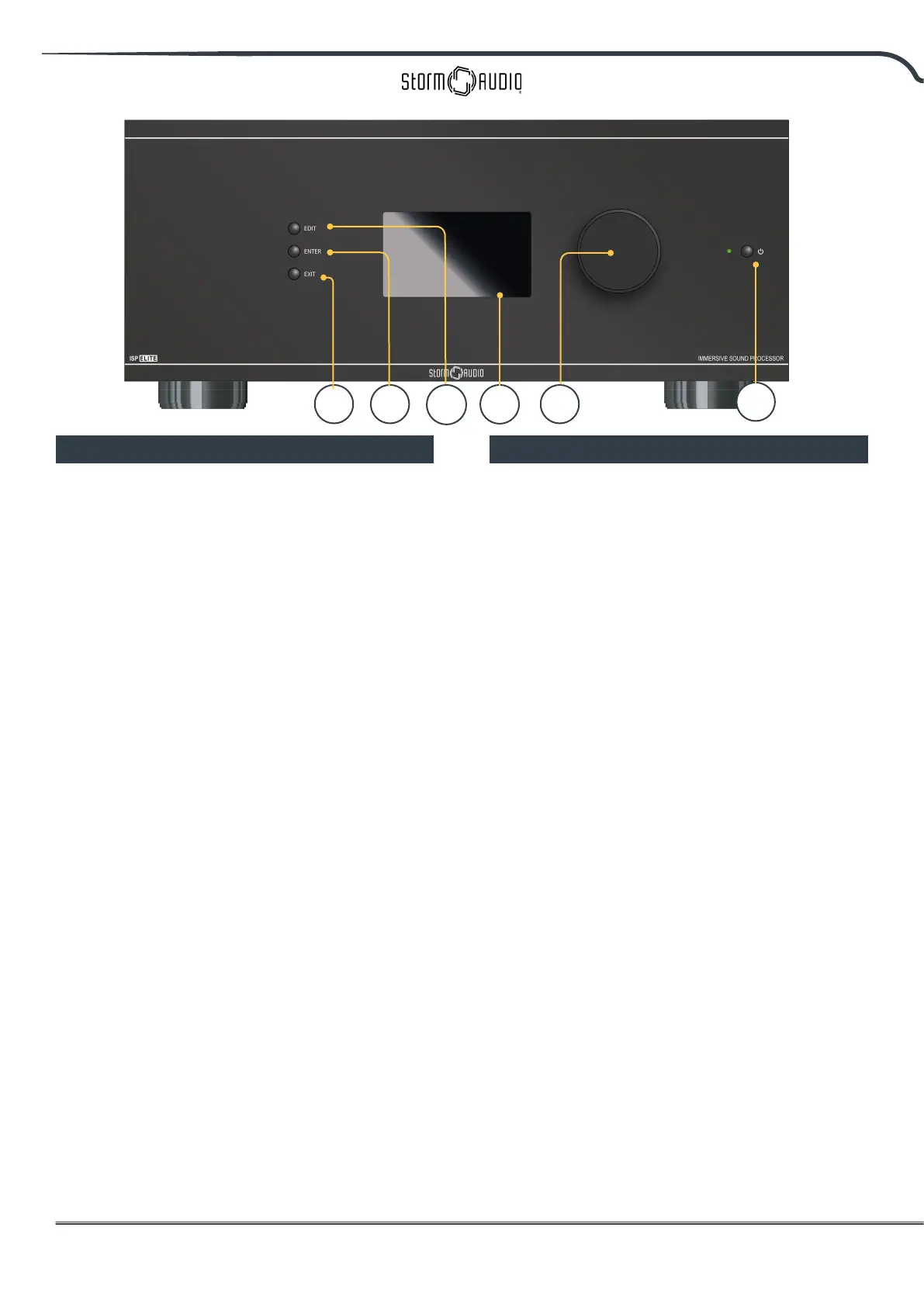
1. Power Button
Use this button to toggle the ISP between ON
and STANDBY. Note that the rear panel switch
must be on for the unit to operate.
2. Exit
When navigating the front panel menu, press
Exit to go back.
3. Enter
When navigating the front panel menu, press
Enter to conrm a selection.
4. Edit
Press Edit from the home screen to enable state
changes in the ISP. Use the Volume combo
knob to navigate.
5. Display
The front panel display shows various
information about the unit. It is not a touch
screen. Various parameters can be set according
to instructions “Front Panel” on page 28.
6. Volume
The default state for the knob is to control
volume in the selected theater. Press the knob
to mute audio. When in Edit Mode, you can use
the knob to navigate between elds.
Rear Panel
7. HDMI
7 HDMI inputs and 2 outputs are available, with
two versions “7+2” or “7+2 eARC”.
• 7+2 eARC: All HDMI inputs and outputs are
HDCP 2.2 /HDMI 2.0 compatible. Outputs
are mirrored. HDMI Output 1 is eARC and
ARC capable.
• 7+2: All HDMI inputs are HDCP 2.2
compatible, but only inputs 5-7 operate at
HDMI 2.0 speeds by default. Outputs are
mirrored. HDMI OUT 1 is 1.4a compatible.
HDMI OUT 2 is HDMI 2.0 4K compatible.
See “Specications” on page 33.
8. Power Inlet / Fuse Socket / Mains
Switch
Mains power is applied to the ISP here. Ensure
the fuse installed matches requirements of
your locality. The rear panel switch must be ON
for the unit to operate.
9. Network
The ISP must be connected to a network for
setup. It is recommended to be connected for
operation. Speed is 100 Mbps. Use CAT5e or
better cable.
10. USB
Two USB ports are provided to which a USB
microphone may be optionally connected RTA
function. Or, the USB ports may be used for
service.
1
2 3
4
5
6



 To Next Page