20
Multi-way Loudspeaker Setup
During the initial Theater Denition setup, you
have the option of dening the front LCR speakers
as multi-way. Doing so will assign 2 or 3 output
channels to each speaker instead of 1. In this
conguration, more than 1 amplier channel will
be used per loudspeaker, and the ISP will perform
the crossover function for each loudspeaker.
All settings in the Bass Management section
detailed in “Individual Channel Adjustments” on
page 17 and “Expert Bass Management” on page
19 also apply and will not be covered again here.
This section only describes the dierences notable
for multi-way loudspeaker conguration.
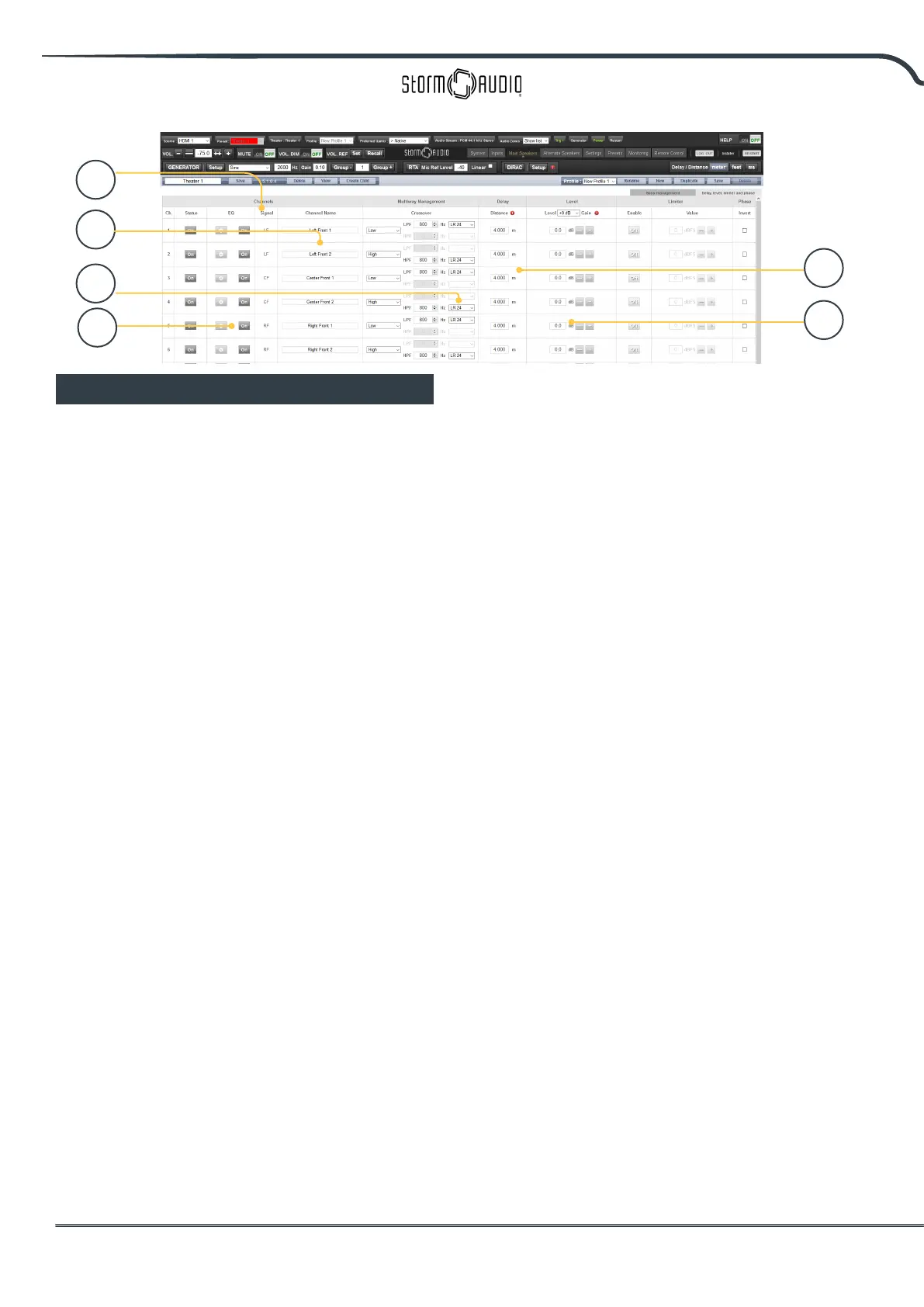
1. Signal
Note that in this example (Le Front is a 3-way
active loudspeaker), Each of the rst 3 channels
receives the same Le Front signal.
2. Channel Name
By default, the channel names are named by
the signal they receive and proceeded by a
sequential number. For clarity, you may wish
to rename these according to the signal they
reproduce e.g. Le Front High, Le Front Mid,
Le Front Low.
3. Multi-way Management
Use this section to lter the signal for each
section.
• Section: Choose whether each channel reproduces
Full Range, Low Pass Filtered, Middle (band pass), or
High Pass Filtered audio. Two-way speakers will not
have Middle option.
• Crossover Frequency: When the section is chosen
as anything other than Full Range, set the crossover
frequency for the Low and High Pass lters for each
section.
• Slope: For each lter, select a slope. Options are
Butterworth (6dB / oct, 12dB / oct, 18dB / oct, 24dB
/ oct and 48dB / oct), Linkwitz Riley (12dB / oct, 24dB
/ oct, 36dB / oct and 48dB / oct).
4. Delay
Set the delay of each section. For active multi-
way loudspeakers, it may be helpful to do this
in milliseconds and measure time-of-arrival
dierences at the crossover point when using
LR or BT6 lters to time align each section of a
multi-way loudspeaker.
5. Level
Active multi-way loudspeakers almost certainly
have dierent sensitivities per module. Set the
relative level of each here. When possible, use
0 as the maximum gure and attenuate other
channels to match the loudest channel. You
can also set global makeup gain for the entire
theater as described in “20. Level” on page
18.
6. Channel EQ
For each channel, you can adjust EQ by selecting
the Wheel. EQ can be bypassed to compare
with and without equalization selecting On or
O.
Note that aer making any changes,
you must press the SAVE button near
the top right of the screen or you will
loose your changes.
1
4
5
2
3
6



 To Next Page